
Secure Printing and Scanning: Closing One of the Most Overlooked Data Leaks in Traditional Offices
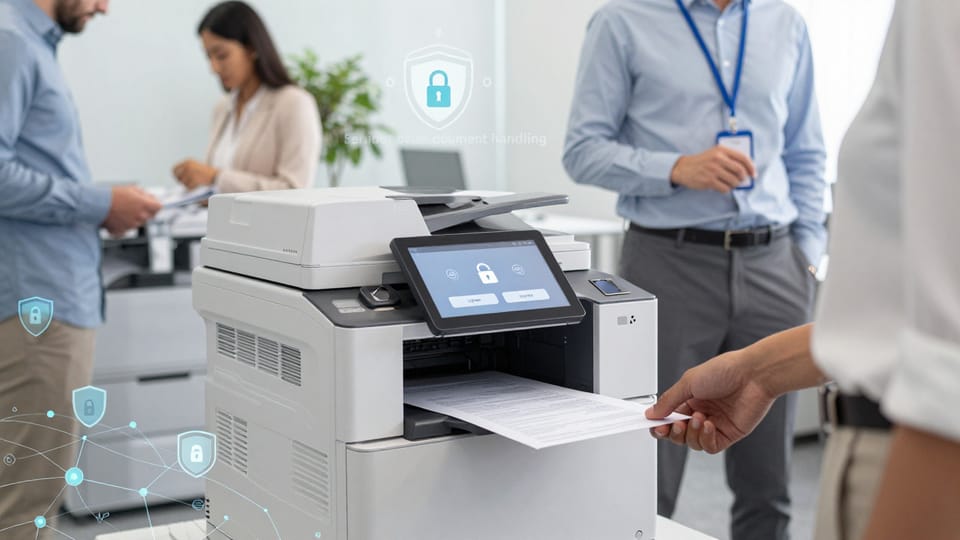
In many organizations, printers and scanners are treated like glorified office appliances: plug them in, connect them to the network, and forget about them. From a security perspective, that mindset is dangerous.
For small to mid-sized businesses, printing and scanning workflows often handle the very documents that matter most—HR records, financial reports, contracts, and customer data. Yet these workflows are rarely governed with the same rigor as laptops, servers, or cloud apps.
This post explains why printing and scanning are significant but underestimated security risks, and offers practical, realistic measures to secure them—without fearmongering or unnecessary complexity.
1. Problem Overview: Why Print and Scan Workflows Matter
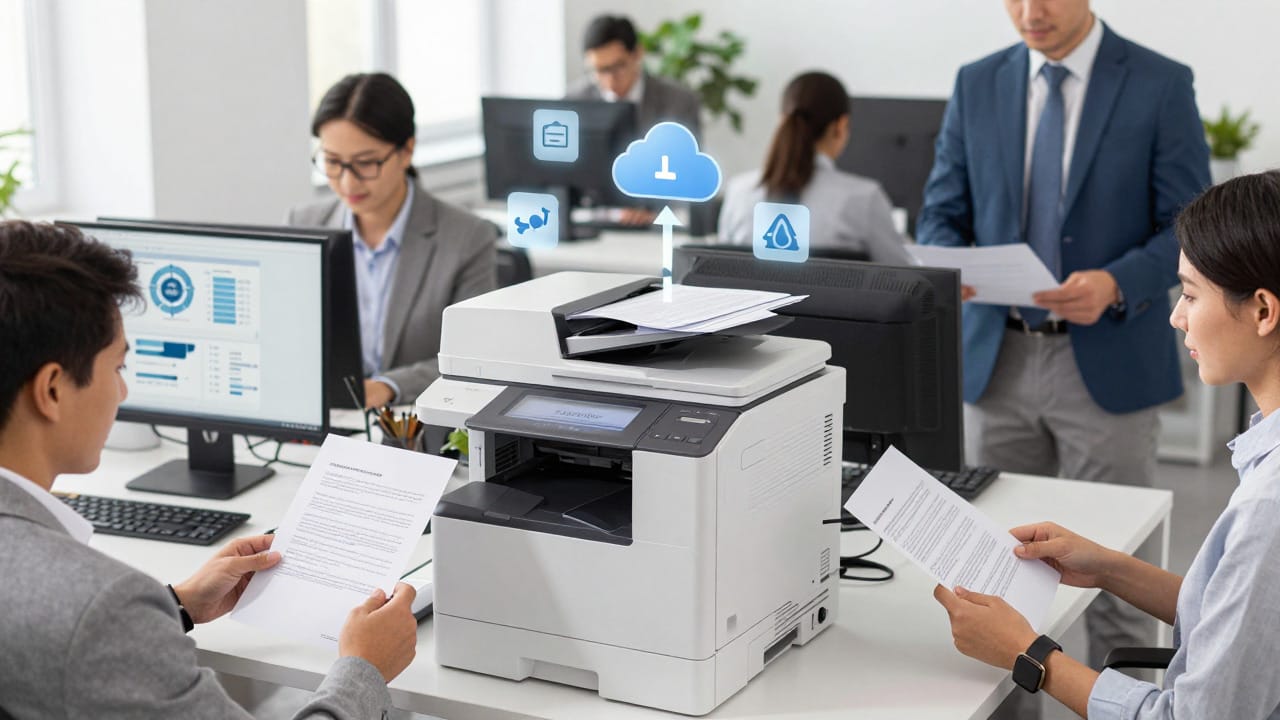
How printers and scanners expose sensitive data
Modern multifunction printers (MFPs) and network scanners are effectively small computers:
- They have operating systems and firmware.
- They store data in memory and on hard drives.
- They are reachable over your network, sometimes from the internet.
- They process high-value information daily.
Typical sensitive documents that pass through them include:
- HR and payroll records
- Financial statements and internal reports
- Legal contracts and dispute files
- Medical or insurance documents (see our healthcare cybersecurity tips for small clinics)
- Customer lists and invoices
- Internal strategy documents and board papers
Despite this, print and scan workflows often receive minimal security oversight.
Physical vs digital risks
Security issues fall into two broad categories:
Physical risks
These are visible, day-to-day behaviors and conditions:
- Uncollected printouts
Users print documents and forget to pick them up. Sensitive pages sit on the output tray where anyone walking by can see or take them. - Documents left on trays or around devices
People collect their main document but leave behind extra pages, cover sheets, or misprints containing confidential information. - Trash and recycling bins
Printed materials are thrown away or put in recycling without shredding. Cleaning staff, visitors, or even passers-by (if bins are outside) may access them. - Unlocked offices or shared areas
Printers in corridors, reception areas, or shared offices may expose documents to unauthorized staff, visitors, or contractors.
Physical risks are often low-tech but high-probability: they happen every day. If your office will be unattended during holidays, follow our essential holiday checklist for safeguarding business data.

Digital risks
Digital risks are less visible but can be just as serious:
- Data stored on printer hard drives
Many MFPs store print jobs, scan images, address books, and logs on internal hard drives or SSDs. Without encryption and proper wiping, those drives can leak data during repair, resale, or disposal. - Insecure network connections
Printing and scanning often use network protocols. If those connections are not encrypted, data can be intercepted on the network. - Unpatched firmware
MFPs, like any networked device, can have vulnerabilities. If firmware is not updated, attackers may exploit them to gain access or pivot further into your network. - Unencrypted scan-to-email / scan-to-folder
Scanned documents sent via unsecured email or copied to open file shares can be intercepted or accessed by unauthorized users.
In short: printers and scanners are both physical document endpoints and networked IT assets. Securing both aspects is essential.
2. Common Vulnerabilities in Real Offices
Typical insecure configurations and behaviors
Here are some of the most common, realistic issues in small and mid-sized organizations:
- “Print and forget” behavior
- Users send large print jobs, get distracted, go into meetings, or work from another location.
- Sensitive documents remain on trays or sit in output bins for extended periods.
- In shared offices, staff may collect each other’s printouts, or misdirected documents may travel between departments.
- Default or weak admin passwords
- Many printers and scanners ship with default admin credentials (e.g.,
admin/adminor printed on a label). - These are seldom changed during deployment.
- Anyone who finds or guesses these credentials can:
- View print/scan logs
- Change configurations
- Divert scans to different email addresses or folders
- Potentially install malicious firmware (depending on the device)
- Many printers and scanners ship with default admin credentials (e.g.,
- Open network ports and unsecured print protocolsCommon patterns:
- Printing over HTTP (unencrypted web interfaces) or plain-text protocols.
- IPP, LPD, RAW (port 9100) printing left open to all network segments.
- Scan-to-folder using SMB shares that:
- Allow anonymous or overly broad access
- Are reachable from large portions of the network
- Remote management interfaces enabled and accessible from guest Wi-Fi or the internet.
- Logs and cached images stored without proper wiping
- MFPs may store:
- Copies of recent print and scan jobs
- Fax images
- Address books and user credentials (e.g., for scan-to-email or scan-to-folder)
- If devices are replaced, sent for repair, or leased equipment is returned without secure erasure, the new owner or a third party could recover this data.
- MFPs may store:
Compliance and regulatory context
Depending on your industry and region, print/scan workflows may affect:
- GDPR (EU personal data)
- HIPAA (US healthcare data)
- PCI-DSS (payment card data)
- Other local data protection and sector-specific regulations
Most frameworks don’t mention “printers” explicitly but require controls such as:
- Limiting access to personal or sensitive data
- Protecting data in transit and at rest
- Logging and auditing access to such data
- Secure disposal of devices and media
Unsecured print and scan workflows can therefore become gaps in an otherwise compliant environment. For SMEs in Singapore, see our PDPA guide for 2025 for practical steps that also cover print/scan data handling.

3. Technical Security Controls (in Business-Friendly Terms)
The good news: modern MFPs and print management solutions often include robust security features. The challenge is enabling and configuring them properly.
3.1 Secure / pull printing
What it is:
Instead of sending a document directly to a specific printer, users send jobs to a central queue. The job is only released when the user authenticates at the printer (e.g., with a badge, PIN, or username/password).
Benefits:
- Eliminates uncollected printouts on trays.
- Prevents others from seeing or taking your documents.
- Enables “follow-me” printing (users can release jobs on any authorized device).
How it works (simplified):
- User prints to a virtual queue.
- Job sits encrypted on the print server or device.
- User walks to any enabled MFP and authenticates (badge/PIN).
- Device releases only that user’s jobs.
Availability:
- Widely available on modern business-class MFPs and via third-party print management software.
- Older or very basic printers may not support pull printing; these may need to be isolated or replaced for sensitive workloads.
3.2 User authentication and role-based access control (RBAC)
User authentication requires users to identify themselves at the device (e.g., PIN, card, or directory login) before using functions like print, copy, scan, or fax.
Role-based access control lets you define who can do what:
- Standard users: print and basic scan.
- HR/Finance: scan to certain folders, print confidential reports.
- Admins: device configuration and maintenance.
Benefits:
- Ensures only authorized employees can access certain features or destinations.
- Enables meaningful audit logs (who printed/scanned what and when).
- Reduces misuse (e.g., personal bulk copying, scanning sensitive data to personal email) — patterns that often fall under shadow IT.
Availability:
- Common in mid-range and enterprise MFPs.
- Integration with existing user directories (e.g., Active Directory) is often supported.

3.3 Data-at-rest and data-in-transit encryption
Data-at-rest encryption (printer hard drives)
- Many MFPs support encrypting their internal storage.
- If someone steals or recovers the drive, data on it is unreadable without the key.
- Some devices also support automatic or scheduled secure erase of temporary data.
Data-in-transit encryption
Protects documents as they travel across your network:
- TLS for printing: Encrypts print jobs between client and print server or printer.
- Secure scan-to-email: Uses encrypted email protocols (e.g., SMTPS, TLS).
- Secure scan-to-folder: Uses secure versions of file-sharing protocols or connects only over secure, internal networks.
Benefits:
- Prevents eavesdropping on the network (especially important on Wi‑Fi, shared networks, or when traversing untrusted segments).
- Aligns with best practices in frameworks like NIST and ISO 27001.
Availability:
- Standard on most modern business-class devices.
- Older devices may support only unencrypted protocols—these should be restricted, segmented, or phased out.
3.4 Firmware updates and patching
MFPs run firmware—essentially the device’s operating system. Vendors occasionally release updates to:
- Fix security vulnerabilities.
- Improve encryption support and protocols.
- Fix bugs and stability issues.
Practical approach:
- Subscribe to vendor security bulletins or use your MSP/IT partner to monitor.
- Establish a schedule to check for and apply updates (e.g., quarterly, or when critical patches are released).
- Test firmware updates on one device (if you have multiples) before broad rollout.
3.5 Network segmentation and restricted VLANs
Network segmentation means placing devices into network “zones” with controlled communication between them (e.g., via VLANs and firewalls).
For printers and scanners:
- Place MFPs into a dedicated VLAN.
- Allow only necessary traffic from print servers and authorized client networks.
- Block access from guest Wi‑Fi and untrusted segments.
- Restrict outbound connectivity (printers should not freely reach the internet unless required for cloud services).
Benefits:
- Limits the blast radius if a printer is compromised.
- Prevents printers from being easy pivot points into sensitive systems.
- Simplifies monitoring: unusual traffic to or from the MFP VLAN is easier to detect.
Availability:
- Requires support from your network switches/firewalls, but no special printer features.
- Very old or unmanaged network gear may limit how granular you can be; consider this in your longer-term roadmap.

4. Process and Policy Measures
Technology alone isn’t enough. Staff behaviors and organizational policies must support secure printing and scanning.
4.1 Clear printing and scanning policies
Define and document:
- What may/may not be printed or scanned
- Example: Highly sensitive data (e.g., certain financial or legal disclosures) may have extra approval or may only be printed on secure devices.
- How to handle printed outputs
- Retrieve documents immediately.
- Do not leave them on trays, desks, or conference rooms.
- Use secure bins or shredders for disposal.
- Where documents can be scanned to
- Approved email domains only (no personal email).
- Approved network folders with proper access controls.
- Use of home or remote printers
- Define when it is allowed and what data may not be printed outside controlled offices.
Policies should be concise and practical, not theoretical. For broader policy-building tips, see the role of IT policy documentation in scaling your business.
4.2 Staff training and awareness
Focus on easy-to-understand points:
- Why print and scan security matters (with concrete examples relevant to your organization).
- The risks of “print and forget”.
- How to use secure/pull print (if implemented).
- How to recognize sensitive documents (e.g., HR data, financials, customer information).
- Where to report suspicious behavior (e.g., unexpected documents on trays or strange messages from printers).
Short, periodic refreshers (e.g., part of general security awareness) are usually more effective than long, one-off sessions. For a quick primer, see our guide on empowering non‑IT staff to spot security risks.

4.3 Regular audits of print logs and configurations
Implement periodic checks:
- Print logs (from printers or central print servers/solutions):
- Look for unusual volumes, printing outside normal hours, or print jobs to unexpected destinations.
- Device configuration:
- Confirm admin passwords are not defaults.
- Confirm secure protocols are enabled and insecure ones disabled, wherever possible.
- Verify firmware versions and last update dates.
- Review and validate scan destinations (email addresses, network folders).
Schedule audits at least annually; more frequently if dealing with higher-risk data. If you’re new to audits, this non-technical owner’s checklist can help..
4.4 Secure device decommissioning
When retiring, selling, or returning leased printers/scanners:
- Back up any needed configuration (e.g., address books) in a secure way, then delete it from the device.
- Use built-in secure erase/wipe functions (if available) to clear:
- Hard drives or SSDs
- Persistent memory
- If secure erase isn’t available or can’t be validated:
- Physically remove the storage drive and follow your organization’s media destruction policy (e.g., shredding or certified destruction).
- Maintain records of decommissioning and destruction to support internal governance and compliance requirements.
For a full process from procurement to secure disposal, see our IT asset lifecycle management guide for SMEs.

5. A Practical Implementation Roadmap
You don’t need to do everything at once. Here’s a realistic phased approach for small to mid-sized organizations.
Step 1: Inventory all printers and scanners
Create a simple register including:
- Device model and location.
- Network connectivity (wired, Wi‑Fi, remote).
- Whether it has:
- Hard drive/SSD
- Fax capability
- Network scanning features
- Who uses it (department, typical users).
- For remote work:
- Identify if staff are printing to home printers (for secure, remote‑ready setups, see our post‑pandemic SME guide).
- Identify any cloud-based print/scan solutions in use and ensure they are vetted (how to vet third‑party app integrations).
Step 2: Assess current risks and configurations
For each device (or type of device), check:
- Are admin passwords default or weak?
- Are web interfaces and management ports exposed widely?
- Does it support encryption (storage and network)?
- Are secure/pull printing and user authentication available but disabled?
- Where do scans go (email accounts, shared folders, cloud apps)?
- What firmware version is installed, and when was it last updated?
- Is the device in a dedicated VLAN or just on the general office network?
This doesn’t require deep technical deep-dives—just structured observation and basic checks.
Step 3: Prioritize quick wins
Focus on low-effort, high-impact changes first:
- Change all default admin passwords
- Use unique, strong passwords per device or per group of devices.
- Restrict admin access to IT and a small group of authorized staff.
- Limit access to management interfaces
- Restrict web and management ports to IT subnets.
- Disable remote administration from guest Wi‑Fi and external networks.
- Enable secure transmission where supported
- Turn on HTTPS/TLS for web interfaces and printing.
- Configure secure scan-to-email (TLS) and secure scan-to-folder where possible.
- Implement simple user authentication (if supported)
- Even a basic PIN or username/password login at the device is better than open access.
- Start with high-risk devices (e.g., those used by HR, Finance, or Legal).
- Communicate basic behavior changes
- “Collect your printouts immediately.”
- “Use secure bins/shredders for sensitive documents.”
- Short internal memo or intranet post is often enough to begin with.

Step 4: Plan for medium-term improvements
Over the next 6–12 months, consider:
- Secure / pull printing rollout
- Pilot with one department, gather feedback, then expand. Here’s how to roll out new IT systems to non‑tech staff without chaos.
- Integrate with badges or existing identity systems to minimize friction.
- Network segmentation
- Place printers/scanners into a dedicated VLAN.
- Tighten firewall rules so only print servers and authorized client networks can reach them.
- Centralized print management
- Implement a solution (or enhance an existing one) that:
- Provides pull printing.
- Logs and reports print activity.
- Simplifies policy enforcement and auditing.
- Implement a solution (or enhance an existing one) that:
- Standard configuration templates
- Define standard secure configurations per device type.
- Use these when deploying new devices or after resetting older ones.
Step 5: Long-term improvements and device refresh
As part of your normal hardware lifecycle:
- Phase out older or insecure devices
- Especially those that can’t:
- Encrypt storage
- Support secure protocols
- Enforce user authentication
- Especially those that can’t:
- Include security requirements in procurement
- Require:
- Data-at-rest and data-in-transit encryption.
- Strong authentication and RBAC.
- Regular, vendor-supported firmware updates.
- Require:
- Integrate with broader security governance
- Treat printers and scanners as part of your IT asset inventory, risk register, and incident response plans.
- Include them in periodic security reviews and audits.
Conclusion: Treat Print and Scan Like Any Other Critical System
Printers and scanners may not be as glamorous as cloud platforms or next-generation firewalls, but they see some of your organization’s most sensitive information every day.
By:
- Recognizing printers and scanners as both physical and digital risk points,
- Implementing straightforward technical controls (secure print, authentication, encryption, patching, segmentation),
- Backing them with sensible policies, training, and audits,
- Following a pragmatic, phased roadmap,
you can close one of the most overlooked data leak channels in traditional offices — without overburdening your team or your budget.