How to Choose a Password Manager for Your Company (and Roll It Out Without Pushback)
If you’re running IT or security for a small or mid‑size business, you’re probably fighting the same battles every week:
- Shared Excel files or Google Sheets full of passwords — an efficiency and risk red flag we cover in why spreadsheets become a business risk
- The same weak password reused across five critical systems
- “Can you reset my password?” tickets that kill your time
- Shadow IT accounts created with personal emails that nobody can access when staff leave
A business‑grade password manager won’t fix everything about identity security, but it does close one of the biggest and cheapest gaps: how employees create, store, and share credentials. For broader hygiene quick wins, see simple ways to improve password hygiene company‑wide.
The challenge isn’t just which password manager to pick. It’s how to roll it out in a way that doesn’t trigger eye‑rolling, quiet resistance, or yet another “security tool” that no one actually uses.
This guide walks through:
- How to evaluate and choose a business‑grade password manager
- A practical rollout plan that keeps friction and pushback low
- Concrete policies and training practices that improve security without overwhelming staff
1. Why Your Company Needs a Password Manager (and Why People Resist)
Most organizations that don’t have a proper password manager rely on some mix of:
- Spreadsheets (sometimes even shared over email or chat)
- Shared “team” email accounts with one password known by everyone
- Browser‑built‑in password managers tied to personal profiles
- Sticky notes, notebooks, or “I’ll just click reset” as a habit
The risks are well known:
- One leaked spreadsheet or email thread can expose multiple systems.
- Password reuse means a single breach (say, a SaaS tool) can lead to VPN, email, or finance compromise.
- Off‑boarding is painful: you don’t know what accounts exist, who has access, or what needs to be rotated.
- Shadow IT: staff sign up to tools with personal accounts and keep critical data there — classic SaaS sprawl; here’s how to rein it in.
A business password manager addresses those by:
- Generating strong, unique passwords for every account
- Storing them in an encrypted vault, accessible across devices
- Enabling controlled sharing of credentials between people and teams
- Giving IT visibility into access (who has what) without revealing the actual passwords
- Making off‑boarding and access revocation predictable instead of ad‑hoc
However, most pushback from staff falls into a few predictable concerns:
- “This is going to be too complicated.”
- “I’ll forget my master password and lose everything.”
- “IT will be able to see all my passwords now, right?”
- “I don’t have time to learn another tool.”
Your selection and rollout plan should be designed around these realities. The right product plus the wrong rollout still fails. Let’s start with choosing the right foundation.

2. How to Choose a Business‑Grade Password Manager
When you’re evaluating password managers, think like you’re choosing a core security control, not a convenience app. Below are the key areas to assess, with what “good” looks like.
a. Security Architecture
At minimum, you want:
End‑to‑end encryption / zero‑knowledge design
Your provider should encrypt data on the client side (user device) before it ever reaches their servers. They shouldn’t be able to decrypt it, even if they wanted to. That usually means:
- Your master password or key never leaves your device.
- The vendor can’t “reset” your master password and read your vault; instead they might offer recovery keys or organizational recovery mechanisms that you control.
Ask for a clear technical explanation of their encryption model. If you can’t find documentation that a reasonably technical person can read and understand, that’s a red flag.
Strong, well‑documented cryptography
Look for:
- Modern, battle‑tested algorithms (e.g., AES‑256, Argon2/bcrypt/scrypt for key derivation, strong random number generation).
- Details on how keys are derived and stored.
You don’t need to be a cryptographer, but you should verify they’re not using “home‑grown” crypto or outdated algorithms.
Independent security audits and certifications
The vendor should have regular third‑party security assessments, ideally:
- Penetration tests
- Public security audit reports
- Certifications such as SOC 2 or ISO 27001 (these don’t guarantee perfection, but do show maturity and process discipline)
A password manager that won’t share anything about independent testing is not a good fit for business use.
b. Compliance & Data Residency
Depending on your industry and geography, you may need:
- GDPR alignment (data processing agreements, lawful basis, breach notification commitments)
- HIPAA‑compatible practices for healthcare environments
- SOC 2‑aligned controls, if you work with customers who require it
Also consider data residency:
- Can you choose where your data is stored (e.g., EU, US, APAC)?
- Do they explain how backups and disaster recovery interact with residency requirements?
- For Singapore SMEs navigating local data‑protection rules, see our 2025 PDPA compliance guide.
You don’t necessarily need a “HIPAA password manager,” but you do need a vendor that fits comfortably into your legal and regulatory environment.
c. Access Control & Administration
For business use, this is where many consumer‑grade tools fall short.
Look for:
Role‑based access control (RBAC)
You should be able to delegate admin rights safely: global admins, billing admins, helpdesk roles, team admins, etc., not just “everyone is an admin or nobody is.”
Centralized admin console
You’ll want:
- A central place to manage users, groups/teams, vaults, and policies
- Integration with your identity provider (IdP) so accounts are provisioned and deprovisioned consistently
- Ability to enforce policies like: MFA required, password complexity, idle timeout, allowed devices/browsers
Fine‑grained sharing
You should be able to share:
- At the team level (e.g., “Marketing vault”),
- At the subset level (e.g., a “Finance – Payroll” vault separate from general finance),
- At the item level (e.g., a single credential with one user or vendor).
The goal is “minimum necessary access” without making your life as admin miserable.
Off‑boarding and emergency access / recovery
Good business tools give you:
- The ability to revoke access quickly when staff leave
- A way to reassign shared credentials or vaults to a new owner
- Organization‑controlled recovery options for work vaults, so a lost master password doesn’t kill a critical account
Make sure the recovery model respects privacy: work vaults might be recoverable by the organization, but personal vaults should not be.
d. SSO & MFA Support
To keep security high and friction low:
SSO / IdP integration
Look for direct integration with:
- Azure AD / Entra ID
- Okta
- Google Workspace
This lets you:
- Provision users automatically
- Use your existing login flow and policies
- Leverage your existing off‑boarding processes
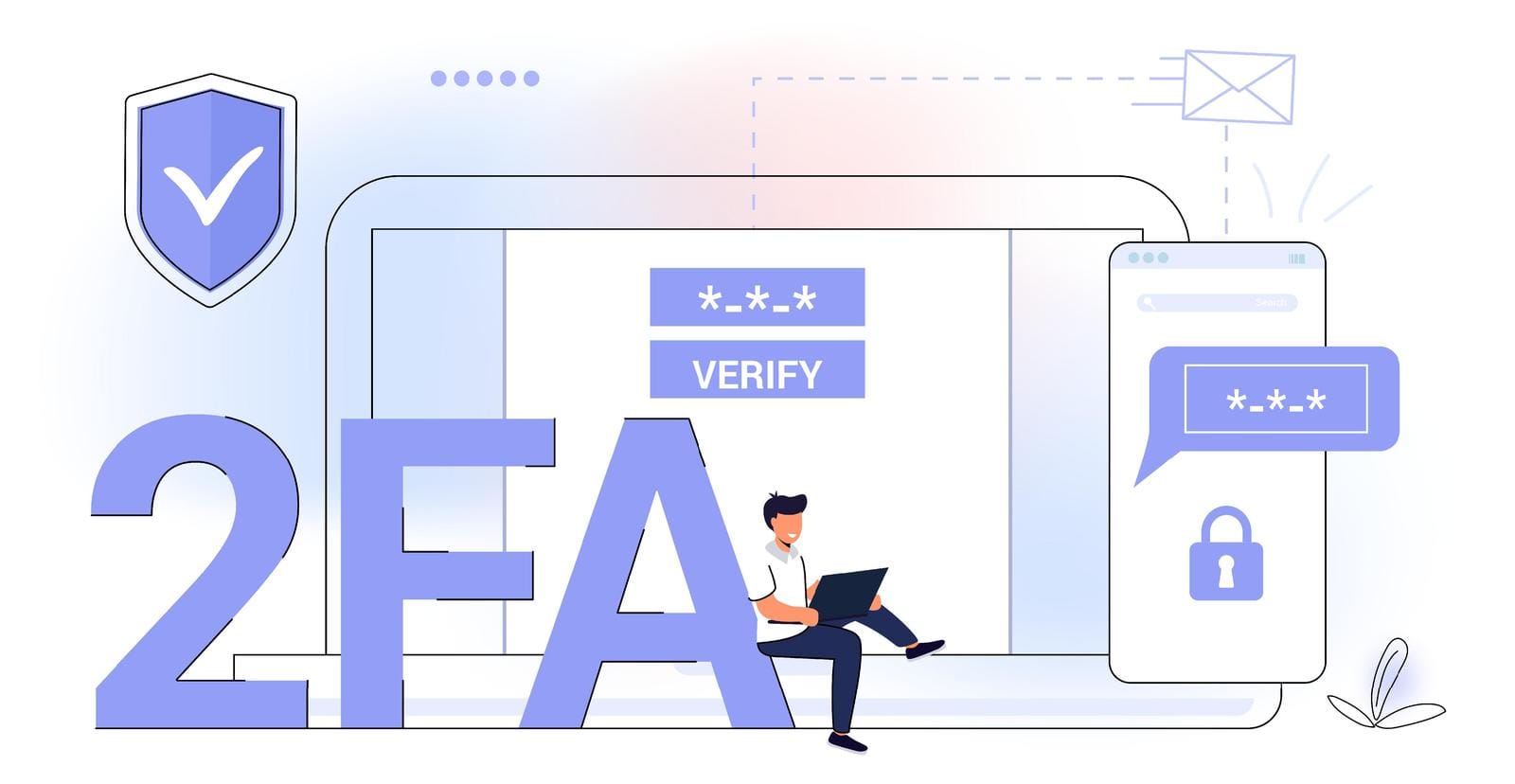
Multi‑factor authentication (MFA)
Your password manager should support:
- App‑based MFA (TOTP, push)
- Hardware security keys (FIDO2/WebAuthn) where possible
- Enforcement policies (e.g., “all admins must use hardware keys”)
Given that the master password protects access to all other passwords, MFA is non‑negotiable.
e. Usability & Adoption Factors
You can pick the most secure product in the world; if people hate using it, they’ll work around it.
Look for:
- Good browser extensions for major browsers, with reliable autofill (and the option to disable it where risk is higher).
- Mobile apps for iOS and Android, plus desktop apps or web apps for major platforms (Windows, macOS, Linux).
- A built‑in password generator that defaults to long, random passwords.
- Easy import from browsers, CSVs, and other password managers. This is critical during migration; if importing is a pain, adoption will lag.
If you’re coordinating across remote or hybrid teams, our guide to essential IT tools for managing remote teams in Singapore covers practical considerations that pair well with password managers. Before committing, run a small test: login to 5–10 of your most common apps on a test account. If it feels clunky, expect users to complain.
f. Audit & Reporting
For security and compliance, you need some level of visibility.
Good features include:
- Password health reports: overview of weak, reused, or breached passwords across the org.
- Activity logs: who accessed which shared vaults, who changed sharing permissions, failed login attempts, etc.
- Exportable logs or integrations with your SIEM for incident response.
You’re not trying to spy on individuals’ personal passwords. You are trying to confirm that risky behavior is trending down and that shared, high‑impact accounts are managed properly.
g. Vendor Reliability
You’re entrusting a core security function to this vendor. Do some due diligence:
- Incident response history: Have they had security incidents? If yes, did they handle them transparently and competently? Silence can be worse than an honest post‑mortem.
- Data breach history: It’s not just “have they ever had a breach?” but “what exactly happened, and what changed afterward?”
- Business continuity and backups: If their service goes down, what happens to your access? Is offline access possible? How do they back up data, and how quickly can they recover?
You want a vendor that behaves like a security company first, not a lifestyle app.
h. Pricing & Licensing
Compare:
- Per‑user vs. tiered pricing (e.g., minimum seats, volume tiers, add‑ons for SSO or advanced reporting).
- Differences between business, enterprise, and family/personal plans. Some vendors bundle family accounts for employees as a perk, which can improve adoption.
Be careful not to choose purely on price. A cheaper tool that lacks SSO, decent admin controls, or reporting will cost more in your time and risk.
i. What Not to Do: Don’t Rely on Browser‑Built‑In Managers
Browser password managers are helpful for individuals, but they’re not a company‑wide solution. They typically:
- Tie credentials to personal accounts or profiles
- Lack centralized admin, proper RBAC, or off‑boarding workflows
- Don’t support controlled, fine‑grained sharing
- Provide limited reporting and compliance support
They can still coexist—many password managers integrate with browsers—but they shouldn’t be your primary enterprise password management strategy.

3. Rollout Plan: From Pilot to Company‑Wide Adoption
Choosing a tool is only half the job. The other half is making sure people actually use it.
Below is a practical rollout plan you can adapt.
Step 1: Define Goals and Success Metrics
Before you start, write down what “success” looks like. For example:
- Reduce password reuse across the company by 80% in six months
- Enforce MFA for the password manager and for all critical systems stored in it
- Move all shared team logins (social media, vendor portals, generic accounts) into shared vaults
- Achieve 90% active use (logins in the last 30 days) among employees within three months
These goals guide your configuration, communication, and reporting. They also help you justify the project to leadership.
Step 2: Pilot with a Small, Mixed Group
Run a 2–4 week pilot before rolling out to everyone.
Include:
- IT / security staff who will own the configuration
- A handful of non‑technical staff from different departments (sales, finance, operations, etc. For broader change‑management tips, see rolling out new IT systems to non‑tech staff without chaos)
- At least one manager who cares about productivity and can give honest feedback
Ask them to:
- Use the password manager for their daily logins
- Import existing passwords from browsers or spreadsheets
- Try sharing a few credentials within their team
Collect structured feedback:
- What confused you?
- Where did it feel slower than your old way?
- What made it easier?
- What would you need (training, guides) to feel comfortable using this every day?
Use this to refine your setup and your training materials.
Step 3: Prepare Configuration & Migration
Before inviting the whole company, do some design work.
Design your vault/folder structure
Aim for something simple and intuitive, such as:
- A personal vault for every user (only they can see it)
- Team vaults for each department (e.g., “Finance,” “Marketing,” “Operations”)
- Special‑purpose vaults for sensitive functions (e.g., “Infrastructure – Admin,” “Finance – Payroll”)
Assign ownership and access rights carefully. Default should be “least privilege,” but avoid making it so locked down that teams can’t work.
Plan migration
Decide, and document:
- Which existing sources you’ll migrate from (browser stores, spreadsheets, other tools)
- What’s IT’s job vs. what’s each user’s job
- How to handle high‑risk credentials—like admin logins—to ensure they’re moved into the appropriate restricted vault
You don’t have to migrate everything at once. Often it’s enough to:
- Move shared/team logins and high‑value credentials centrally
- Ask users to import browser‑saved logins themselves with a guided, simple process
Set default security settings
Before go‑live, configure:
- MFA required for all accounts (and stricter rules for admins)
- Password strength / generation defaults (e.g., 20+ characters, random)
- Session timeout / auto‑lock behavior
- Device / location restrictions if your security model requires it
Make these defaults as secure as you can without making the tool unusable. You can always tighten over time once people are comfortable.

Step 4: Communication Plan
Announce early and clearly. People resist what they don’t understand.
Your first all‑staff message might sound like this:
“Over the next month, we’re rolling out a company password manager.
What this means for you:
– Fewer passwords to remember.
– Less chance of being locked out during your workday.
– One place to manage both work and (optionally) personal passwords.
What it doesn’t mean:
– IT cannot see your personal passwords. Personal vaults are private.
– We’re not adding more work for you; we’re replacing spreadsheets, notes, and guesswork with a single, simple tool.
You’ll receive a short guide and an invite soon. Our goal is to make your logins easier and our data safer.”
Address the main objections head‑on:
- Too complicated: Emphasize autofill, password generation, and reduced lockouts.
- I’ll forget my master password: Provide clear guidance on creating a memorable passphrase, and explain recovery options for work accounts.
- IT will spy on me: Be explicit about the separation of work and personal vaults, and what admins can and cannot see.
Set expectations about timeline: when invites are coming, when training happens, and when using the password manager becomes standard practice.
Step 5: Training and Enablement
Keep training short, practical, and focused on “what you do in your first day.”
A simple structure:
- A 20–30 minute live demo (record it) showing:
- How to install the app/extension
- How to create a master password and enable MFA
- How to save a new login and use autofill
- How to share a password with a colleague/team
- A first‑day checklist for each user:
- Accept invite and sign in
- Create a strong, memorable master passphrase
- Turn on MFA
- Install browser extension and mobile app if needed
- Import existing passwords from your browser (optional but recommended)
- Start using it for 3–5 key applications (email, core SaaS tools, VPN, etc.)
- Quick‑reference guides:
- One‑page “How to” for common tasks
- Short FAQ: “Can IT see my passwords?”, “What happens if I forget my master password?”, “Can I use this for personal logins?”
Aim for minimal theory, maximum “click here, then here.” To reinforce good habits beyond the tool, consider short security awareness training for all employees.
Step 6: Support During Rollout
Expect questions and small frustrations in the first 2–4 weeks. Plan support in advance.
- Designate “champions” in each team—people from your pilot group or tech‑friendly staff. They can answer simple questions and escalate the tricky ones.
- Equip your helpdesk with scripts/FAQ notes for common issues:
- “I lost/forgot my master password.”
- “The browser extension isn’t autofilling.”
- “I imported duplicates; what do I do?”
- “I shared the wrong credential; how do I fix it?”
Keep the tone supportive, not punitive. The message should be: “We’re helping you succeed with this,” not “You’re in trouble if you don’t do it right the first time.”
Step 7: Reinforcement and Continuous Improvement
After initial rollout, make sure the tool doesn’t quietly “die on the vine.”
- Run periodic password health checks: look at the aggregate data for reused/weak passwords and send friendly nudges like, “Over the next month, we’re focusing on cleaning up weak passwords—here’s how.”
- Include the password manager in onboarding for all new hires: a 10–15 minute slot to set up their vault, MFA, and key apps (see our IT onboarding guide for a proven checklist).
- Offer an annual refresher (perhaps combined with security awareness training) to cover updates, good habits, and any policy changes.
- Gather feedback often: a simple survey a few months in can uncover small annoyances you can fix with configuration tweaks or extra tips.

4. Policies & Best Practices to Put in Place
A password manager is only as good as the habits and rules around it. Create lightweight, clear policies that people can actually follow. If you’re formalising documentation, these tips align with our advice on IT policy documentation for scaling.
Master Password Guidelines
The master password (or passphrase) is the key to the kingdom. Guide users to:
- Use a long passphrase instead of a short, complex password. Example: “correct‑horse‑battery‑staple” style, but unique to them.
- Make it unique—never reused from any other account.
- Avoid personal trivia that coworkers could guess (pet names, birthdays, etc.).
Explain that they’ll use this passphrase every day, so it should be both strong and easy for them to remember. If your tool supports additional recovery options or emergency keys, document how those work.
Work vs Personal Vaults
To build trust:
- Provide a clearly separated work vault and personal vault.
- Declare in policy:
- Work vaults and shared vaults are subject to admin management and recovery.
- Personal vaults are private; admins can manage access to them as objects (e.g., disable account), but cannot view their contents.
Encouraging personal use (e.g., for bank or personal email) often increases adoption, because people see day‑to‑day value.
Rules for Shared Accounts
Some systems still require shared logins. When that’s unavoidable:
- Define who “owns” each shared account (typically the system owner or team lead).
- Require that all shared passwords live in a designated shared vault, not in spreadsheets or chat.
- Document how access is granted (add user to group / vault) and revoked (remove user from group / vault; rotate password when appropriate).
For highly sensitive shared accounts (e.g., infrastructure admin accounts), restrict access to a very small group and enforce additional MFA policies where possible.
Off‑Boarding Processes
Integrate the password manager into your standard off‑boarding checklist:
- Disable the user’s SSO/IdP account, which should also revoke vault access.
- Transfer ownership of any shared items or vaults they managed to another appropriate owner.
- For critical shared accounts they used, rotate passwords and update the stored credentials.
This prevents orphaned accounts and “we think only one person knew that password” situations. For a broader view of handovers and device/account turnover, see our IT asset lifecycle management guide.
MFA and Hardware Keys
In your policy:
- Make MFA mandatory for all staff using the password manager.
- Require stronger methods (e.g., hardware keys) for admins and privileged roles if feasible.
- Encourage (or mandate) MFA for high‑risk apps stored in the manager: email, VPN, finance, HR, source code, etc.
The password manager makes it easier to handle MFA because it centralizes where those secrets live. Given the rise of phishing and credential‑stuffing in Singapore, review the top 2025 cybersecurity threats to SMEs to prioritise where to enforce the strongest factors.
Prohibited Practices
Be explicit about what’s no longer acceptable:
- No sharing passwords via email, Slack/Teams, or SMS.
- No storing passwords in plain text documents or spreadsheets.
- No using personal browser password managers as the only store for work accounts.
- No sharing of master passwords or MFA devices.
Backing this up with education and easy alternatives (the password manager) is more effective than punishment alone.
Handling Exceptions and Legacy Systems
There will always be edge cases:
- Legacy apps that don’t play nicely with autofill
- Vendors that don’t support SSO or modern auth
- Shared hardware or kiosk accounts
For these, define an “exceptions” process:
- Document the system, the limitation, and the interim control (for example, strong password stored in a team vault + frequent rotation).
- Review exceptions periodically; whenever systems are upgraded or replaced, move them into the normal pattern where possible.
The key is to avoid “temporary” workarounds becoming permanent holes in your security.

Final Thoughts and Next Steps
A business password manager is one of the highest‑impact, lowest‑cost security controls you can deploy. The real differentiators are:
- Whether the tool meets your security, compliance, and admin needs
- Whether you roll it out in a way that people adopt without feeling burdened
- Whether you back it with simple, clear policies and ongoing training
You don’t need to get everything perfect on day one. Start with a solid vendor, a small pilot, and a thoughtful rollout, then iterate based on real‑world feedback.
If you’d like help evaluating options or deploying a self‑hosted password manager that keeps your data on your own infrastructure and can reduce recurring SaaS costs for small companies, you can reach out to Techease. As part of broader managed IT and security services, Techease can help design, implement, and support a password management solution that fits your size, risk profile, and budget—from security configuration and change management through to user training and ongoing compliance support