From Excel to Automation: When Your Spreadsheets Become a Business Risk
1. Introduction
On Monday morning, the management team at a growing services company walked into their monthly performance meeting feeling confident. Sales had been strong, the pipeline looked healthy, and their master “Finance_Master_FINAL_v3.xlsx” spreadsheet showed a comfortable profit margin.
By Wednesday, that confidence had evaporated.
A client disputed an invoice and claimed they had a contracted discount that wasn’t applied. Finance pulled up their version of the pricing sheet. Sales pulled up theirs. Operations had yet another. All three had slightly different formulas and assumptions. After a painful day of digging, they discovered:
- The finance team had updated the discount logic in “Finance_Master_FINAL_v4.xlsx”.
- Sales was still using “Pricing_v7_REAL_FINAL.xlsx”.
- Operations had a locally saved version from three months ago.
The result: dozens of invoices with incorrect pricing, hours of manual rework, a dent in customer trust, and an uncomfortable conversation with the external auditor.
Nothing “broke” in the sense of a system failure. The spreadsheets did exactly what they were told to do. The problem was that they had quietly become the company’s core systems of record—without the controls, traceability, and reliability real systems are designed to provide.
Spreadsheets like Excel and Google Sheets are brilliant tools. They’re flexible, easy to pick up, and perfect for:
- Prototyping a new report or model
- Exploring data and testing assumptions
- Doing quick, one-off analysis
Where they become dangerous is when temporary spreadsheets slowly turn into permanent business systems:
- The “draft” commission calculator becomes the official payroll input.
- The “quick” customer list becomes the de facto CRM.
- The “temporary” tracking sheet becomes the only record of compliance checks.
At that point, you are no longer “just using Excel.” You are running critical operations on tools that were never meant to handle complex workflows, multi-user access, auditability, and compliance obligations.
The rest of this article will help you recognize when that’s happening in your organization—and what you can do about it without needing to become a software company or hire a team of developers.
2. Signs Your Spreadsheets Have Become a Business Risk
Most organizations don’t wake up one day and decide to “run on spreadsheets.” It happens gradually. Here are the warning signs that your spreadsheet usage has quietly crossed the line from helpful to hazardous.
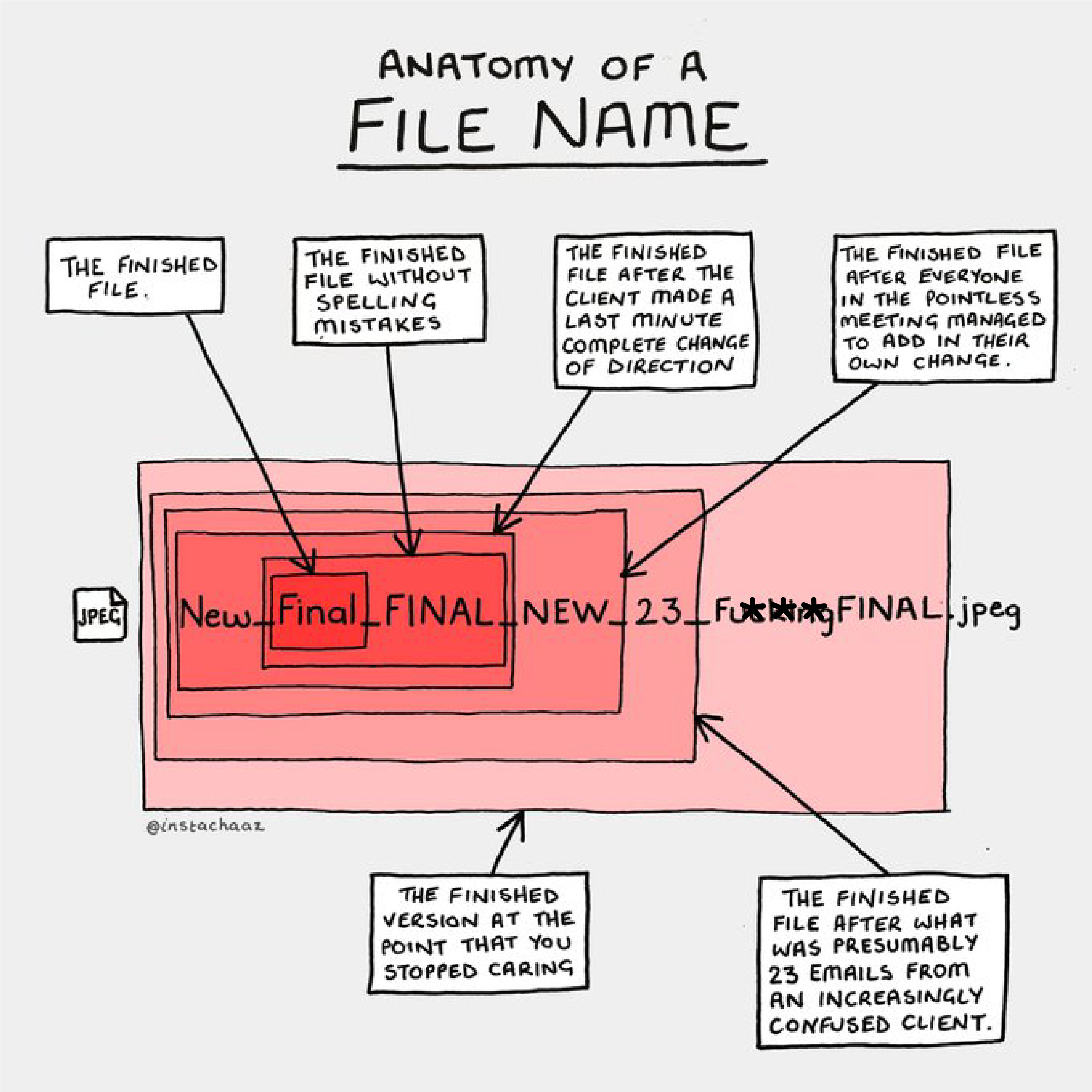
Version chaos
If you’ve ever searched for a file and found:
KPI_Report_Final.xlsxKPI_Report_Final_v2.xlsxKPI_Report_Final_v2_NEW.xlsxKPI_Report_Final_v2_NEW_REAL_FINAL.xlsx
…you already know what version chaos looks like.
Concrete examples:
- The operations manager updates a cost assumption and saves a new version to their desktop.
- The finance director updates the same file in a shared drive.
- The CEO pulls numbers from an email attachment they saved last month.
Everyone thinks they’re using “the latest version,” but they’re not using the same version. Decisions made on inconsistent data lead to conflicting reports, reversed decisions, and endless reconciliation meetings.
Single points of failure
In many SMEs, there is “that one person” who:
- Built the huge master spreadsheet.
- Wrote the complex macros.
- Knows exactly which tab not to touch.
If that person is on leave, sick, or leaves the company, whole processes can grind to a halt. Even if they’re available, they become a bottleneck because:
- Changes can’t be made without them.
- No one else feels confident editing the file.
- People are afraid to “break something,” so they freeze.
Your business should not depend on one person’s memory of how a formula works. For a sector-specific example of how to address this, see our guide on reducing single-point-of-failure risk in small law firms.
Complex formulas and brittle links
Spreadsheets tend to start simple and then grow layers of complexity:
- Nested IF statements five levels deep.
- VLOOKUP/XLOOKUP across multiple files on shared drives.
- Hidden sheets feeding pivot tables.
- Links to external workbooks that break when someone moves a file.
This kind of setup is fragile:
- A renamed sheet breaks a formula.
- A moved file breaks a link.
- A new row inserted in the wrong place corrupts a calculation.
What’s worse is that these errors are often silent. The spreadsheet doesn’t crash; it just produces wrong numbers without warning.
Manual, repetitive tasks
Watch how your team spends their time around spreadsheets:
- Copying and pasting data from emails or CSV files into a master sheet.
- Downloading data from one system, adjusting it in Excel, and re-uploading to another.
- Emailing spreadsheets around for approvals and comments.
- Manually reconciling two reports line by line every month.
These are clear signs that spreadsheets are being used as a glue between systems. Manual effort is filling the gaps that automation could handle much more reliably. We’ve shared practical examples of simple automation workflows that save hours each week.
Lack of auditability
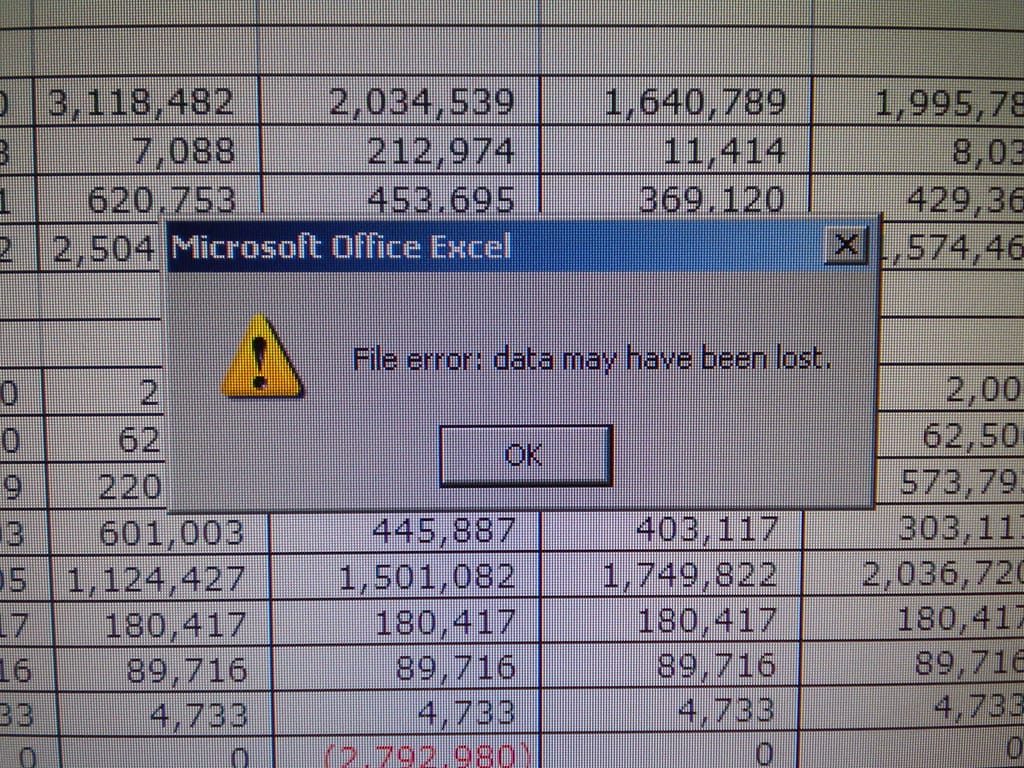
When an auditor, regulator, or senior leader asks, “Who changed this figure and why?” can you answer confidently?
In many spreadsheet-centric environments:
- There’s no clear history of who changed what and when.
- Important cells can be overwritten accidentally without any record.
- Critical logic changes (e.g., a formula adjustment) are undocumented.
Even tools like Google Sheets and modern Excel provide some change tracking, but in complex files passed around via email, this is often lost. For regulated industries or companies with external audits, this becomes a serious risk, not just an annoyance.
Data quality problems
Data quality issues show up in many subtle ways:
- Customer names spelled differently across tabs (“ACME Pte Ltd” vs “Acme PTE LTD”).
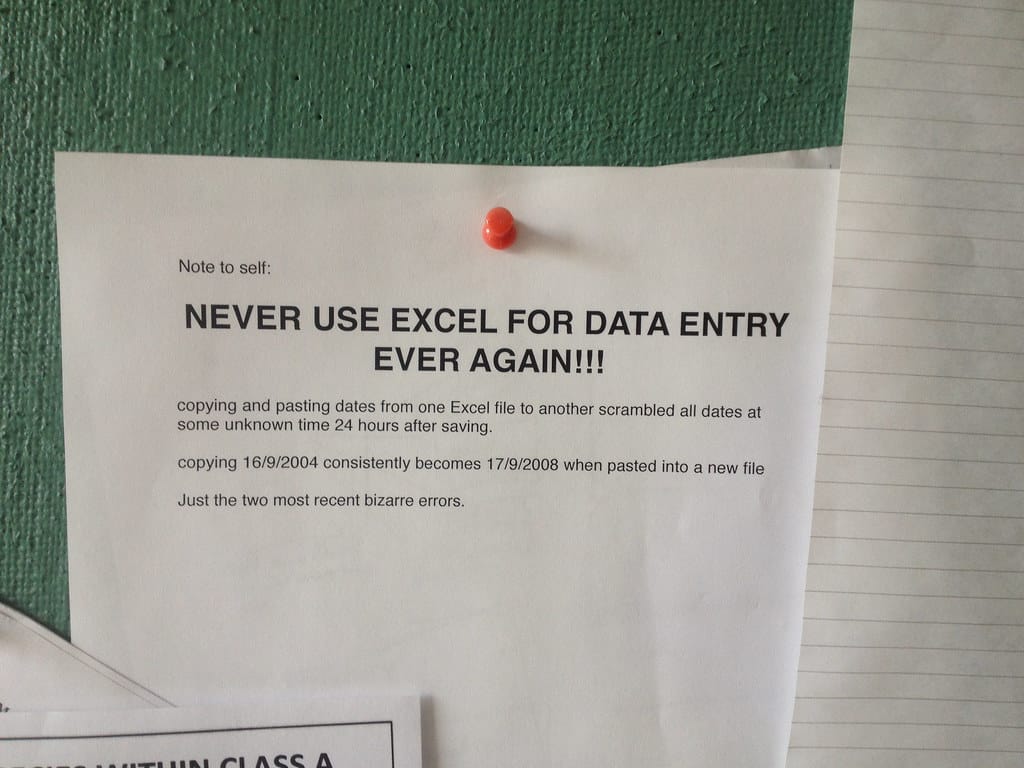
- Dates in different formats or misinterpreted (e.g., US vs European formats).
- Duplicate records for the same client.
- Missing validation rules—anyone can type anything into any cell.
These “small” inconsistencies add up to:
- Reports that don’t tie out.
- Bad targeting in marketing campaigns.
- Mistakes in invoicing or contract terms.
When people don’t trust the data, they build their own side spreadsheets, which compounds the problem.
Scalability issues
As your business grows, so does your data. Eventually, you may start noticing:
- Large Excel files that take a minute or more to open.
- Frequent crashes or “not responding” messages.
- Hitting row or column limits.
- Slow recalculation after every edit.
These are signs that you’re pushing a desktop tool beyond its natural limits. What worked with 5,000 rows may be unmanageable at 500,000.
Security and access risks
Spreadsheets often contain sensitive information:
- Salaries and bonuses.
- Customer personal data.
- Pricing models and margins.
- Supplier banking details.
Common risky practices include:
- Emailing unencrypted files externally.
- Storing sensitive spreadsheets in public or overly broad shared folders.
- Using generic passwords that everyone knows.
- Granting full edit rights to anyone who might “need access.”
These patterns often overlap with shadow IT — see the hidden cyber risks in WhatsApp workflows that crop up in traditional offices. If you’re subject to data protection laws (like GDPR) or local privacy regulations, unmanaged spreadsheets can create real compliance exposure, not just theoretical risk.
3. Business Impacts of Spreadsheet Sprawl
It’s tempting to see these issues as mere annoyances. But over time, spreadsheet sprawl has very real operational, financial, and compliance impacts.
Operational impact: Time and delays
Consider a small finance team that:
- Spends 2 days a month reconciling numbers from different spreadsheets.
- Spends several hours a week answering “which version is correct?”.
- Has to rebuild broken reports before every board meeting.
That’s easily 3–5 days per month of skilled staff time lost to “spreadsheet wrangling” instead of analysis and decision support.
Operationally, decisions get delayed:
- Pricing changes are postponed because the impact model is unclear.
- Hiring plans are put on hold while headcount spreadsheets are reconciled.
- Inventory orders are delayed pending “one more check” of the demand forecast.
Financial impact: Errors and leakage
Spreadsheet errors are more common than people like to admit. Realistic examples include:
- A missing row reference in a total means a category of costs is left out, overstating profit.
- A copied formula doesn’t adjust correctly, mispricing a whole product line.
- A manual paste overwrites a cell containing a crucial assumption.
The financial impact can be:
- Under-billing customers due to incorrect pricing logic.
- Overpaying commissions or bonuses based on miscalculated KPIs.
- Stock-outs or overstock due to wrong demand forecasts.
Individually, errors might cost a few thousand dollars. Across months and multiple processes, the cumulative impact can be very significant.
Compliance and audit exposure
If your business faces internal or external audits, spreadsheet sprawl makes life harder:
- It’s difficult to demonstrate consistent controls when key processes are managed in personal files or ad hoc trackers.
- Proving that data hasn’t been tampered with is challenging when anyone can edit cells without a clear trail.
- Meeting data retention and deletion requirements is harder when copies of the same data live in dozens of uncontrolled spreadsheets.
Even if you’re not in a heavily regulated industry, as you grow you may encounter:
- Customer security assessments asking how you protect their data.
- Bank or investor due diligence asking for evidence of controls.
- Local data protection regulators asking where certain data is stored and how it is used.
“Various spreadsheets scattered across laptops and shared drives” is not an answer that inspires confidence. If you need a starting point, here’s a non-technical owner’s checklist for IT compliance audits.

4. Low-Code Automation: What It Is and When to Use It
The good news is you don’t need to jump straight from spreadsheets to a custom-built enterprise system. Low-code and no-code automation tools bridge the gap, especially for small and mid-sized organizations.
What is low-code/no-code automation?
In plain language:
- No-code tools let non-technical users build simple workflows and applications using visual interfaces—drag-and-drop, point-and-click—without writing code.
- Low-code tools are similar but allow some scripting or configuration for more complex scenarios, usually still far easier than traditional software development.
Think of them as the “grown-up cousins” of spreadsheets:
- They’re flexible and user-friendly.
- They can connect to other systems.
- They’re better designed for multi-user access, tracking, and controls.
When it’s better than “just another spreadsheet”
Low-code automation is particularly useful when:
- You repeat the same steps over and over.
For example:A workflow automation tool can:- Every week you download a sales report, filter it, copy selected data into a template, and email it to managers.
- Every month you collect timesheets via email and key them into a payroll spreadsheet.
- Trigger when new data appears.
- Transform it automatically.
- Route it for approvals.
- Send notifications or create tasks—without manual copying and pasting.
- If you’re exploring practical options, see how SMEs can automate repetitive office tasks without hiring developers.
- You need to integrate multiple systems.
Suppose you have:Instead of exporting from each into Excel and merging manually, integration-focused tools can:- A CRM for customer records.
- An accounting system for invoices.
- A marketing tool for campaigns.
- Synchronize data between systems.
- Keep a shared, up-to-date view.
- Trigger actions when something changes (e.g., “when invoice is paid, update CRM status”).
- And as you connect apps, make sure you vet and secure your business ecosystem.
- You want simple internal tools, not full-blown software.
Maybe you need:Low-code app builders let you assemble these quickly, defining fields, forms, and basic logic in a structured environment rather than layering more and more logic into spreadsheets.- An internal app for staff to submit requests.
- A dashboard to view KPIs pulled from various sources.
- A simple database-like interface to manage assets or contracts.
Categories of tools (without vendor lock-in)
To make this concrete, here are broad categories you might explore:
- Workflow automation platforms
Tools in this category connect other systems and automate steps like:- When a form is submitted, create a record and send an email.
- When a new row is added in a sheet, update a CRM and notify a manager.
- Low-code application builders
These let you build simple web or mobile apps for internal use, defining:- Data structures (similar to tables in a database).
- Forms and views for different roles.
- Business rules and approvals.
- Modern database/spreadsheet hybrids
These tools feel familiar to spreadsheet users but add:- Proper tables and relationships.
- Role-based access control.
- Built-in forms and basic workflow features.
Benefits over pure spreadsheets
Moving key processes into low-code tools can bring:
- Reduced manual work: Automation handles data movement and repetitive tasks.
- Fewer errors: Structured fields, validation rules, and controlled workflows reduce accidental mistakes.
- Better audit trails: Most platforms log who did what and when by default.
- Scalability: Optimized to handle larger data volumes and more concurrent users.
- Easier collaboration: Multiple people can work simultaneously with appropriate permissions, without emailing files around.
You don’t need to abandon spreadsheets entirely. The aim is to shift mission-critical, repetitive, multi-person workflows into more robust environments.
5. Improving Data Governance Without Killing Agility
“Data governance” sounds like something for big corporates with committees and thick policy manuals. For smaller organizations, it can be much simpler—and still powerful.
What is data governance, in practical terms?
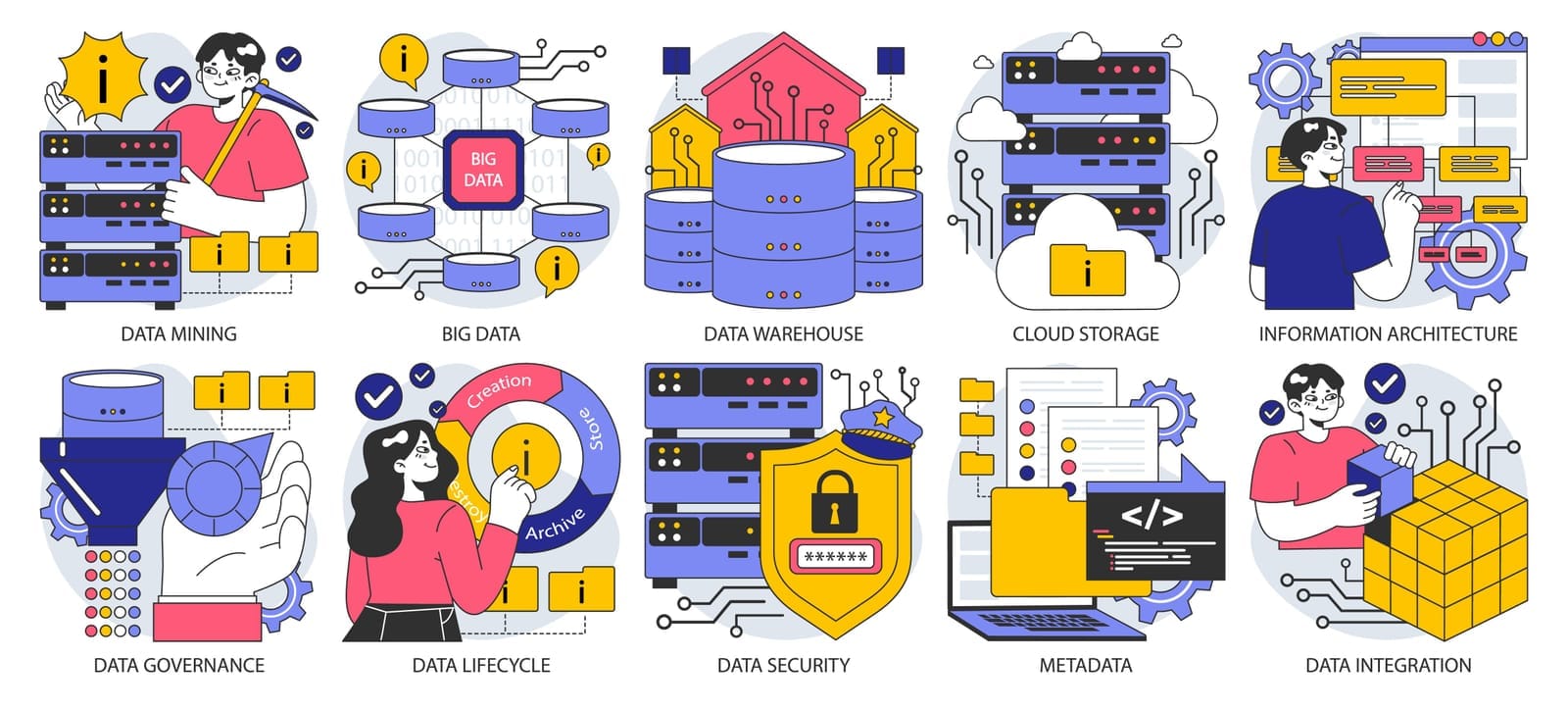
At its core, data governance is about:
- Clear ownership: Who is responsible for which data sets?
- Standards: How is data structured and named?
- Access controls: Who can view and change what?
- Lifecycle management: How long is data kept, and when/how is it archived or deleted?
It’s not about slowing people down. Done right, it actually speeds things up because:
- People know where to find the “right” data.
- There’s less arguing about definitions and versions.
- New staff can onboard more quickly.
For a deeper dive tailored to SMEs, see our guide to data governance for SMEs.
Practical steps for smaller organizations
You don’t need a huge program. Start with a few concrete practices.
Define “systems of truth” vs. ad hoc spreadsheets
Decide for each major area—customers, revenue, inventory, HR, etc.:
- Which system is the authoritative source of truth?
- What types of spreadsheets are allowed (e.g., “for analysis only”)?
For example:
- “Our accounting system is the source of truth for invoicing and revenue. Any spreadsheets are for analysis and must not be treated as official records.”
- “Our CRM is the master customer list. Exports to Excel are temporary; any corrections must be made in the CRM, not in the spreadsheet.”
Standardize key data fields and naming
Agree on:
- How you name customers and products.
- Standard date formats.
- Common codes (e.g., region codes, department codes).
Even a one-page “data standards” document can reduce confusion dramatically.
Implement access controls and permissions
Use the tools you already have:
- Shared drives with defined groups (e.g., Finance, HR, Sales).
- Cloud storage (like SharePoint or Google Drive) with clear folder-level permissions.
- Role-based access in core systems (e.g., view vs. edit rights).
For sensitive data:
- Restrict access to those who truly need it.
- Avoid storing it in personal folders or emailing full copies unnecessarily.
Use version control and change tracking
You don’t need fancy tools to improve version control:
- Store shared spreadsheets in a single shared location, not emailed around.
- Use built-in versioning and history (e.g., SharePoint, OneDrive, Google Drive).
- Agree on simple naming conventions (e.g., no more “FINAL_v7_REAL_FINAL”).
For critical files, consider:
- Locking certain sheets or cells.
- Restricting who can edit formulas.
- Requiring comments for major changes.
Establish simple documentation
This can be extremely lightweight:
- A short document or internal wiki page listing:
- Where key data lives.
- What each main spreadsheet is for.
- Who owns it and who to contact with questions.
- For complex models, a “Read Me” tab explaining:
- Purpose of the file.
- Inputs, outputs, and critical assumptions.
- Do’s and don’ts for editing.
The aim is that if a key person leaves, someone else can understand and maintain the process.

6. A Pragmatic Migration Path: From Spreadsheets to Automation
Moving away from risky spreadsheet dependence does not have to be a massive “digital transformation” project. A phased, pragmatic approach is more realistic and more likely to succeed.
Step 1: Inventory critical spreadsheets
Start by identifying:
- Which spreadsheets are used regularly (daily, weekly, monthly).
- Which support important decisions or processes (e.g., payroll, pricing, compliance tracking).
- Who uses them and how.
Rank them by:
- Business impact if they go wrong (high for payroll, lower for a one-off report).
- Complexity (many linked files, macros, complex formulas).
- Risk factors (single maintainer, sensitive data, frequent errors).
This gives you a prioritized list.
Step 2: Identify quick wins for automation
Look for spreadsheets that:
- Are primarily used to move data between systems (e.g., export–tweak–import).
- Involve repeated manual tasks (copy/paste, monthly consolidation).
- Require approvals or multi-step workflows via email.
These are ideal candidates for low-code automation because:
- The process is already defined.
- The pain is obvious to users.
- The benefits are easy to demonstrate (time saved, fewer errors).
Step 3: Pilot a low-code solution for 1–2 high-value use cases
Rather than trying to “fix everything,” pick one or two pilots:
- For example:
- Automate the monthly sales reporting workflow.
- Build a simple app to manage employee leave requests and approvals.
- Create a structured database for contracts instead of a giant tracker spreadsheet.
During the pilot:
- Keep scope tight. Aim to deliver something working within a few weeks, not months.
- Measure outcomes (time saved, error reduction, faster approvals).
Success builds confidence and buy-in for further changes.

Step 4: Involve end users in design
If you design new tools in isolation, people will cling to their old spreadsheets. Instead:
- Map existing workflows with the people who actually do the work.
- Ask them:
- Which parts are most painful?
- Where do errors often creep in?
- What would make their lives easier?
Then:
- Mimic familiar aspects of the current process where possible.
- Improve weak points rather than reinventing everything.
When people feel heard and see their ideas implemented, adoption improves dramatically.
Step 5: Train teams and document new processes
Even simple tools require some change management:
- Offer short, focused training sessions.
- Create quick reference guides or short videos.
- Make it clear:
- What has changed.
- Where to go instead of the old spreadsheet.
- Who to contact for help.
Update your basic documentation:
- Note which old spreadsheets are now retired or read-only.
- Update your “systems of truth” definitions accordingly.
To build a security-aware culture alongside process changes, consider empowering non-IT staff to spot risks early.
The goal: Use spreadsheets for the right jobs
The aim is not to ban spreadsheets. They remain excellent for:
- Ad hoc analysis.
- Early-stage prototyping.
- Personal what-if scenarios.
However, once a spreadsheet:
- Becomes business-critical.
- Is used by multiple people regularly.
- Handles sensitive or regulated data.
- Requires structured workflows and audit trails.
…it’s time to consider moving that process into a more robust, automated environment.

7. Conclusion
Spreadsheets have helped countless businesses get off the ground and grow. But as your organization becomes more complex, the same tools that once gave you agility can become hidden liabilities.
When:
- No one is sure which file is “the real one.”
- One person holds the keys to a mission-critical spreadsheet.
- Errors creep in through manual copying and complex formulas.
- Sensitive data lives in unmanaged files.
- Auditors or customers start asking hard questions…
…it’s a sign that your spreadsheets have quietly become systems of record they were never designed to be.
You don’t need to panic, and you don’t need to eliminate spreadsheets altogether. Instead, take three practical steps in the next 30–60 days:
- Audit your current spreadsheet use.
- List your top 10–20 most important spreadsheets.
- Note their purpose, users, and risks.
- Pick one process to automate.
- Choose something repetitive and painful but manageable in scope.
- Explore low-code tools to replace manual steps and improve reliability.
- Start simple data governance practices.
- Define systems of truth for key data.
- Clarify ownership and access.
- Use shared locations and version history instead of emailed files.
If you’re unsure where to start or lack internal capacity, consider speaking with:
- An IT or automation specialist experienced with SMEs.
- A data professional who understands both spreadsheets and modern tools.
- A managed service provider that can help you modernize processes and put in light-touch governance, while keeping costs predictable and aligned to your business growth. Techease Solutions, for example, focuses on cloud-first, automation-oriented approaches for SMEs and offers advisory, security, and ongoing IT management as part of flexible service packages.
The shift from “Excel everywhere” to a mix of spreadsheets, low-code automation, and basic governance doesn’t happen overnight. But each small, pragmatic step reduces risk, saves time, and builds a more resilient foundation for your next stage of growth.