
From Senior Partner’s Laptop to Firm‑Wide System: Reducing Single‑Point‑of‑Failure Risk in Small Law Firms

If you’re a managing partner in a small firm, there’s a good chance at least one person immediately came to mind when you read this title.
It might even be you.
They’re the rainmaker, the founder, or the “institution.” Their laptop is the beating heart of the practice. They know all the passwords. Their email is the recovery email for half the firm’s tools. Critical client documents live in folders on their desktop or in a personal cloud drive. When they’re away, everyone quietly prays nothing goes wrong.
This setup feels natural in a growing firm. It’s how many practices start. But once you’re at 5–30 lawyers, it stops being a scrappy convenience and becomes a serious single‑point‑of‑failure risk.
This article walks through what that risk really looks like, how it ties into your professional obligations, what “good” looks like in a small firm, and how to move from “everything on one laptop” to a firm‑wide system without blowing up your practice or alienating the senior partner.

1. The Problem: When One Partner Is the System
Let’s start with a familiar picture.
In many small firms, one senior partner effectively “owns” or controls:
- Logins for email, practice management, e‑filing, billing, online banking, and document management.
- Admin rights for cloud services (Microsoft 365 / Google Workspace, practice management, etc.).
- Critical client files that live:
- On their laptop’s hard drive.
- In personal cloud storage (e.g., a personal Google Drive/Dropbox/OneDrive).
- In email threads that only they can search effectively.
Often, the firm’s “system” is really this person’s habits:
- Need to reset the e‑filing password? Ask them.
- Need a copy of an old engagement letter? Ask them.
- Need access to trust account statements? Ask them.
It works—until it doesn’t.
Operational risks
Imagine three common scenarios:
Scenario 1: Sudden illness.
On Sunday night, your founding partner has a health emergency. On Monday morning, your associates need to file a time‑sensitive motion. The templates, prior filings, and key correspondence are on the partner’s laptop and personal cloud. No one has the passwords. IT can’t legally or practically guess their way in. You’re scrambling, calling family, and trying to get temporary access while a client’s case clock is ticking.
Scenario 2: Abrupt departure.
A senior partner decides to leave the firm. The relationship is tense. Yet they control the admin account for your practice management system, the e‑filing portal, and the online banking login for your operating or trust account. Even if they are acting in good faith, unwinding that “ownership” quickly and cleanly is a headache and a risk.
Scenario 3: Death or incapacity.
The worst‑case scenario: the partner passes away unexpectedly. Devices may be locked. Family members may not know passwords or may be advised not to share them. The firm spends days or weeks trying to reconstruct access to emails, documents, and banking. Meanwhile, clients still have deadlines, courts still expect filings, and your cash flow still depends on timely billing.
Beyond crises, there are everyday impacts:
- Bottlenecks: Work gets stuck in that partner’s inbox or on their laptop. Staff and associates “wait for access,” which delays filings, billing, and responses to clients.
- Fragile workflows: “How do we do X?” “Ask Susan, she’s the only one who knows.” That is not a process—it’s a risk.

Compliance, confidentiality, and risk‑management issues
Beyond operations, letting one individual hold the keys to the kingdom raises real ethical and risk‑management concerns:
- Weak credentials: Partners are human. They may reuse passwords across systems or share them informally with a long‑time assistant. Written lists, unencrypted notes, or stored browser passwords are common.
- Lack of access control: When the same login is shared:
- You can’t easily limit who sees banking, HR files, or sensitive client matters.
- You can’t easily revoke access if someone leaves.
- No audit trail: If everybody uses “Partner01” as the login for your billing or document system:
- You can’t reliably see who changed or deleted a file.
- You can’t easily investigate a potential breach or error.
- Data location uncertainty: If critical client files live in personal cloud accounts, on USB drives, or on a single laptop:
- You may not be able to prove you’re handling them securely.
- Backups may be inconsistent or nonexistent. If you’re evaluating options, our beginner’s guide to on‑prem vs cloud backups can help you choose a resilient approach.
None of this means the senior partner is careless. Usually, they’re doing what made sense when the firm was two or three people and never took time to “re‑platform” as the firm grew.
But as you know from your own matters, intent doesn’t eliminate risk. Structure does.

2. How This Connects to Your Legal‑Specific Obligations
Every jurisdiction’s rules are different, so this is not legal advice. But smaller firms often underestimate how directly this “one laptop holds everything” setup touches core professional duties that appear, in some form, almost everywhere.
Confidentiality
Most professional conduct rules require you to:
- Maintain client confidences.
- Take reasonable steps to protect client information from unauthorized access, disclosure, or loss.
If client files are stored on a personal laptop with a simple password, no encryption, and no clear access controls, you may have trouble showing that your confidentiality safeguards are “reasonable” in today’s environment. For a practical baseline of controls, see our cybersecurity solutions for Singapore law firms (and if you operate in Singapore, review our PDPA compliance guide for SMEs).
Safeguarding client property
Client files and trust account information are widely treated as client property or something close to it. That usually implies duties to:
- Keep them secure.
- Keep them accessible when needed.
- Not commingle them with purely personal data in a way that risks loss, confusion, or inappropriate access.
If trust account credentials, statements, or ledgers are effectively “owned” by one partner’s personal email or laptop, that can blur lines between personal and firm control and complicate your ability to safeguard those assets as a firm.
Continuity of representation and avoiding prejudice to clients
Ethics rules and bar opinions in many jurisdictions emphasize:
- Avoiding prejudice to clients if a lawyer becomes incapacitated, leaves the firm, or dies.
- Having a reasonable plan for succession and file management so client matters can continue smoothly.
If one person’s incapacity means:
- You can’t access upcoming deadlines in the calendar.
- You can’t log in to e‑filing systems.
- You can’t open core client files or trust records.
…then it becomes much harder to argue you had a reasonable continuity plan in place.
Again, you’ll need to check your jurisdiction’s rules, bar association guidance, and any relevant opinions on technology, confidentiality, and succession planning. But as a managing partner, you don’t need a bar grievance to see the direction of travel: regulators, insurers, and sophisticated clients increasingly expect law firms—even small ones—to behave like stewards of critical information, not just owners of a laptop.

3. What “Good” Looks Like: A Firm‑Wide System for a Small Firm
You don’t need a Fortune 500 IT budget to fix this. For a 5–30 lawyer firm, “good enough” is realistic and attainable.
Think of it as moving from “personal tools” to “firm systems,” with structures that outlast any one individual.
Centralized, firm‑owned systems
At a minimum, aim for the following to be owned by the firm (not by any individual’s personal account):
- Email and calendars
- A firm account with user mailboxes (e.g., [email protected]), administered centrally.
- Shared calendars for key practice areas, court deadlines, and firm‑wide events.
- Document management and client files
- A central document management system (DMS) or structured cloud storage:
- Organized by client/matter.
- With clear naming conventions.
- With version control or at least predictable folder structures.
- A central document management system (DMS) or structured cloud storage:
- Practice or case management
- A firm‑controlled system that tracks:
- Matters and responsible attorneys.
- Key dates and tasks.
- Notes and communications.
- A firm‑controlled system that tracks:
- Timekeeping and billing
- Billing data stored in a firm‑owned system where multiple staff have appropriate access:
- So billing doesn’t stop if one partner is out.
- So collections and reporting can continue independently of any one person.
- Billing data stored in a firm‑owned system where multiple staff have appropriate access:
The common thread: the accounts and subscription ownership should be in the firm’s name, with an admin login that is not tied to one lawyer’s personal email address.
Role‑based access control (RBAC)
You don’t need everyone to see everything. In fact, they shouldn’t.
Instead, permissions should be based on roles:
- Partners may see most or all matters.
- Associates may see only their matters and certain practice groups.
- Finance staff may have access to billing and trust accounting data but not HR files.
- Administrative staff may manage calendars and filings but not confidential HR or certain sensitive files.
This is where systems that support role‑based access control earn their keep. With some configuration, you can reflect your firm’s real‑world lines:
- Who supervises whom.
- Who needs what to do their job.
- What must be restricted.
It also ties into data governance—clarifying who owns what and how long to keep it; see our guide to data governance for SMEs.
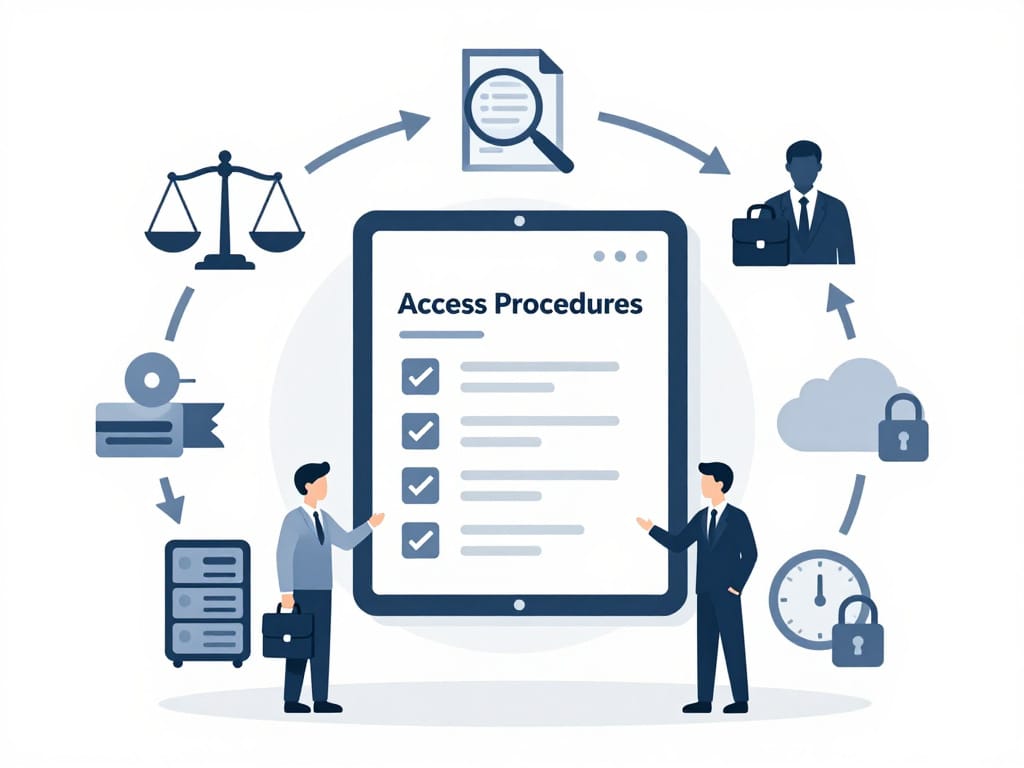
Documented access procedures
Good systems fail if there’s no plan for how to use them under stress.
At a minimum, your firm should have written, accessible procedures for:
- Emergency access:
What happens if a key partner is suddenly unavailable? Who can authorize IT to unlock or reset access? How do you prove that authorization? - Departures:
When someone leaves:- How do you remove or change their access?
- What happens to shared folders, client files, and email?
- Succession:
If a partner retires, becomes incapacitated, or dies:- Who steps in as the “information steward” for their matters?
- How are passwords and admin rights transferred within firm‑owned accounts?
This doesn’t have to be a 50‑page manual. A few well‑drafted pages that everyone knows exist—and knows where to find—will already put you ahead of many peers. If you need a starting point, our IT policy documentation guide outlines what to include.
Basic, realistic security practices
You don’t need to be a cybersecurity expert to put some guardrails in place. At a small firm, a solid baseline might include:
- Password manager
- Each person has their own account.
- Shared “vaults” exist for firm‑level credentials (e‑filing, shared subscriptions, generic inboxes).
- Access to shared vaults is granted based on role, not personal relationships. For quick wins on credentials, see our simple ways to improve password hygiene company‑wide.
- Multi‑factor authentication (MFA)
- Turn on MFA for:
- Email and productivity suites.
- Practice management and DMS.
- Banking and financial systems.
- Avoid having all codes go to a single partner’s phone; use app‑based authenticators that can be recovered by the firm when necessary.
- Turn on MFA for:
- Encrypted backups and redundancy
- Regular, automated backups of:
- Documents.
- Databases (practice management, billing).
- Email.
- At least one backup stored offsite or in secure cloud storage.
- Periodic test restores so you know backups actually work.
- Regular, automated backups of:
These elements are squarely in the category of “reasonable steps” that regulators, insurers, and clients are increasingly expecting—even from small practices.
4. A Practical Transition Roadmap
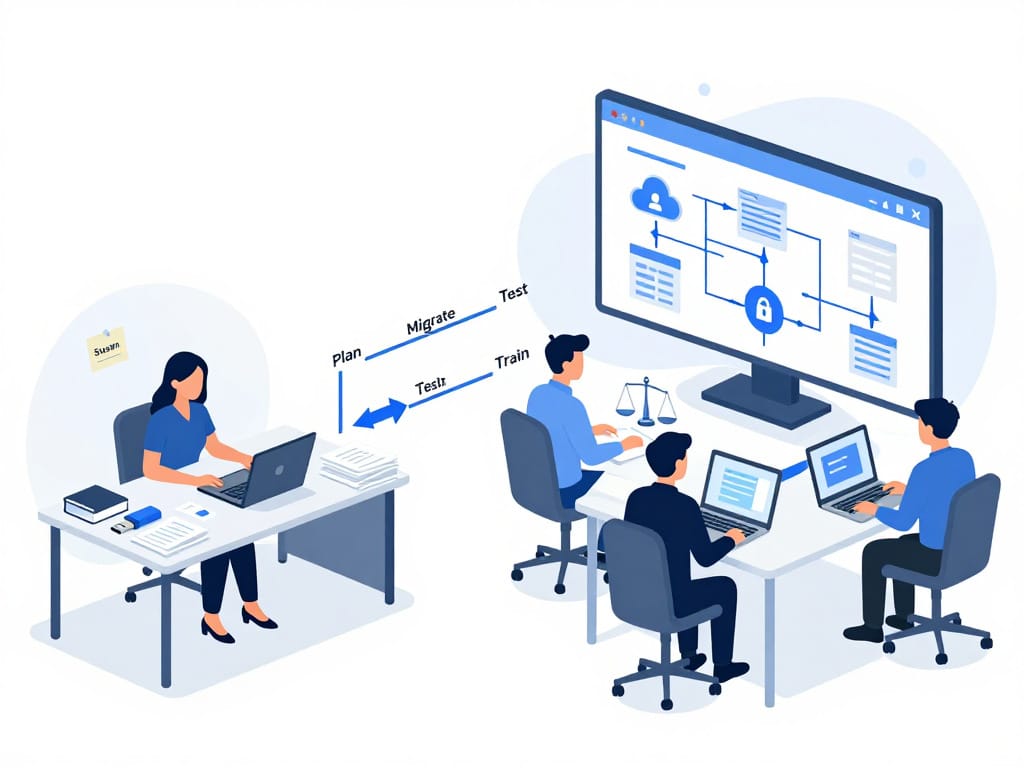
Moving from “everything on Susan’s laptop” to “firm‑wide, shared systems” can feel overwhelming. It doesn’t have to happen overnight. Here’s a staged roadmap you can adapt.
Step 1: Inventory what the partner controls
Sit down—with empathy, not accusation—with the key partner and map out:
- All systems where they:
- Are the only admin.
- Are the primary contact or recovery email.
- Hold the only remembered password.
- All locations where client data is stored:
- Their laptop (Documents, Desktop, Downloads).
- Personal cloud storage (personal Google Drive, Dropbox, iCloud, etc.).
- Shared drives where only they know the structure or conventions.
- Any “shadow systems”:
- Spreadsheets tracking deadlines.
- Personal databases for contacts.
- Old software only they still use.
Document this. You don’t need perfection, but you need enough to see your risk profile.
Step 2: Identify the “crown jewels”
Not all systems are equal. Pick out the ones where a failure would be catastrophic:
- Banking and trust accounting systems.
- Primary document management / file store.
- E‑filing systems you need to access frequently.
- Email and calendar administration.
- Billing and collections.
These are your top priorities for transition, because they touch client property, firm cash flow, and ethical obligations most directly.
Step 3: Move ownership to firm‑controlled accounts
For each “crown jewel,” plan to:
- Change the account ownership, billing, and main contact email to a firm email address controlled by the firm (e.g., [email protected] or [email protected]).
- Create at least two admin‑level accounts:
- One for a designated operational/admin owner (could be a partner or an office manager).
- One for a backup admin (another partner or trusted senior staff).
- Remove the need for the senior partner’s personal email or phone as the sole recovery method.
This is not about stripping power; it’s about ensuring the firm survives and clients are protected if something happens to any one person.
Step 4: Implement a credential management system
Instead of asking the partner to “share their passwords,” do this:
- Roll out a password manager to the firm.
- Create shared vaults for:
- E‑filing credentials for each jurisdiction.
- Shared tools (e.g., video conference accounts, generic mailboxes).
- Move passwords out of personal browsers, sticky notes, and notebooks into the password manager.
- Ensure that:
- No critical system is accessible only via a single, unshared personal password.
- When someone leaves, their password manager account can be deactivated without losing shared credentials.
This step alone dramatically reduces your single‑point‑of‑failure risk.

Step 5: Centralize storage of active client files
You don’t need to migrate 20 years of archives in one go. Focus on:
- All active matters.
- Recently closed matters still within retention windows.
- Files necessary to manage trust accounts, billing, and ongoing obligations.
Move those into your central DMS or structured shared drive. Agree on:
- A folder structure (e.g., Client > Matter > Pleadings / Correspondence / Evidence / Counsel Notes).
- Naming conventions that everyone can follow.
As you do this, clearly explain to the senior partner:
- They are not losing access or control over their matters.
- They are gaining resilience and support—others can help when needed.
Step 6: Set and document policies
Once the most urgent transitions are underway, formalize how you’ll handle things going forward. Policy areas to cover:
- Account ownership
- All core systems are opened in the firm’s name and tied to firm‑owned email addresses.
- Individual lawyers may have personal tools, but anything used for client work or trust funds must be accessible and controllable by the firm.
- System adoption
- No one adopts a new firm‑wide tool (e.g., new e‑filing platform, cloud storage) without:
- Approval from a small internal committee (e.g., managing partner + office manager).
- Basic documentation of what it does, who administers it, and where it stores data.
- For a structured approach, see our guide to managing SaaS sprawl and tips on vetting third‑party app integrations.
- No one adopts a new firm‑wide tool (e.g., new e‑filing platform, cloud storage) without:
- Access lifecycle
- How new staff and lawyers get accounts and access.
- How access changes when roles change.
- How access is removed when someone leaves (and who is responsible for reviewing and actioning that).
These policies don’t need to be complex, but they should be written and actually used.
Step 7: Communicate and reassure
Throughout this process, communicate intentionally:
- To the senior partner:
- This is about protecting their legacy and clients, not undermining their authority.
- This will make it easier for them to take time off, reduce hours, or eventually retire without fear that “the firm can’t run without me.”
- To the team:
- The goal is not more bureaucracy; it’s fewer emergencies.
- Access will be fair and role‑appropriate, not based on favoritism.
- Everyone will know what to do if something goes wrong.
A short meeting and a one‑page summary can go a long way in reducing anxiety.

5. People and Change‑Management: The Hardest Part
The technical steps are manageable. The real challenge is human: the partner who has been “the system” for 20 years.
Why senior partners resist
Common reasons include:
- Control: Being the person everyone goes to is tied to their sense of value and authority.
- Trust: They may worry that broader access increases the chance of mistakes or misuse.
- Habit: “We’ve always done it this way, and it’s worked so far.”
- Fear of exposure: Centralizing systems can reveal messy, ad‑hoc practices or outdated tools they’re embarrassed to show.
You won’t overcome this with technical jargon. You will with framing that speaks to what they care about.
Talking points that resonate
When you discuss change with that partner, focus on:
- Protecting their legacy:
“You’ve built this practice. We want to make sure it can operate smoothly and keep serving your clients, even when you’re not personally at your desk.” - Reducing their personal liability and stress:
“Right now, if something goes wrong with trust accounts or filings, all eyes are on you. Shared systems reduce the risk that a technical issue tied to your laptop or email becomes ‘your fault’.” - Making it easier to step back:
“Shared access and clear systems mean you can:- Take real vacations.
- Work fewer hours.
- Transition towards retirement when you’re ready, knowing the firm can function day to day.”
- Aligning with professional expectations:
“Bar associations and insurers increasingly expect reasonable tech safeguards and continuity plans. We want to be comfortably on the right side of that.”
A phased, low‑drama approach
Change will be smoother if you:
- Start with low‑friction wins:
- Implement a password manager and shared vaults.
- Change account ownership emails quietly in the background, with the partner’s consent.
- Avoid implying they’ve been “wrong”:
- Acknowledge that their approach made sense when the firm was smaller.
- Position this as a natural evolution as the firm grows.
- Involve them in designing the new system:
- Ask what they need from a firm‑wide system to feel comfortable.
- Give them a say in who gets what level of access.
The more they feel like a co‑architect, the less they will feel like they’re having their keys taken away. If you’re planning a firm‑wide change, our guide to rolling out new IT systems to non‑technical staff can help you avoid chaos.

6. Practical Safeguards and Checklists
Here’s a concise checklist you can use as a starting point.
First 10 Steps to Reduce Single‑Point‑of‑Failure Risk
- Identify your “key holder(s).”
List the partners or staff who control critical logins or systems. - Inventory core systems.
For each major system (email, DMS, practice management, billing, banking, e‑filing), note:- Who is the admin?
- What email is the primary/recovery email?
- Where are passwords stored?
- Change critical accounts to firm‑owned emails.
For banking, practice management, DMS, billing, and email administration:- Switch the primary contact and recovery details to a firm‑controlled address.
- Enable multi‑factor authentication (MFA).
Turn on MFA for:- Email.
- Practice management.
- DMS.
- Banking: Set it up in a way the firm can recover if someone loses a phone.
- Deploy a password manager.
- Provide accounts for all lawyers and key staff.
- Create shared vaults for firm‑level credentials.
- Move passwords out of personal notes, emails, and browsers.
- Centralize storage for active matters.
- Choose or confirm your central DMS or structured shared drive.
- Move active matter files out of personal desktops and personal cloud accounts.
- Map and centralize trust accounting records.
- Confirm where trust records live and who can access them.
- Ensure they’re in a firm‑owned system with at least two trusted people having access.
- Document an emergency access process.
- Decide who can authorize IT to reset passwords or unlock systems if a key partner is unavailable.
- Write it down and store it where it can be found quickly.
- Set simple access and departure procedures.
- Create a short checklist for onboarding and offboarding:
- Accounts to create/revoke.
- Shared folders to grant/remove.
- Who is responsible for each step.
- Create a short checklist for onboarding and offboarding:
- Schedule a brief annual review.
- Once a year, revisit:
- Who holds admin rights.
- Which systems have been added.
- Whether your practices still match your policies.
- If you want a non‑technical framework for what to check, see our IT compliance audit checklist.

Baseline security measures for small firms
For a firm without in‑house IT, aim for the following as a baseline:
- All laptops encrypted (e.g., full‑disk encryption turned on).
- Screens set to lock automatically after a short period.
- No client data stored permanently on unencrypted USB drives.
- Antivirus/endpoint protection and regular updates on all devices.
- Regular, automated backups of firm data to a secure, firm‑owned location.
- Simple incident response playbook: who to call and what to do if:
- A device is lost or stolen.
- Suspicious emails or possible ransomware appears.
- Someone suspects unauthorized access.
- Also, make security everyone’s job—train staff to spot issues early with our guide for non‑IT teams.
When to bring in professional IT or cybersecurity help
You don’t need experts for every step, but you should strongly consider outside help when:
- Migrating email and files from personal accounts or devices to firm‑wide systems.
- Setting up or restructuring a document management or practice management system.
- Designing and implementing your backup and recovery strategy.
- Handling trust accounting systems and their security.
- Responding to any suspected data breach or ransomware incident.
Managed service providers (MSPs) and IT partners can often bundle services like remote support, device monitoring, backups, security training, and compliance support into predictable monthly engagements tailored for small firms. Some also offer change management, security & compliance advisory, and executive‑level IT guidance, which can be particularly helpful when navigating partner‑level politics and long‑term planning. If you’d like hands‑on help, Techease Solutions provides managed IT and security services tailored to Singapore SMEs.
You don’t need to become an IT expert yourself; your role is to set direction, allocate resources, and insist on structures that match your professional obligations and risk appetite.

7. Bringing It All Together
The “senior partner with everything on their laptop” is not a villain. They are often the person who held the firm together for years through sheer effort and personal responsibility.
But as your firm grows, that hero model becomes a liability—for them, for you, and most importantly, for your clients.
Moving toward firm‑wide systems is not about technology for its own sake. It is about:
- Making sure your firm can function when key people are absent.
- Protecting client confidentiality and property in ways that stand up to modern expectations.
- Reducing the personal burden on your leaders.
- Positioning your firm for succession, growth, or eventual transition.
You don’t have to fix everything this quarter. Start with an honest inventory, identify your crown jewels, move ownership of systems into firm hands, and build simple structures for access and continuity.
If you keep your focus on client protection, professional obligations, and the legacy of the people who built your practice, you’ll find that even the most change‑resistant partners can become allies in the shift from “my laptop” to “our firm.”