Cybersecurity for Non-Profit Organizations: Why Charities Are Attractive Targets
1. Introduction: Why Cybersecurity Matters to Charities
Many charity leaders quietly worry about cybersecurity—but also feel it’s too technical, too expensive, or “for bigger organizations.” The reality is that non-profits are now routinely targeted by criminals, and the consequences are no longer just “IT problems.” They can become:
- Funding problems (lost donations, payment fraud)
- Service problems (systems down, unable to support beneficiaries)
- Trust problems (donors and partners lose confidence)
At its core, cybersecurity is no longer about protecting computers; it’s about protecting your mission.
The good news: you do not need a big IT department or a large budget to make meaningful improvements. A handful of practical, low-cost steps can reduce your risk dramatically. This article is written for non-technical executives and managers and focuses on what you can do in real life with limited time and money.

2. Why Non-Profits Are Attractive Targets
Many charities think, “We don’t have much money—why would anyone attack us?” But attackers are not just chasing huge bank balances; they are looking for:
- Easy targets (less protection than businesses)
- Valuable data (people’s personal, financial, or sensitive information)
- Ways to make quick money (fraud, ransom, resale of data)
Charities, unfortunately, often tick these boxes.
2.1 Financial and Donor Data
Non-profits handle more financial information than they might realize:
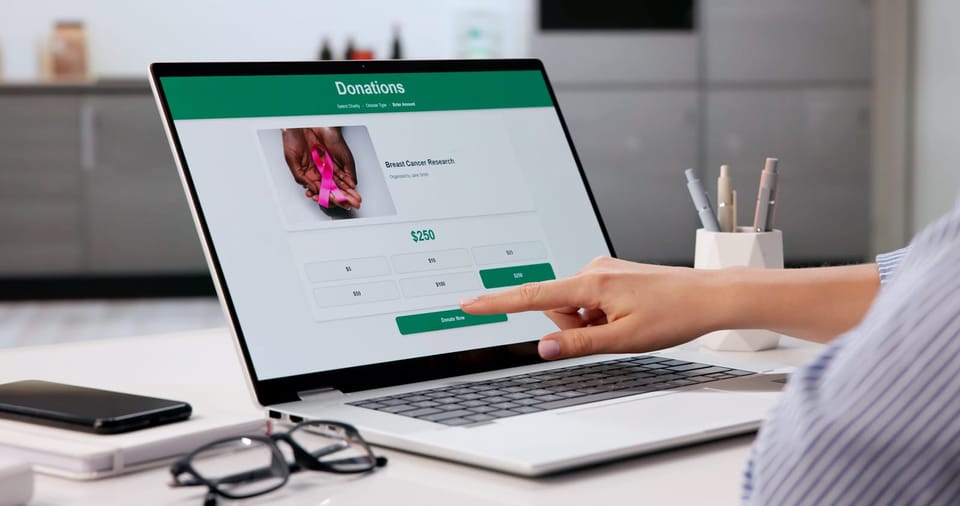
- Online donations and card payments
- Regular giving and direct debits
- Gift Aid or tax-related data
- Donor contact details and giving history
This information is valuable for criminals because it can:
- Be used for payment fraud or identity theft
- Help them craft convincing phishing emails (“We see you donated last month…”)
- Be sold on underground markets
Because charities are trusted, donors may be more likely to click on links or open attachments that appear to come from you. If your email account or donor database is compromised, criminals can exploit that trust at scale.
2.2 Sensitive Beneficiary and Advocacy Data
Many non-profits work with:
- Vulnerable individuals (children, survivors of abuse, refugees, patients)
- People in politically sensitive situations (activists, human rights defenders)
- Communities facing stigma (health conditions, addictions, financial hardship)
Data about these groups can be extremely sensitive. If exposed, it could:
- Put people at physical, psychological, or legal risk
- Undermine trust in your organization and your sector
- Trigger regulatory investigations and fines
Even if you “only” store names and contact details, when combined with the nature of your work, it can be enough to identify someone’s situation. That makes your systems and cloud services a target worth attacking.

2.3 Operational Disruption: Ransomware and Downtime
Another way criminals make money is by disrupting your operations until you pay a ransom.
Ransomware attacks typically:
- Infect a device (often via a malicious email link or attachment).
- Spread silently across your network and cloud storage.
- Encrypt your files so you can’t access them.
- Display a demand: pay a ransom (usually in cryptocurrency) to get your data back.
For a charity, downtime can be devastating:
- Helplines and services can’t operate.
- Case management systems or records may be inaccessible.
- Staff and volunteers may be unable to work remotely.
- Events or campaigns can be disrupted or cancelled.
Even if you never pay a ransom, the clean-up can be expensive in staff time, emergency IT spend, and lost opportunity.
2.4 Reputation and Impersonation/Phishing
Charities often rely heavily on reputation and public trust. Attackers exploit that in two main ways:
- Impersonating your organization
Criminals might send emails that look like they come from your domain, your logo, or even a particular staff member, asking for:- Donations via fake links
- Bank details changes (“We’ve changed our account”)
- Login details or personal information
- Misusing your real email account
If a staff member’s email is hacked, attackers can:- Send realistic messages to donors, suppliers, or partners
- Intercept invoices and change bank details
- Request gift cards or money transfers from colleagues
A single successful phishing incident can damage years of trust building. Even if donors understand, they may be more cautious in responding to your future campaigns.
3. Core Risks and Basic Protections
This section covers the main areas where most non-profits face risk, and the practical, affordable steps you can take.
3.1 Email: Your Front Door for Most Attacks
Email is still the number-one way attackers get in. You don’t need advanced tools to make email safer; a mix of simple technology and staff awareness goes a long way.
3.1.1 Common Phishing Tactics
Phishing emails try to trick people into clicking a malicious link, opening a harmful attachment, or sharing passwords and sensitive information. Common signs include:
- Urgency or pressure: “Act now or lose access!” / “Payment overdue—final notice!”
- Unexpected attachments or links: “Please see attached invoice” from an unknown sender.
- Slightly wrong details: Email addresses that look like yours but are off by one character; logos that don’t quite match.
- Too good to be true: Unexpected grants, prizes, or donations.
- Requests for secrecy: “Don’t tell anyone; this is confidential.”
Attackers may pretend to be:
- Your CEO or finance lead
- A key donor or partner
- A bank or payment provider
- A cloud service you use (Microsoft 365, Google Workspace, etc.)
3.1.2 How to Help Staff Spot Phishing
You don’t need technical training sessions. Focus on simple habits:
- Pause before you click. Encourage staff to slow down when an email asks for money, passwords, or urgent action.
- Check the sender. Click on or hover over the sender’s address and links—does it match what you expect?
- Be suspicious of unexpected attachments. If an “invoice” or “resume” is unexpected, verify via another channel.
- Confirm by another method. If a colleague “urgently” asks you to change bank details or pay someone, call or message them using a number you already know, not from the email.
- Make it easy to ask for help. Staff should feel safe to say, “This looks odd—can someone check it?” without feeling embarrassed.
Short, regular reminders or 10-minute discussions in staff meetings can be more effective than rare, lengthy trainings.
3.1.3 Multi-Factor Authentication (MFA) for Email
MFA (also called 2FA) means you need something else besides a password to log in, for example:
- A code sent to an app on your phone (e.g., Microsoft Authenticator, Google Authenticator)
- A text message code (less secure than apps but still better than nothing)
- A physical security key (for higher-risk users)
Activating MFA on all email accounts—especially for executives, finance, fundraising, and anyone with system admin rights—is one of the highest-impact steps you can take. It makes stolen passwords far less useful.
3.1.4 Basic Email Security Tools
Most cloud email platforms have built-in security features. At a minimum:
- Use reputable email services such as Microsoft 365, Google Workspace, or a provider recommended by your IT partner.
- Turn on spam and phishing filters and consider using the “report phishing” button if available.
- Use separate accounts for shared roles (e.g., “[email protected]”) instead of sharing one person’s login.
- Restrict forwarding rules. Attackers often set up hidden “forward everything” rules once they get in; have IT check regularly.
Managed IT providers can bundle these protections with broader support, including remote and on-site help, device monitoring, and security awareness training for employees.

3.2 Devices: Laptops, Desktops, and Phones
Devices are where staff actually do their work, so protecting them is critical.
3.2.1 Keep Systems Updated
Software updates (patches) fix known security holes. Attackers often target organizations that haven’t installed updates.
- Turn on automatic updates for operating systems (Windows, macOS, mobile phones) and major applications (browsers, office suites).
- Schedule regular restart times so updates can complete (e.g., ask staff to restart at the end of the day once a week).
- Avoid unsupported systems. Old operating systems (e.g., very old versions of Windows) stop receiving security fixes; plan to replace them.
If you use a managed IT service, they can handle proactive device monitoring and patch management for you.
3.2.2 Antivirus and Endpoint Detection & Response (EDR)
Traditional antivirus looks for known bad files. Modern EDR tools go further and watch for suspicious behavior (e.g., files being encrypted rapidly).
For small non-profits:
- If budget is tight, at least use built-in protection (e.g., Microsoft Defender on Windows) and keep it updated.
- Where possible, invest in a managed antivirus/EDR solution administered by an IT partner—this gives you better protection and expert oversight.
3.2.3 Disk Encryption
If a laptop or phone is lost or stolen, disk encryption ensures the data cannot be read without the password.
- Enable built-in encryption (BitLocker on Windows Professional, FileVault on macOS, and default encryption on most modern smartphones).
- Ensure you have a way to recover if someone forgets their password (your IT partner can store recovery keys securely).
This is especially important for devices that may contain sensitive beneficiary or donor data.
3.2.4 Safe Remote Work and BYOD (Bring Your Own Device)
Remote work and volunteer involvement often mean staff use personal devices. To reduce risk:
- Set simple rules:
- Devices must have a passcode/password.
- Devices should have up-to-date antivirus and system updates.
- No sharing of work accounts with family or friends.
- Use cloud systems instead of local files so that if a device is lost, you can disable access centrally.
- Consider a basic “acceptable use” policy so expectations are clear (your IT partner can help draft this).
3.3 Passwords and Access: Who Can See What?
Access control is about making sure the right people can access the right information—no more, no less.
3.3.1 Password Managers
People naturally reuse passwords and choose simple ones. A password manager solves this by:
- Storing passwords securely in an encrypted vault
- Generating strong, unique passwords for each site or system
- Syncing passwords across devices
For small organizations:
- Consider reputable password managers (e.g., 1Password, LastPass Business, Bitwarden).
- Pay for a small team or non-profit plan if possible—it’s usually affordable and saves time and risk.
Train staff to:
- Use the manager for all work-related logins.
- Never share master passwords.
- Avoid writing passwords on sticky notes or in shared documents.
3.3.2 Strong Password Policies
You don’t need overly complex rules (e.g., forcing a change every month often backfires). Aim for:
- Long passwords or passphrases (e.g., “River-Window-Library-2024”).
- No reuse of work passwords on personal sites.
- Immediate change if you suspect any account compromise.
Combine this with MFA wherever you can for important systems.
3.3.3 Least Privilege: Only the Access People Need
“Least privilege” sounds technical but is simple: people should only have the access they need to do their job, not more.
- Finance staff need finance system access—but not necessarily IT admin rights.
- Volunteers might need access to a small subset of donor data—not the full database.
- Only a few trusted staff should be able to change system settings or user permissions.
This reduces the damage if an account is compromised and helps with compliance obligations (e.g., data protection laws).
3.3.4 Removing Old Accounts
Old accounts are a common weak point:
- Former staff, volunteers, and contractors whose accounts were never disabled
- “Test” accounts created during a project and forgotten
Make it routine to:
- Disable accounts when staff/volunteers leave (ideally on their last day).
- Use a simple joiners/leavers process so IT or your service provider knows who needs access and who doesn’t.
- Review user lists in key systems (email, donor database, finance tools) at least quarterly.
Many managed IT services include onboarding/offboarding processes and IT policy documentation—this can remove a lot of admin burden from your internal team.
3.4 Donations and Online Payments
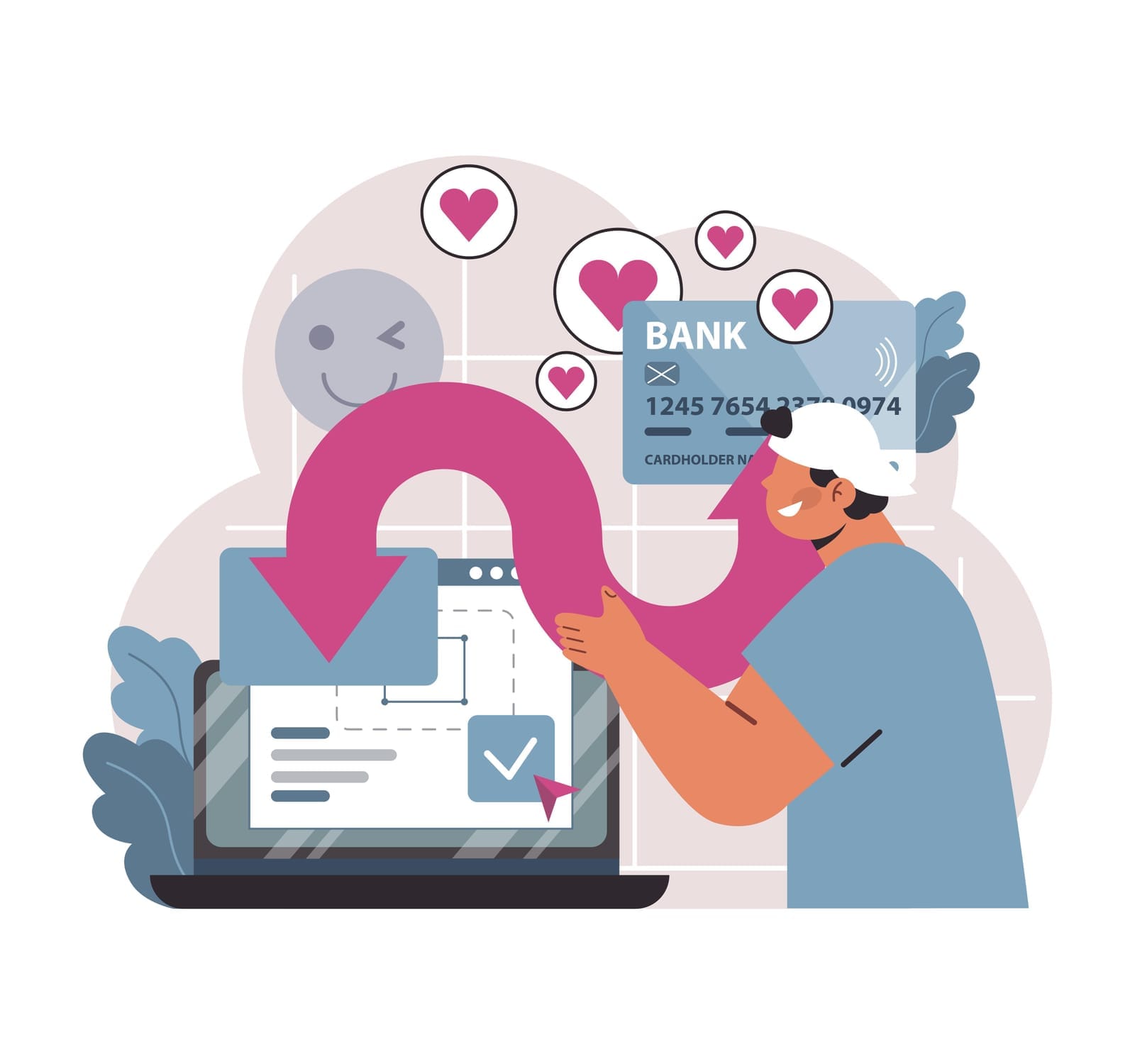
Your ability to accept donations safely is central to your mission and your credibility.
3.4.1 Use Trusted, Secure Payment Processors
You should not be building your own payment system. Instead:
- Use established payment providers or donation platforms that are PCI-compliant (meaning they meet the card industry’s security standards).
- Avoid storing full card numbers or security codes on your own systems.
- If possible, use platforms tailored to charities, which often have additional safeguards and reporting features.
Check that your provider offers:
- Encrypted payment pages (HTTPS)
- Fraud detection tools
- Support in case of disputed payments or chargebacks
3.4.2 Ensure Your Website Uses HTTPS
HTTPS is the “padlock” in the browser bar. It means:
- Data exchanged between your website and visitors is encrypted.
- Browsers won’t warn users that your site is “Not secure.”
Ask your web developer or hosting provider to ensure:
- A valid SSL/TLS certificate is installed.
- All pages—especially donation pages and login pages—load over HTTPS by default.
Many hosts provide free certificates (e.g., Let’s Encrypt); this doesn’t need to be a big expense.
3.4.3 Watch for Suspicious Donations or Refund Fraud
Criminals sometimes test stolen cards on charity websites because:
- Charities are trusted, so small “test donations” may be less scrutinized.
- If it works, they know the card is active.
Red flags include:
- Many small donations from the same card or IP address in a short period.
- Unusual patterns from overseas where you rarely receive donations.
- Frequent refund requests, especially to different accounts from those that paid.
Work with your payment provider to turn on fraud monitoring and set sensible thresholds. Ensure your finance team knows what patterns to watch for.
3.5 Cloud Systems: Email, Files, Databases, and More
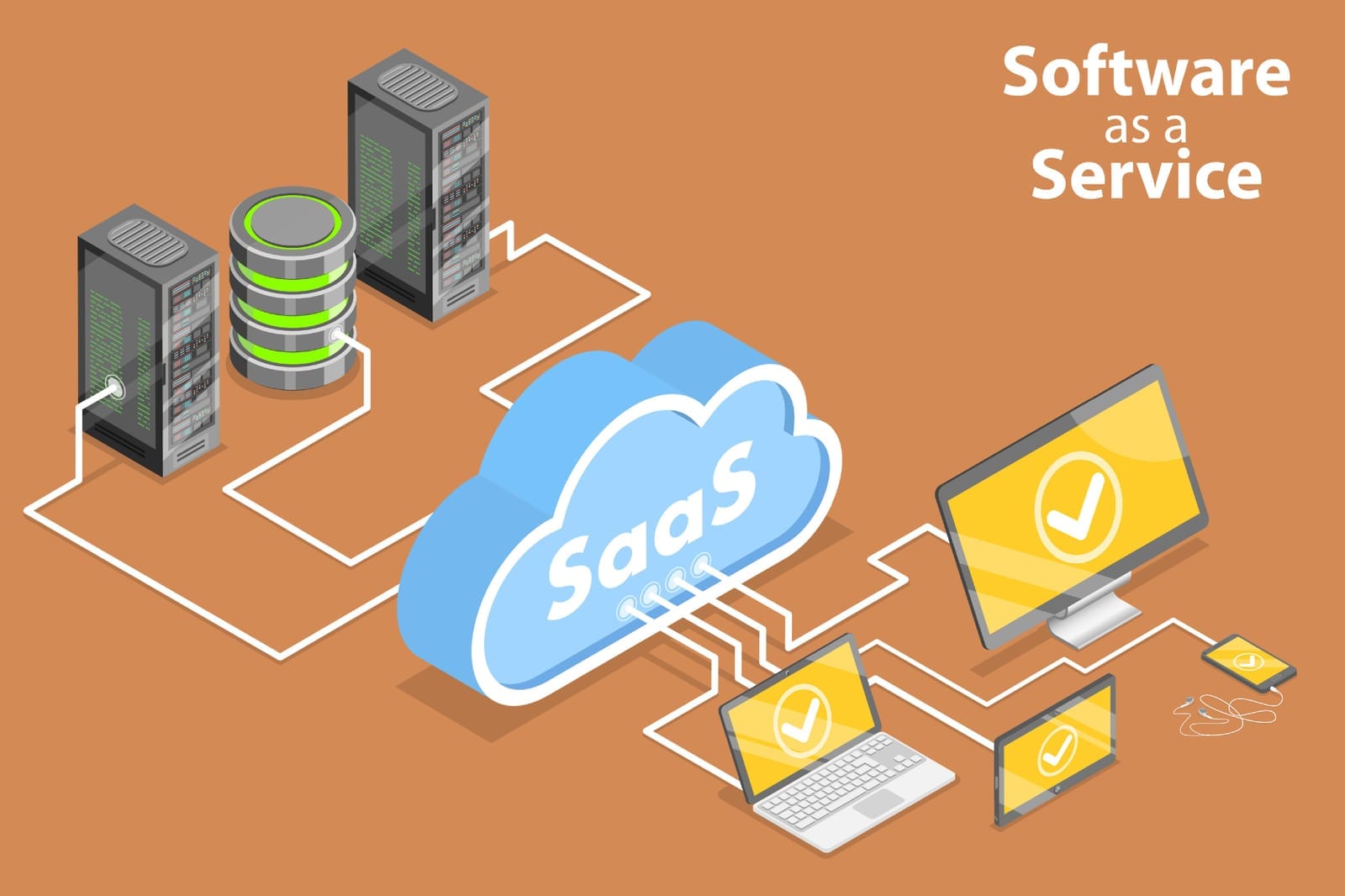
Most non-profits now use cloud services—Office 365, Google Workspace, online CRMs, case management tools, and finance platforms. Cloud is not automatically secure by default; it must be configured sensibly.
3.5.1 Secure Configuration and Role-Based Access Control
When setting up cloud systems:
- Avoid using a single “shared” admin account for everything.
- Use role-based access control (RBAC)—assign roles like “Editor,” “Viewer,” “Finance Admin,” etc., instead of giving everyone full access.
- Limit “global admin” or “superuser” privileges to a very small number of trusted individuals.
If you don’t have in-house IT expertise, ask a managed IT provider or an experienced consultant to review your configuration, especially if you handle sensitive data.
3.5.2 Backups and Recovery
Even in the cloud, backups matter. Cloud providers often protect against hardware failure, but not against:
- Accidental deletion by staff
- Malicious deletion by attackers
- Ransomware encrypting your cloud files
Consider:
- A separate backup service for your critical cloud data (files, email, donor databases).
- Testing your ability to restore data (don’t wait until an emergency to find out).
- Clear rules about where data should live (to avoid important work only existing on someone’s personal laptop).
Managed services can include cloud backup management, scheduled IT health checks, and business continuity consulting so you’re prepared for disruptions.
3.5.3 Logging and Monitoring
Logs are records of who did what and when. They’re vital for understanding an incident and meeting compliance duties.
For small non-profits:
- Ensure logs are enabled on key systems (email, CRM, finance tools).
- At least periodically review them or have your IT partner monitor them for unusual activity.
- Keep logs for a reasonable period (e.g., 6–12 months) if possible, subject to storage and privacy considerations.
3.5.4 Vendor Due Diligence
You may use many cloud vendors—donor management, email marketing, event registration, survey tools. Each one is a potential risk.
Realistic due diligence for small organizations might include:
- Checking if they publish a security or privacy statement on their website.
- Confirming where data is stored (country/region) and that they comply with relevant data protection laws.
- Asking basic questions:
- Do you encrypt data at rest and in transit?
- Do you support MFA?
- How do you handle data breaches?
Keep a simple record of vendors you use, what data they hold, and the results of your checks. This is helpful for compliance and risk management.

4. Low-Cost, High-Impact Steps for the Next 90 Days
You don’t need to do everything at once. Below is a realistic, prioritized checklist designed for non-profits with limited resources. Aim to complete as many as you can over the next three months.
Priority 1 (Weeks 1–4): Foundations
- Enable MFA on all important accounts
- Email (for all staff and key volunteers)
- Donor database / CRM
- Finance and payroll systems
- Any admin or “superuser” accounts
- Turn on automatic updates
- For Windows/macOS and mobile devices
- For browsers (Chrome, Edge, Firefox) and office software
- Check your website’s security
- Confirm your donation and login pages use HTTPS
- Ask your web host to install or renew SSL/TLS certificates if needed
- Review user accounts in key systems
- Remove or disable accounts for ex-staff, volunteers, and contractors
- Ensure shared mailboxes use separate logins rather than shared personal accounts
- Start a basic staff awareness campaign
- Add a 10-minute “cyber tip” to your next team meeting
- Share a one-page guide on spotting phishing emails
- Make it clear staff can ask questions without blame
Priority 2 (Weeks 5–8): Strengthening Controls
- Implement a password manager
- Choose a reputable provider and roll it out to key staff first
- Provide a short, simple training on how to use it
- Enable disk encryption
- On all laptops that may contain sensitive or personal data
- Ensure recovery keys are stored safely (possibly with your IT partner)
- Standardize your remote work/BYOD expectations
- Draft a short, clear “acceptable use” note covering:
- Using passcodes/passwords
- Keeping devices updated
- Not sharing work accounts with others
- Have staff and regular volunteers acknowledge it
- Draft a short, clear “acceptable use” note covering:
- Check your payment and donation setup
- Confirm your payment processor is PCI-compliant
- Turn on fraud detection tools available in your platform
- Brief finance staff on signs of suspicious donations or refund fraud
- Document a simple incident response plan
- Who should staff contact if:
- They click on a suspicious link?
- They lose a device?
- They see unusual account activity?
- Who will decide if you need to contact donors, beneficiaries, or regulators?
- Keep it to one or two pages—use plain language.
- Who should staff contact if:
Priority 3 (Weeks 9–12): Deeper Resilience
- Set up or review backups
- Ensure critical files and email are backed up (whether on-premise or cloud)
- Confirm how long backups are retained
- Test restoring a small sample to confirm it works
- Review access levels
- Check who has admin/superuser rights in email, CRM, finance, and file systems
- Downgrade anyone who doesn’t genuinely need that level of access
- Map your critical systems and data
- List your main systems (email, CRM, finance, case management, file storage, website, etc.)
- Note what type of data each holds (donor, beneficiary, staff, sensitive categories)
- Mark which systems are “most critical” (if they go down, you can’t operate)
- Engage external support where appropriate
- If you lack in-house IT, consider:
- A managed IT service for day-to-day support, monitoring, and patching
- A short engagement for a cybersecurity health check or annual audit
- Ask whether they offer non-profit pricing or packages suitable for your size.
- If you lack in-house IT, consider:
- Plan one small training or tabletop exercise
- Example scenario: “A staff member clicks on a phishing link and their email is compromised.”
- Talk through:
- How would we know?
- Who would we inform?
- How would we contain the issue?
- How would we communicate with affected parties?
- This doesn’t need to be formal; even a one-hour discussion helps build readiness.

5. Conclusion: Small, Steady Steps Protect Your Mission
Cybersecurity can feel intimidating, especially for organizations whose focus is serving people, not managing technology. But you don’t need to become security experts or buy expensive tools to make meaningful progress.
A few key ideas to keep in mind:
- You are a target mostly because you are trusted and hold valuable data—not because you are large or wealthy.
- Most successful attacks exploit very basic weaknesses: weak passwords, lack of MFA, old software, and staff rushed into clicking.
- Incremental improvements add up. Turning on MFA, keeping systems updated, training staff to spot phishing, and removing old accounts together create strong layers of defense.
- You don’t have to do everything alone. Managed IT and cybersecurity services tailored to organizations your size can provide ongoing support, proactive monitoring, compliance guidance, training, and strategic reviews under one roof.
Focus first on the next 90 days:
- Turn on MFA.
- Clean up old accounts.
- Update your devices and apps.
- Talk to your team about phishing.
- Ensure your donations and website are using secure, reputable platforms.
Each step you take makes it harder for attackers to succeed and protects the people and communities you serve. Cybersecurity is not about perfection; it’s about continuous, practical improvement in support of your mission.