IT Asset Lifecycle Management for SMEs: From Procurement to Secure Disposal of Devices and Servers
For many small and medium-sized enterprises (SMEs), IT spending feels reactive: laptops are bought in a rush when someone joins, servers are only replaced when they fail, and old devices pile up in a storeroom “just in case.” This ad‑hoc approach is expensive, risky, and hard to manage.
A structured IT Asset Lifecycle Management (ITALM) approach can change that.
1. Introduction: What Is IT Asset Lifecycle Management?
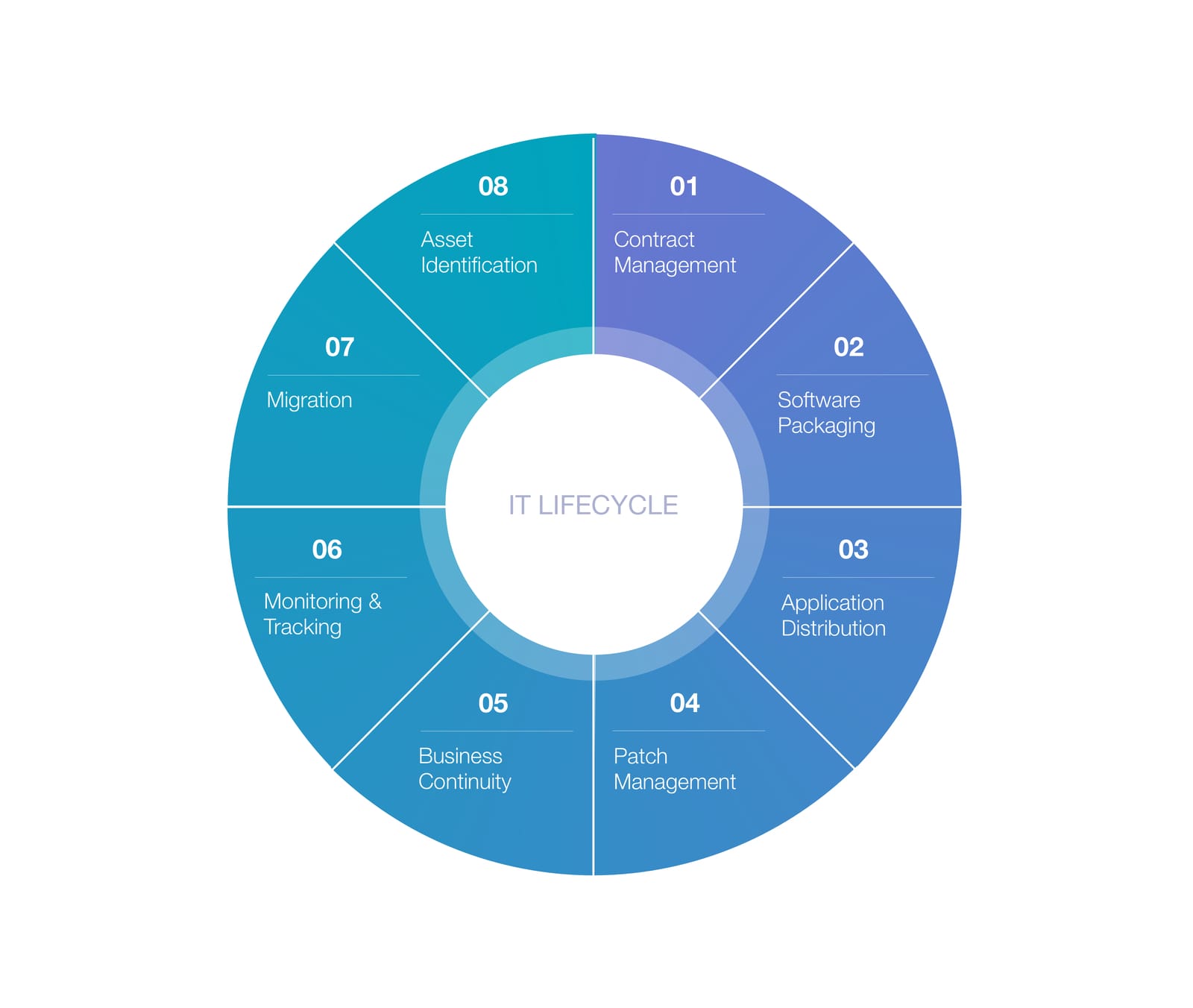
IT Asset Lifecycle Management is the practice of planning, tracking, and controlling your IT equipment from the moment you decide to buy it until the moment it is securely and responsibly disposed of.
For SMEs, this typically covers:
- End-user devices – laptops, desktops, tablets, mobile phones.
- On‑premises servers – physical servers in your office or data centre.
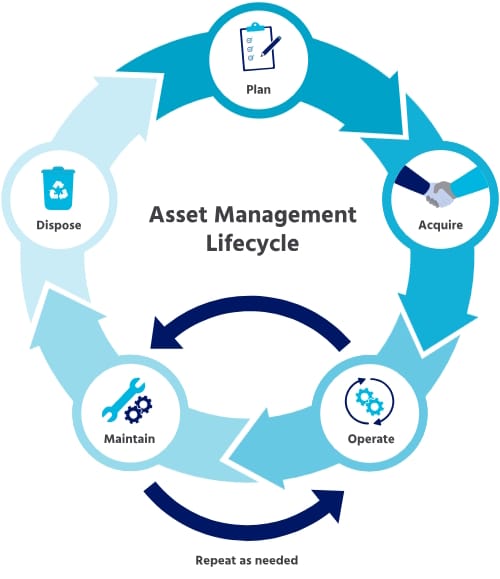
The lifecycle stages are:
- Plan & Procure – decide what to buy and from whom.
- Deploy & Use – assign devices to users, keep them secure and maintained.
- Monitor & Refresh – track performance, warranties, and support timelines.
- Decommission & Dispose – securely erase data and recycle or destroy equipment.
Common SME Pain Points ITALM Helps Solve
- Ad‑hoc purchases
Buying whatever is cheapest or available, leading to a mix of incompatible devices and higher support effort. - Lost or untracked devices
No clear view of who has what; devices “walk away” or sit unused. - Unexpected downtime
Ageing laptops and servers fail without warning, disrupting operations. - Security risks from old hardware
Unsupported operating systems and unpatched devices are easy targets for attackers. - Poor disposal practices
Old devices disposed of without proper data wiping, creating data‑protection and reputational risks.
With a basic IT asset lifecycle framework, SMEs can cut costs, reduce risk, and improve productivity—without needing a large IT team.

2. Standardising Device and Server Procurement
Why Standardisation Matters
Instead of buying a different laptop brand or model every time, standardising means choosing a small set of approved device and server profiles for your organisation.
Benefits:
- Easier support – fewer models means faster troubleshooting and simpler spare parts.
- Bulk pricing – buying the same models repeatedly improves your bargaining position.
- Simpler management – standard images, drivers, and configurations reduce IT overhead.
- Security baselines – you can define minimum hardware specs (e.g., TPM chips, secure boot, supported OS) to meet your security standards.
Example Standard Hardware Profiles for SMEs
You can adapt these to your budget and use cases. The key is to write them down and use them consistently.
1. Standard Laptop (General Staff)
For most office workers:
- CPU: Mid‑range (e.g., Intel Core i5 / AMD Ryzen 5).
- RAM: 16 GB.
- Storage: 512 GB SSD.
- Screen: 14"–15" full HD.
- Connectivity: Wi‑Fi, Bluetooth, at least 2 x USB, HDMI or USB‑C.
- Security: TPM chip, supports full disk encryption, webcam privacy options.
2. Power User Workstation (Designers, Developers, Analysts)
- CPU: Higher‑end (Intel Core i7/i9, Ryzen 7/9 or Xeon).
- RAM: 32 GB or more.
- Storage: 1 TB SSD (optionally an additional SSD/HDD for data).
- GPU: Dedicated graphics for design/CAD/video where needed.
- Additional ports or docking support for multiple monitors.
3. Entry‑Level Server (On‑Premises)
For file sharing, basic line‑of‑business apps, or light virtualisation:
- CPU: Server‑grade (e.g., Intel Xeon Silver/Gold or AMD EPYC with appropriate cores).
- RAM: 32–64 GB (more if running multiple virtual machines).
- Storage: RAID array using enterprise SSDs or HDDs.
- Redundancy: Dual power supplies, hot‑swappable drives if possible.
- Network: Dual NICs (for redundancy / segregation).
- Management: Remote management capabilities (e.g., iDRAC, iLO).
You may have one or two variations (e.g., Standard Desktop instead of laptop, High‑Availability Server with more redundancy), but keep the list short.

Practical Procurement Considerations
When choosing vendors and models, look beyond just the sticker price:
- Vendor selection
- Reliability and local support presence.
- Ability to supply in consistent configurations over time.
- Alignment with your “cloud‑first” or on‑prem strategy.
- Warranties and SLAs
- Minimum 3‑year warranty for laptops/desktops; 3–5 years for servers.
- Consider next‑business‑day onsite support for critical servers and executive devices.
- Check how warranty claims are handled (local centre vs. shipping devices overseas).
- Total Cost of Ownership (TCO)
- Upfront price plus:
- Expected lifespan.
- Cost of support and maintenance.
- Downtime impact if the device fails.
- Licensing (OS, office suite, endpoint security, server OS, backup).
- Upfront price plus:
Thinking in TCO terms often shows that slightly more expensive, business‑grade hardware is cheaper over 3–5 years than consumer‑grade devices.
3. Asset Inventory and Tracking
An accurate asset inventory is the foundation of IT asset lifecycle management. If you don’t know what you have, you can’t protect it, maintain it, or plan replacements.
How to Build an Asset Register
Start with a simple, centralised list. For each device and server, capture at least:
- Asset ID (your internal tag or code).
- Device type (laptop, desktop, phone, server).
- Make and model.
- Serial number.
- Assigned owner (user or department).
- Location (office, home office, country).
- Purchase date and supplier.
- Cost (optional but helpful for finance and depreciation).
- Warranty or lease expiry date.
- Installed operating system (e.g., Windows 11 Pro, Ubuntu Server).
- Key software and licenses (Office, antivirus, line‑of‑business apps).
- Status (in use, spare, under repair, retired, disposed).
You can begin with a physical audit: walk through your office, check server rooms, and record everything you find. Ask remote staff to provide details and photos of their devices, if needed.
Tools Suitable for SMEs
You don’t have to start with expensive systems. Options include:
- Spreadsheets (Excel, Google Sheets)
- Pros: Free or already available, easy to start.
- Cons: Error‑prone, no automated updates, harder to maintain as you grow.
- IT Asset Management (ITAM) tools
- Track hardware, software, and sometimes contracts and licenses.
- Often cloud‑based, with automated discovery of devices on your network.
- Endpoint Management / MDM (Mobile Device Management) platforms
- Automatically inventory laptops, desktops, and mobile devices.
- Can push updates, enforce security policies, and remotely wipe devices.
- Examples categories: Microsoft Intune, mobile device management suites, RMM tools used by Managed Service Providers.
For SMEs, a hybrid approach works well: start with a simple spreadsheet, then adopt an endpoint management tool as your environment grows or once you have more than ~20–30 devices.

Keeping Records Up to Date
An asset register is only useful if it’s up to date. Build updates into your people and IT processes:
- Onboarding (joins)
- Assign asset(s) to the new user.
- Record the asset ID, user, and date.
- Install standard software and security tools.
- Role changes / device reassignment
- When someone changes role or device:
- Update “Assigned owner.”
- Check and update installed software licenses.
- Confirm previous data is wiped or archived if needed.
- When someone changes role or device:
- Leavers
- Ensure devices are returned and logged.
- Revoke access (email, VPN, apps).
- Decide whether the device is reused, stored as spare, or decommissioned.
- Lost or stolen devices
- Update status to “Lost/Stolen.”
- If device management allows, remotely wipe or lock it.
- Inform security or compliance contacts; evaluate if a data‑breach notification is needed (consult legal/compliance where applicable).
Periodic audits (e.g., every 6–12 months) help catch discrepancies between your inventory and reality.
4. Planning Refresh and Replacement Cycles
Instead of waiting for devices to die, plan ahead.
Typical Lifecycle Durations
These are common, practical ranges:
- Laptops/desktops: 3–5 years
- Lighter use (basic office work) → closer to 5 years.
- Heavy use (development, design) → 3–4 years.
- Mobile devices (phones, tablets): 2–4 years
- Driven by OS support, battery life, and physical wear.
- On‑premises servers: 3–7 years
- For many SMEs, 5 years is a sensible planning horizon.
- Servers running critical systems may be replaced earlier to reduce downtime risk.
Key Factors That Trigger a Refresh
- Performance issues
- Users complain about slow startup, freezing, or delays.
- System performance impacts productivity and staff satisfaction.
- End of warranty
- After warranty expiry, repair costs and downtime risks increase.
- OS or software end‑of‑support
- When the operating system (e.g., a version of Windows or Linux) or key software is no longer receiving security updates, the device becomes a security liability.
- Security risks
- Inability to run modern security tools (e.g., endpoint protection, disk encryption).
- Hardware lacking crucial security features (e.g., TPM, secure boot).
- Business growth
- Expanding headcount or new locations can justify upgrading servers or consolidating onto new hardware.

Creating a Simple Multi‑Year Refresh Plan and Budget
- Export your inventory
- Include purchase dates, warranty expiry, and device types.
- Group assets by age and type
- E.g., Laptops bought in 2021 → target replacement in 2024–2026.
- Server bought in 2020 → target replacement by 2025.
- Define a lifecycle policy
- Example:
- Laptops: replace at 4 years.
- Desktops: replace at 5 years.
- Servers: replace at 5 years or earlier if out of support.
- Example:
- Spread replacements across years
- Avoid replacing everything at once.
- Example: Replace roughly 25% of laptops every year after year 3.
- Create a budget forecast
- For each year, count how many assets will be replaced and multiply by an estimated per‑device cost.
- Share this with finance so they can plan cash flow.
- This transforms IT purchases from “emergency costs” into planned, predictable investments.
Balancing CAPEX and OPEX (Buy vs Lease vs Device‑as‑a‑Service)
SMEs can manage IT costs in different ways:
- Buy (CAPEX)
- Pay up front, own the equipment.
- Lower long‑term cost if you use devices for several years.
- Requires budget spikes when doing large refreshes.
- Lease (OPEX)
- Pay a monthly or quarterly fee over 3–5 years.
- Smoother cash flow; often includes some support.
- At end of lease, you return or buy the devices at residual value.
- Device‑as‑a‑Service (DaaS)
- Subscription model for devices bundled with support, management, and sometimes software.
- Simplifies lifecycle management, but per‑month cost may be higher than owning, depending on terms.
The right mix depends on your cash flow, growth plans, and internal capabilities. Many SMEs combine models: e.g., outright purchase for servers and leasing for end‑user laptops.
5. Secure Decommissioning and Disposal
When a device or server reaches end‑of‑life, how you handle it matters as much as how you bought it. Poor disposal is a common source of data breaches and compliance violations.
Step‑by‑Step Decommissioning Process
Use a clear checklist whenever you retire a device or server:
- Back up or migrate data
- Confirm all required data is copied to a secure location (e.g., file server, cloud storage, new device).
- Verify business applications or services have been migrated if it’s a server.
- Remove from inventory and management tools
- Update your asset register status to “Retired” or “Disposed.”
- Remove the device from management platforms (MDM, endpoint management, monitoring tools).
- Release any licenses linked to the device where possible.
- Revoke access
- Remove or disable device entries from:
- Active Directory / Azure AD.
- VPN and remote access tools.
- Email and collaboration platforms (if device‑specific access is used).
- For mobile devices, remove corporate profiles and apps.
- Remove or disable device entries from:
- Confirm device is physically collected
- Ensure the device is in a controlled location until wiped or destroyed.
Secure Data Erasure Options
Your goal is to ensure no residual data can be recovered from the device’s storage.
- Software‑based wiping
- Use reputable data‑erasure tools that follow recognised standards (e.g., NIST SP 800‑88 guidelines).
- These tools overwrite the storage with patterns of data so that original data cannot be recovered with normal methods.
- Best for:
- Devices that will be reused within the company.
- Devices you will resell, redeploy, or donate.
- Encryption‑based approaches (“crypto‑erase”)
- If the drive has been fully encrypted (e.g., using BitLocker, FileVault, or hardware disk encryption), you can:
- Securely delete or destroy the encryption keys.
- Without the key, the data on the disk is effectively unreadable.
- Still, many organisations combine encryption‑based erasure with additional wiping for higher assurance.
- If the drive has been fully encrypted (e.g., using BitLocker, FileVault, or hardware disk encryption), you can:
- Physical destruction (for drives that cannot be wiped)
- For failed drives that no longer power on, or highly sensitive data:
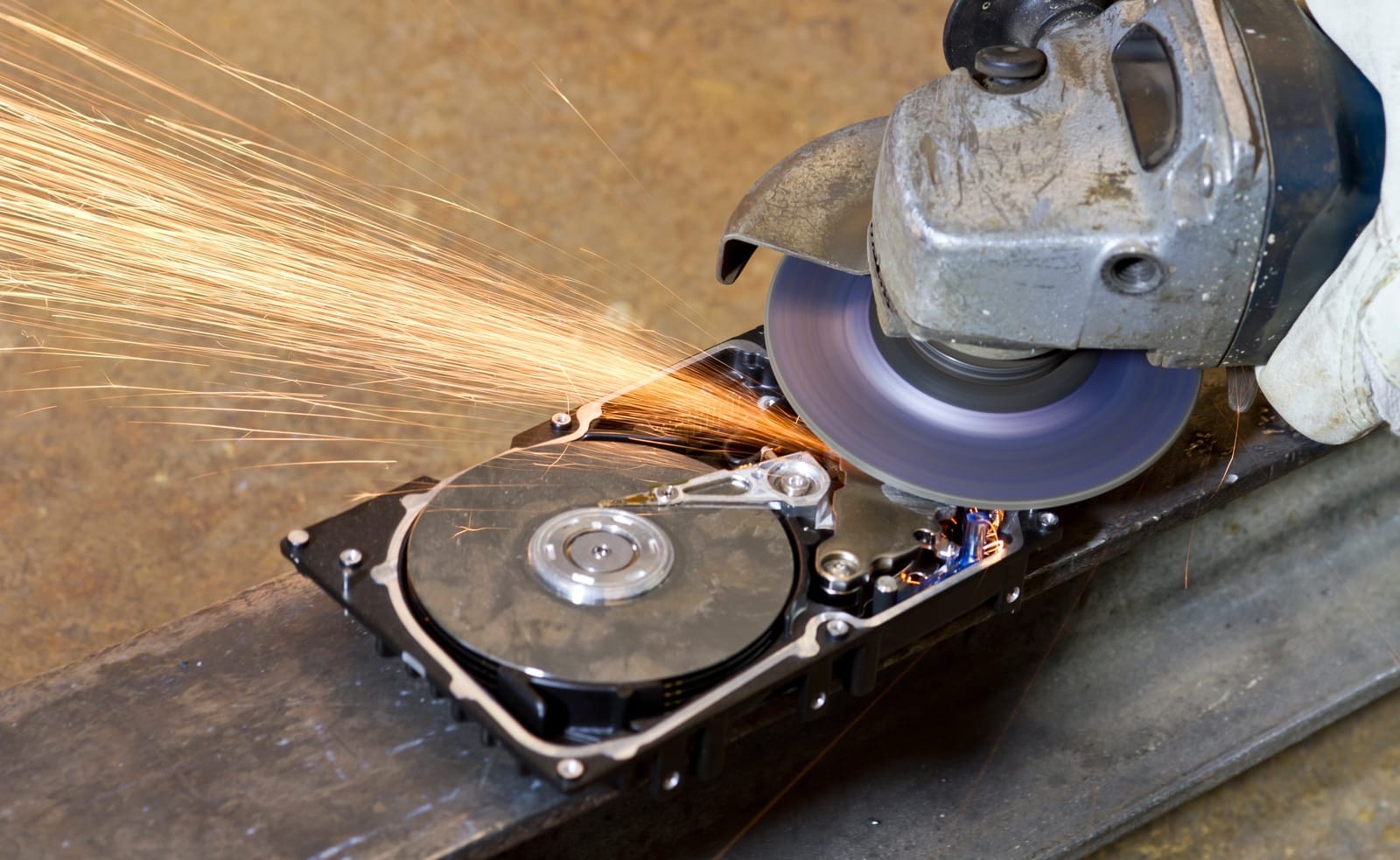
- Shredding or crushing the drive.
- Drilling through the platters (for HDDs) or using certified destruction services.
- Obtain a certificate of destruction where possible for your records.
- Always document which method you used, when, and by whom. This is useful for audits and demonstrating due diligence.
- For failed drives that no longer power on, or highly sensitive data:
Environmentally Responsible Disposal and Recycling
IT equipment contains metals, plastics, and sometimes hazardous materials. Sending everything to landfill is both environmentally harmful and potentially non‑compliant.
Best practices:
- Use certified e‑waste recyclers
- Choose recyclers that follow recognised standards or are certified by local authorities.
- Confirm that they provide secure data destruction as part of their service, or combine their service with your own data‑erasure process.
- Request documentation
- Certificates of destruction for drives/media.
- Recycling reports indicating what was recycled or disposed of.
- Reuse where appropriate
- Redeploy securely wiped devices to less demanding roles (e.g., kiosks, training rooms).
- Donate securely wiped and tested devices to charities or schools, if consistent with your policies and regulations.
Regulatory and Compliance Considerations
If you process personal data, regulations like the GDPR (in the EU/UK) or other data‑protection laws may apply. Key principles to keep in mind:
- Only retain data for as long as necessary.
- Protect personal data against unauthorised access, including at end‑of‑life.
- Be able to demonstrate you took reasonable steps to protect data (e.g., documented wiping and destruction processes).
Regulations differ by country and sector, so SMEs should consult legal or compliance experts to understand their specific obligations. Avoid assuming that a basic wipe is enough for highly sensitive or regulated data—get expert guidance where stakes are high.

6. Policies, Processes, and Roles
Formal processes don’t have to be complex. Even a small company benefits from simple written policies.
Core IT Asset Policies to Create
Procurement Policy
- Approved hardware profiles and vendors.
- Who can approve purchases and up to what limit.
- Preferred financing models (buy vs. lease).
Asset Tracking Policy
- What must be recorded for each asset.
- Responsibilities for keeping the inventory up to date.
- Frequency of asset audits.
Refresh and Replacement Policy
- Standard lifecycle durations (e.g., laptops 4 years, servers 5 years).
- Criteria for early replacement (e.g., repeated failures, security or performance issues).
Decommissioning and Disposal Policy
- Steps for data backup, wiping, and destruction.
- Approved methods and tools for data erasure.
- Approved recyclers or disposal partners.
- Documentation requirements (e.g., destruction certificates).
Clarifying Roles in a Small Company
Even in a small SME, clarify who does what:
- IT lead / IT manager (internal) or MSP (outsourced)
- Define hardware standards.
- Maintain the asset inventory (often jointly with operations).
- Execute onboarding/offboarding, refreshes, and decommissioning.
- Manage endpoint security, patching, and backups.
- Finance
- Approve IT budgets and procurement.
- Maintain asset values and depreciation schedules.
- Align leasing/financing decisions with cash‑flow planning.
- Office manager / HR
- Trigger onboarding and offboarding workflows.
- Coordinate physical collection and return of devices.
Assigning responsibilities avoids gaps where devices are never recorded or old hardware never securely disposed of.
Basic Documentation and Checklists
You can implement these quickly:
- Onboarding checklist
- Assign device(s).
- Create accounts and grant access.
- Install standard software and security tools.
- Update asset inventory with user assignment.
- Offboarding checklist
- Disable accounts and revoke access.
- Collect devices, chargers, and accessories.
- Update inventory (status and new custodian).
- Initiate data backup and decommissioning process.
- Decommissioning checklist
- Confirm data is backed up/migrated.
- Remove from management tools and revoke access.
- Perform secure erasure or destruction.
- Record method used, date, and responsible person.
- Arrange recycling or disposal, and file certificates.
7. Tools and Practical Tips for SMEs
You don’t need an enterprise toolset to manage assets effectively. Start simple and scale up as you grow.
Useful Tool Categories
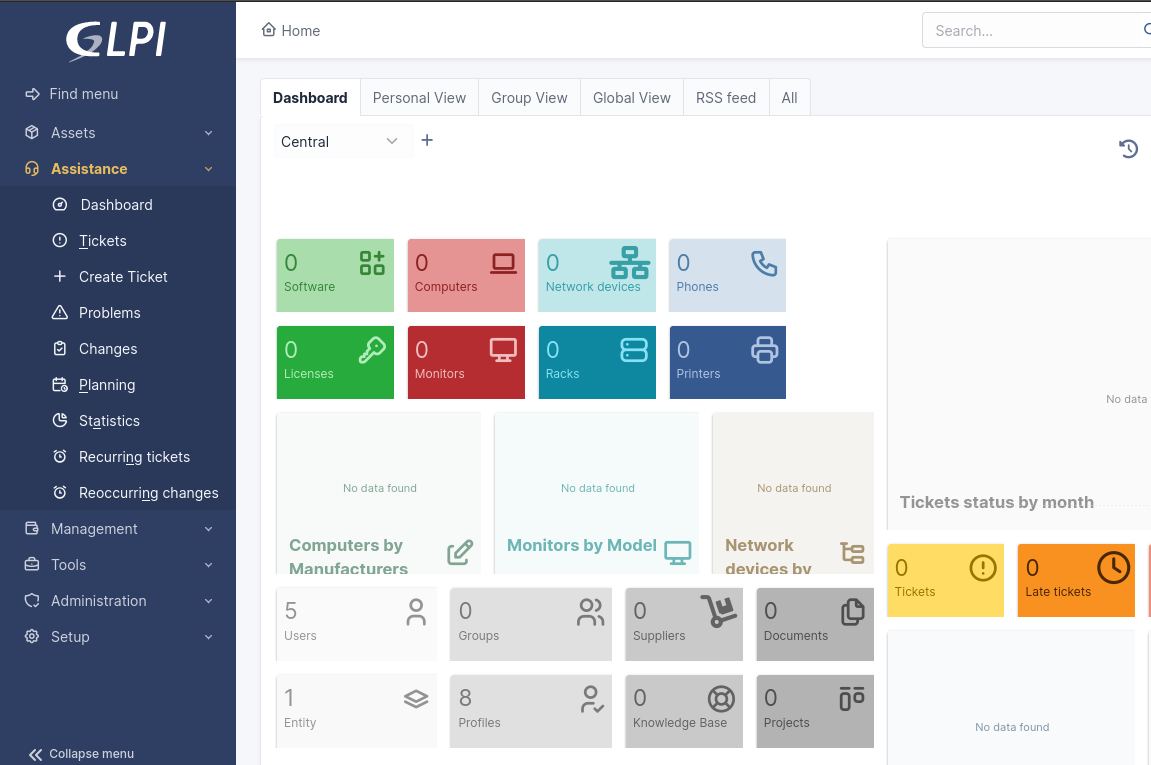
- Asset Management Tools
- Central database of hardware, software, and contracts.
- Often includes QR or barcode support to speed physical audits.
- Endpoint Management / MDM
- Discover and inventory devices automatically.
- Push OS and software updates, apply security policies.
- Remotely lock or wipe lost/stolen devices.
- IT Service Desk / Ticketing
- Track incidents and requests by device and user.
- Helps you identify problematic devices and plan refresh more intelligently.
These may be part of an integrated suite or separate tools. For smaller organisations, cloud‑based options with per‑device or per‑user pricing are often cost‑effective.
Quick Wins SMEs Can Implement Immediately
- Standardised onboarding and offboarding
- Turn your checklists into simple templates.
- Ensure every new hire and leaver goes through the same steps.
- Asset tags or barcodes
- Label each physical device with a unique ID.
- Match this ID with entries in your asset register.
- Use a free barcode/QR code scanning app to speed audits.
- Centralised record storage
- Keep your asset register in a shared, secure location (e.g., a controlled-access SharePoint or Google Drive folder).
- Control who can edit vs. view.
- Periodic asset audits
- At least annually (or more often for high‑risk environments).
- Verify that each asset in your list exists, is where it should be, and is assigned to the right person.
- Baseline security configuration
- Decide on a standard security setup:
- Full disk encryption on all laptops.
- Endpoint protection/antivirus on all devices.
- Automatic updates enabled.
- Apply these settings consistently to every device.
- Decide on a standard security setup:

8. Conclusion: Turning IT Assets into a Managed, Secure Investment
IT asset lifecycle management may sound complex, but for SMEs it boils down to a few disciplined practices:
- Buy the right devices in a standardised, planned way.
- Track what you own and who uses it.
- Replace devices before they fail or become insecure.
- Securely erase and responsibly dispose of old equipment.
- Back this with simple policies, clear roles, and basic tools.
The business benefits are significant:
- Lower total costs through standardisation, better planning, and fewer emergencies.
- Reduced security and compliance risk from lost, untracked, or poorly disposed devices.
- Improved productivity by giving staff reliable, appropriately specified devices.
- Smoother operations with predictable refresh cycles and fewer surprises.
The First 5 Steps for SMEs Starting from Scratch
Create a basic asset inventory
- Use a spreadsheet; list all laptops, desktops, mobiles, and servers with owner, location, and purchase date.
Define 2–3 standard device profiles
- E.g., Standard Laptop, Power User Laptop/Workstation, Entry‑Level Server.
- Commit to using these for all new purchases.
Set lifecycle targets
- Decide on replacement timelines (e.g., laptops at 4 years, servers at 5 years).
- Roughly forecast replacements for the next 3 years.
Draft simple policies and checklists
- One‑page policies for procurement, tracking, and disposal.
- Onboarding, offboarding, and decommissioning checklists.
Choose at least one management tool
- Start with your inventory spreadsheet plus a basic ticketing or endpoint management tool.
- Plan to mature your toolset as you grow.
From there, you can refine and automate over time. Even modest improvements in how you procure, track, refresh, and dispose of IT assets can have an outsized impact on cost, security, and operational resilience for your SME.