From Paper Files to Secure Digital Records: A Step‑By‑Step Guide for Clinics and Law Firms
Small clinics and law firms run on information: charts, reports, contracts, pleadings, consents, emails, and more. When most of that lives in paper folders, you face daily headaches:
- Overflowing shelves and off‑site storage costs
- Difficulty finding “that one document” quickly
- Risks from lost, misfiled, or damaged records
- Limited ability to work remotely or coordinate across locations
That’s why so many healthcare and legal practices are moving to secure digital records. For clinics, this often supports obligations around patient privacy and health data protection (e.g., HIPAA in the U.S. or similar privacy laws in other jurisdictions). For law firms, it supports duties around client confidentiality, privilege, and proper file management.
This guide walks non‑technical office managers, partners, and admins through a practical, phased approach to going digital—without turning you into an IT expert. It focuses on realistic tools and workflows for small teams, and on security and compliance‑minded best practices.
Techease Solutions specializes in helping small and mid‑sized businesses move into secure, cloud‑first environments with managed IT, backups, security, and compliance support, while still supporting on‑premise setups where needed. Use this guide as a roadmap—and consider where it makes sense to lean on a managed IT partner.

1. Planning and Preparation
Digitizing records is a business change project, not just an IT project. A bit of planning saves a lot of pain later. If you’re mapping the people side of this shift, our guide to IT change management for SME digital projects can help.
1.1 Decide What to Digitize First
You don’t need to scan every box in your archive on day one. Start where you’ll see the most benefit and lowest risk:
Good starting points:
- Active files
- Clinics: patients seen in the last 1–2 years, ongoing treatment plans.
- Law firms: open matters and recently closed files within your typical retention window.
- High‑risk documents
- Documents containing sensitive personal or financial data that would be hard to replace if lost (e.g., IDs, consent forms, key contracts, court orders, diagnostic reports).
- High‑use documents
- Forms or records staff access multiple times a week (intake forms, standard agreements, frequently referenced correspondence).
This gives you quick wins: better access, fewer lost files, and improved security for your most important records.
1.2 Take a Simple Inventory
You don’t need a complex catalogue—just enough structure to make decisions.
Example quick inventory worksheet:
For each cabinet/shelf/box, note:
- Location: “Cabinet A – Reception”
- Type: “Patient charts,” “Closed litigation files,” “Corporate client files,” “Billing records”
- Date range: “2018–2021”
- Volume: “3 drawers,” “5 boxes”
Then prioritize:
- High priority: active and high‑risk
- Medium priority: frequently referenced older files
- Low priority: dormant archives nearing end of retention
This helps you scope the project and choose where to start.
1.3 Choose Realistic Tools for Small Teams
You don’t need enterprise‑level systems to get started, but you do need tools that are:
- Secure
- Easy for staff to use
- Scalable as you grow
Consider three main components:
- Scanning hardware
- A multi‑function office printer/scanner is fine for low–medium volumes.
- If you have high volume, a dedicated document scanner with an automatic document feeder (ADF) speeds things up.
- Look for features like duplex scanning (both sides), reliable feed, and integration with your computers or network.
- Storage and document management
- A secure cloud storage or document management platform with access controls and good uptime is ideal for most small firms. Techease typically recommends cloud‑first solutions where it improves security, scalability, and cost‑efficiency, but can support on‑premise where regulations or business needs require it.
- For clinics: consider whether your electronic medical record (EMR) or practice‑management system supports attaching or importing scanned documents.
- For law firms: many practice‑management systems or dedicated document‑management systems (DMS) handle matters, documents, and email in one place.
- Backup and protection
- Ensure automatic backups (ideally both cloud and local) and a clear plan to restore data if needed. If you’re weighing on‑prem vs. cloud approaches, see our beginner’s guide to data backup solutions.
- Managed service providers (MSPs) like Techease often bundle device monitoring, backups, antivirus/EDR, and network security into a single service.

2. A Simple Scanning Workflow
A clear, step‑by‑step scanning process prevents chaos.
2.1 Preparing Documents
Before scanning:
Sort into batches
- Example batches: “Patient A – 2019–2020 visits,” “Client X – Litigation matter,” “Daily mail – 2025‑01‑15.”
Remove obstacles
- Take out staples, paper clips, sticky notes (or stick them to a blank page), and unfold pages.
Arrange in order
- Keep the logical sequence: oldest to newest, or by document type.
Tip: Start with one team or department (e.g., family practice doctors or the litigation group) to refine your process.
2.2 Scan Settings to Use
A simple, standard set of settings keeps things consistent:
- File format: PDF (widely supported and easy to view/print)
- Color:
- Black & white for text‑only pages.
- Grayscale or color if color is important (photos, colored annotations, color‑coded forms).
- Resolution:
- 200–300 dpi (dots per inch) is usually enough for text.
- 300 dpi if you’ll zoom in often or need higher clarity.
- OCR (Optical Character Recognition):
- Turn this on so text becomes searchable. This is vital for finding words inside scanned documents.
If your scanner or software asks, look for options like “Searchable PDF,” “OCR,” or “Recognize text.”

2.3 Quality Checks
Build in quick checks so you don’t discover problems months later:
For each batch:
- Open a few scanned files.
- Confirm:
- All pages are present and in order.
- The scan is readable (not too faint, not skewed).
- Handwritten notes are legible enough to be useful.
- OCR works (try searching for a word from the page in your PDF viewer).
If the originals are poor quality (faxed, faint, handwritten):
- Scan at slightly higher resolution (300 dpi).
- If something is still unreadable, flag the paper file to be kept and clearly note in your system that the original must be referenced.
2.4 In‑House vs. Outsourced Scanning
In‑house scanning:
- Pros:
- Full control over documents.
- Good for ongoing day‑to‑day scanning (new mail, new forms).
- Cons:
- Time‑consuming if you have large backlogs.
- Requires staff time and discipline.
Secure scanning service:
- Pros:
- Handles large volumes (e.g., storage room of closed files).
- Often faster; some services offer barcodes or indexing support.
- Cons:
- You must vet the provider’s security (confidentiality, data protection, staff screening, transport procedures).
- Sensitive records leave your premises temporarily.
Before engaging any third party, consider this practical checklist for vetting and securing vendors and integrations.
In many jurisdictions, clinics and law firms remain responsible for confidentiality even when using a third party. Typically, you should:
- Sign a written agreement that addresses privacy, security, and breach notification.
- Ensure data is encrypted in transit and at rest.
- Confirm how paper originals will be returned or securely destroyed.
Techease can assist with vendor selection and ongoing vendor management if you’d prefer help evaluating providers.

3. Indexing and Organization
Scanning without a naming and folder system creates a digital junk drawer. Spend time designing a structure that makes sense to your staff.
3.1 File‑Naming Conventions
Aim for names that are:
- Consistent
- Human‑readable
- Sortable by date
A simple pattern:
Clinics:
[PatientID]_[LastName-FirstName]_[YYYY-MM-DD]_[DocType].pdf
Examples:
12345_Tan-MeiLing_2025-01-10_Consult-Note-Dr-Lim.pdf67890_Ahmad-Farid_2024-11-02_Lab-Results-Blood-Panel.pdf
Law firms:
[ClientCode]_[MatterCode]_[YYYY-MM-DD]_[DocType-BriefDesc].pdf
Examples:
CLT001_MAT003_2025-01-10_Pleadings_SOS-Filed.pdfCLT015_CORP_2024-12-05_Agreement_Shareholders-Exec.pdf
Keep doc types to a short, standard list (e.g., “Intake-Form,” “Lab-Results,” “Opinion,” “Contract,” “Court-Order”).
Write this convention down and train everyone to follow it. For a lightweight way to codify and scale these rules, see our overview of IT policy documentation.

3.2 Folder Structures
You can combine folders and tags, but start with a simple, logical folder hierarchy.
For clinics (example):
Clinic Records/Patients/[PatientID]_[LastName-FirstName]/Administrative/Clinical Notes/Lab & Imaging/Correspondence/
For law firms (example):
Firm Records/Clients/[ClientCode]_[ClientName]/[MatterCode]_[MatterName]/01_Engagement & KYC/02_Pleadings or Instruments/03_Correspondence/04_Evidence or Supporting Docs/05_Billing & Trust/
The exact names matter less than consistency and clarity.
3.3 Tags and Metadata
If your system supports tags/metadata:
- For clinics, you might tag by:
- Provider (e.g., “Dr-Lim”)
- Document type (“Consent,” “Imaging,” “Referral”)
- Location/branch
- For law firms, you might tag by:
- Practice area (“Family,” “Corporate,” “Criminal”)
- Phase (“Pre‑litigation,” “Discovery,” “Trial”)
- Confidentiality level (“General,” “Highly‑Restricted”)
Combined with OCR, metadata makes it much easier to search across thousands of files.

4. Access Controls and Security
Digital systems can be more secure than paper—if configured properly.
4.1 Role‑Based Access Controls
Not everyone needs access to everything.
Examples:
- Clinics:
- Doctors and nurses: access to relevant patient clinical records.
- Front desk: access to scheduling and billing, but limited access to clinical notes.
- Management: summaries and key documents, not necessarily all day‑to‑day notes.
- Law firms:
- Matter teams: access to their clients’ matters.
- Finance: billing and trust records, not full access to all matter files.
- Trainees/assistants: controlled access based on responsibilities.
Work with your IT provider to set up groups/roles (e.g., “Doctors,” “Admin,” “Litigation,” “Conveyancing”) and assign access at the folder or system level.
4.2 Practical Security Basics
For small teams, a few key practices dramatically improve security:
- Strong, unique passwords
- Use a password manager so staff don’t reuse or write down passwords. For quick wins, see our company‑wide password hygiene tips.
- Require complex passwords and change them if there’s any suspicion of compromise.
- Multi‑factor authentication (MFA)
- Turn on MFA for email, cloud storage, and practice‑management systems.
- This adds a second step (code or app approval) after the password, blocking many common attacks.
- Encrypted storage
- Use systems that encrypt data “at rest” (on servers/drives) and “in transit” (when sent over the internet).
- Most reputable cloud services offer this by default; confirm it in writing.
- Secure networks and endpoints
- Keep computers updated with patches and managed antivirus/endpoint detection and response (EDR).
- Use a properly configured firewall and avoid public Wi‑Fi for accessing sensitive records unless using a secure VPN.
Techease offers device monitoring, patch management, managed antivirus/EDR, firewall and network support, and backup management as part of its MSP offerings.

4.3 Physical Security
Digital security doesn’t remove the need for physical safeguards:
- Protect any remaining paper records in locked cabinets or rooms with controlled access.
- Store backup drives (if used) in secure, ideally off‑site or fire‑resistant locations.
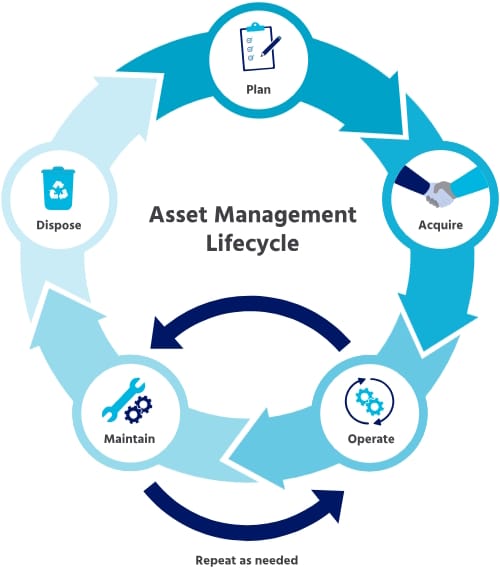
- When old computers or drives are replaced, ensure drives are securely wiped or destroyed, not just thrown away. Our IT asset lifecycle guide explains secure disposal best practices.
4.4 When to Seek Local Legal/Regulatory Advice
In many jurisdictions, you must meet specific rules for:
- Health information (e.g., HIPAA in the U.S., PDPA in Singapore, or similar health privacy laws)
- Legal professional conduct and client confidentiality
- Data protection and cross‑border transfers
Operational best practices (like scanning workflows, naming conventions, access controls) are generally safe to adopt. But for questions like “How long must I keep this record?” or “Can I store data in another country’s cloud?”, consult your professional regulator or legal counsel.
Techease provides data protection compliance support (e.g., PDPA) and security & compliance advisory, often working alongside your legal counsel.
5. Retention and Disposal Policies
Going digital without a plan for how long to keep records just moves the clutter from boxes to servers.
5.1 What Is a Records Retention Policy?
A records retention policy is a simple written rule that says:
- What types of records you have
- How long you keep each type
- What happens when that time is up (review, archive, or destroy)
It should cover both paper and digital records. If you’re preparing for external reviews, here’s a non‑technical IT compliance audit checklist to help you get ready.
5.2 Setting Retention Periods
Typically, clinics and law firms set retention based on:
- Legal or regulatory minimums (e.g., minimum years after last visit or end of matter)
- Professional guidelines from medical or legal regulators
- Business needs (e.g., pattern of patients returning after long gaps, or long‑running corporate client relationships)
Steps:
- List your main record types:
- Clinical records, consent forms, imaging, billing, HR files, etc., for clinics.
- Client matter files, court documents, contracts, billing records, trust records, HR files for law firms.
- For each, note:
- Typical minimum retention period in your jurisdiction (based on regulator guidance or legal advice).
- Any longer periods you choose for business reasons.
- Decide what happens at end of period:
- Destroy securely
- Archive in a restricted area
- Review case‑by‑case (e.g., for high‑risk matters)
Always confirm your periods with your professional regulator or legal counsel; this guide is operational, not legal advice.

5.3 Marking Records for Review or Deletion
Your digital system should help you keep track:
- Use metadata fields like “Close Date” or “Last Visit Date.”
- Tag records or folders with “Destroy After YYYY‑MM‑DD.”
- Schedule periodic reviews (e.g., annually) to:
- Generate a list of records reaching end‑of‑life.
- Review for any exceptions (ongoing litigation, investigations, outstanding complaints).
5.4 Secure Destruction of Paper and Digital Records
Paper:
- Use cross‑cut shredding or a reputable shredding service with confidentiality commitments.
- Obtain certificates of destruction for large batches.
Digital:
- Use secure deletion methods that make data unrecoverable (e.g., “secure erase” tools, or managed services for data destruction).
- When retiring servers, hard drives, or USB sticks, ensure drives are wiped or physically destroyed.
Your IT provider or MSP can help implement secure deletion processes and document them.

6. Implementation Tips for Small Teams
Going digital is less about buying the “right” software and more about people, habits, and simple rules.
6.1 Start Small with a Pilot
Pick a pilot area for the first 4–8 weeks:
- One practice area (e.g., family law).
- One clinic unit (e.g., general practice).
- Or one type of record (e.g., new patient intakes or new client engagement letters).
In the pilot:
- Use your naming convention and folder structure.
- Run your scanning workflow.
- Track what works and what frustrates staff.
Adjust your process before rolling it out firm‑wide.
6.2 Train Staff on the New Process
Even simple changes fail without training. Cover:
- Why you’re going digital (less time wasted, better security, better client/patient service).
- What changes for them day‑to‑day (where to save files, how to name them, how to search).
- How to get help (who to ask internally; when to call your IT provider).
Short written “cheat sheets” and quick video demos can be more effective than long manuals.

6.3 Avoid Common Pitfalls
- Scanning without a naming system
- Result: hundreds of “Scan001.pdf” files nobody can find.
- Fix: enforce file‑naming rules from day one.
- No backup or restore testing
- Result: you think you’re protected but can’t restore when you need to.
- Fix: schedule regular backups and simple restore tests (e.g., restore one file each month).
- Ad‑hoc access rights
- Result: too many people can see too much, or people can’t see what they need.
- Fix: define roles and access policies, then review them periodically.
- Keeping paper “just in case” without a plan
- Result: double‑handling and confusion about which version is the “official” record.
- Fix: for each category of record, decide:
- When the digital copy becomes the official record (after quality check).
- When the paper can be shredded (subject to legal/regulatory advice).
- Not documenting the process
- Result: inconsistency when staff change or are absent.
- Fix: maintain a short, clear “Digital Records Procedure” document and update it as you improve.
6.4 Lean on the Right Partners
You don’t have to do everything alone. If you’re new to the MSP model, here’s what managed IT services typically cover. Providers like Techease can:
- Recommend and implement secure, cloud‑first or on‑premise solutions depending on your regulatory needs.
- Provide ongoing remote and on‑site IT support, backups, and security.
- Help with data protection compliance and policy documentation.
This lets your team focus on patient care or legal work, not troubleshooting IT.

7. Conclusion
Moving from paper files to secure digital records is absolutely achievable for small clinics and law firms—even without in‑house IT staff.
If you:
- Start with a clear plan and a limited pilot
- Use simple, consistent naming and folder structures
- Follow a basic, repeatable scanning workflow
- Put role‑based access and basic security in place
- Define retention and destruction rules and stick to them
… you’ll free up space, reduce risk, and make it easier for your team to find what they need—whether they’re at the office, in court, or working from home.
Document your procedures, revisit them periodically, and don’t hesitate to bring in expert help where needed. With a phased, practical approach and the right support, your clinic or firm can enjoy the benefits of secure digital records without overwhelming your staff.
If you would like a free consult to see how we can help you with going paperless and towards digital documentation, feel free to book a call with us today!