Automating the Boring Stuff: Simple Workflows That Save Hours Each Week in Traditional Offices

If your office feels buried under emails, spreadsheets, and “just a quick reminder” phone calls, you’re not alone. In most traditional offices—law firms, accounting practices, consultancies, clinics, and small distributors—the workday is full of small, repetitive tasks:
- Chasing clients to confirm appointments
- Manually sending engagement letters or onboarding forms
- Nudging clients about unpaid invoices
- Forwarding requests to managers for approval
- Checking competitor prices by clicking through websites one by one
Each task might take only a few minutes, but across a week, they easily add up to several hours of low‑value work—and they’re prone to human error.
This is where simple workflow automation can help.

What Do “Workflow Automation” and “RPA” Actually Mean?
You don’t need to be technical to understand this:
- Workflow automation: Setting up your systems so certain actions happen automatically when a trigger occurs.
Example: When a new client is added to your CRM, they automatically receive a welcome email and onboarding documents—no one has to remember to send them. - RPA (Robotic Process Automation): Software “robots” that mimic what a person does on a computer—clicking buttons, copying data from a website, typing into forms.
Example: A bot that opens a browser, goes to specified competitor pages, and records today’s prices in a spreadsheet.
Think of automation as a reliable assistant that handles boring, rules‑based tasks the same way every time. Done well, it can:
- Save a small team 2–3 hours a week
- Reduce mistakes like forgotten follow‑ups or wrong template versions
- Free staff to focus on clients, not admin
Below are five practical automations you can implement with tools you probably already have.

Automation #1: Appointment Reminders
Manual appointment reminders take time, and when they’re forgotten, no‑shows go up. Most calendars and practice‑management tools can handle this automatically.
Example Workflow
- Client books an appointment
- Through a tool like Calendly, an online form, your practice‑management system, or a staff member adding it to Google Calendar/Outlook.
- Automatic confirmation
- Client gets an email (and optionally SMS) confirming date, time, location/meeting link, and what to bring.
- Automatic reminder(s)
- 24–48 hours before the appointment, the system sends a reminder.
- Optionally, a same‑day reminder a few hours before.
- Follow‑up reminder
- After the appointment, an automatic email thanks them and may include a short survey or next steps.
Typical Setup (High Level)
- Google Calendar / Outlook
- Use built‑in event reminders and “Invite guests” for basic reminders.
- For more advanced flows (like SMS), connect with tools such as Calendly, Microsoft Power Automate, or n8n.
- Practice‑management or booking software (e.g., medical/dental, legal, consulting tools)
- Turn on appointment reminders in settings.
- Choose timing (e.g., 48 hours and 2 hours before) and customize the message templates.
Realistic Benefits
- Often reduces no‑shows by a few percentage points, which can easily pay for the tools.
- Frees staff from spending 30–60 minutes a day calling or emailing reminders.
- Clients appreciate clear, timely communication.
Automation #2: Engagement Letters & New‑Client Onboarding
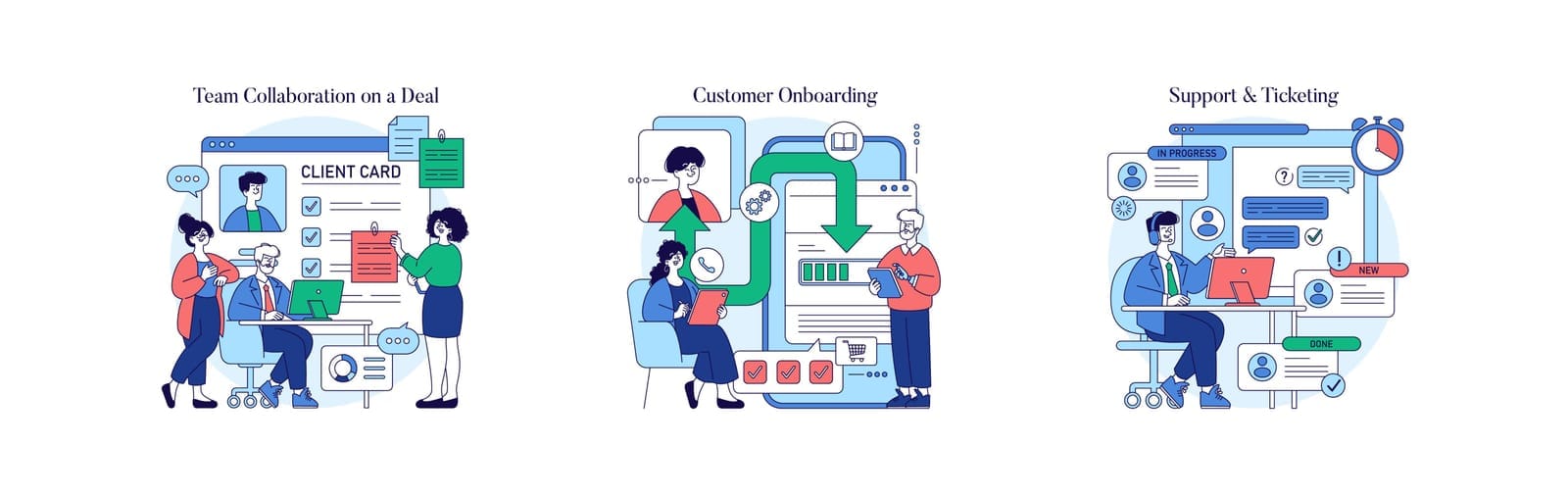
In many firms, new‑client paperwork is slow because someone has to manually:
- Draft an engagement letter
- Fill in client details
- Attach the right terms and conditions
- Send it out for signing
Most of this can be automated.
Example Workflow
- New client is added to your CRM or practice‑management system.
- Automation fills a Word/Google Docs template with client details (name, address, service type, fee structure).
- The completed document is sent to an e‑signature tool (e.g., DocuSign, Adobe Sign).
- Client receives a signing request by email.
- After signing, the signed copy is automatically saved to the client’s folder and a notification goes to the responsible staff member.
Tools That Can Help
- Document templates: Microsoft Word, Google Docs
- E‑signature: DocuSign, Adobe Sign, HelloSign
- Connectors / automation tools: n8n, Make, Microsoft Power Automate
- Practice‑management / CRM platforms: Many have built‑in “merge fields” and e‑signature integrations.
High‑Level Setup Steps
- Create a standard engagement letter template with placeholders (e.g., «ClientName», «ServiceType», «Fee»).
- Map these placeholders to fields in your CRM or practice‑management tool.
- Connect the system to your e‑signature platform so that when a new client is added or a deal is marked “Won,” it triggers letter generation and sends for signing.
- Test with an internal “dummy client” before using it with real clients.
Compliance Considerations
- Have legal/compliance review and approve all templates.
- Control who can edit templates to avoid unauthorized changes.
- Ensure that storage and e‑signature tools meet your data‑protection and industry requirements (e.g., medical or financial regulations).
Realistic Benefits
- Often saves 15–30 minutes per new client, especially in document‑heavy professions (law, accounting).
- Reduces risk of sending the wrong version or missing clauses.
- Speeds up onboarding, so work can start sooner.
Automation #3: Billing Follow‑Ups and Overdue Reminders
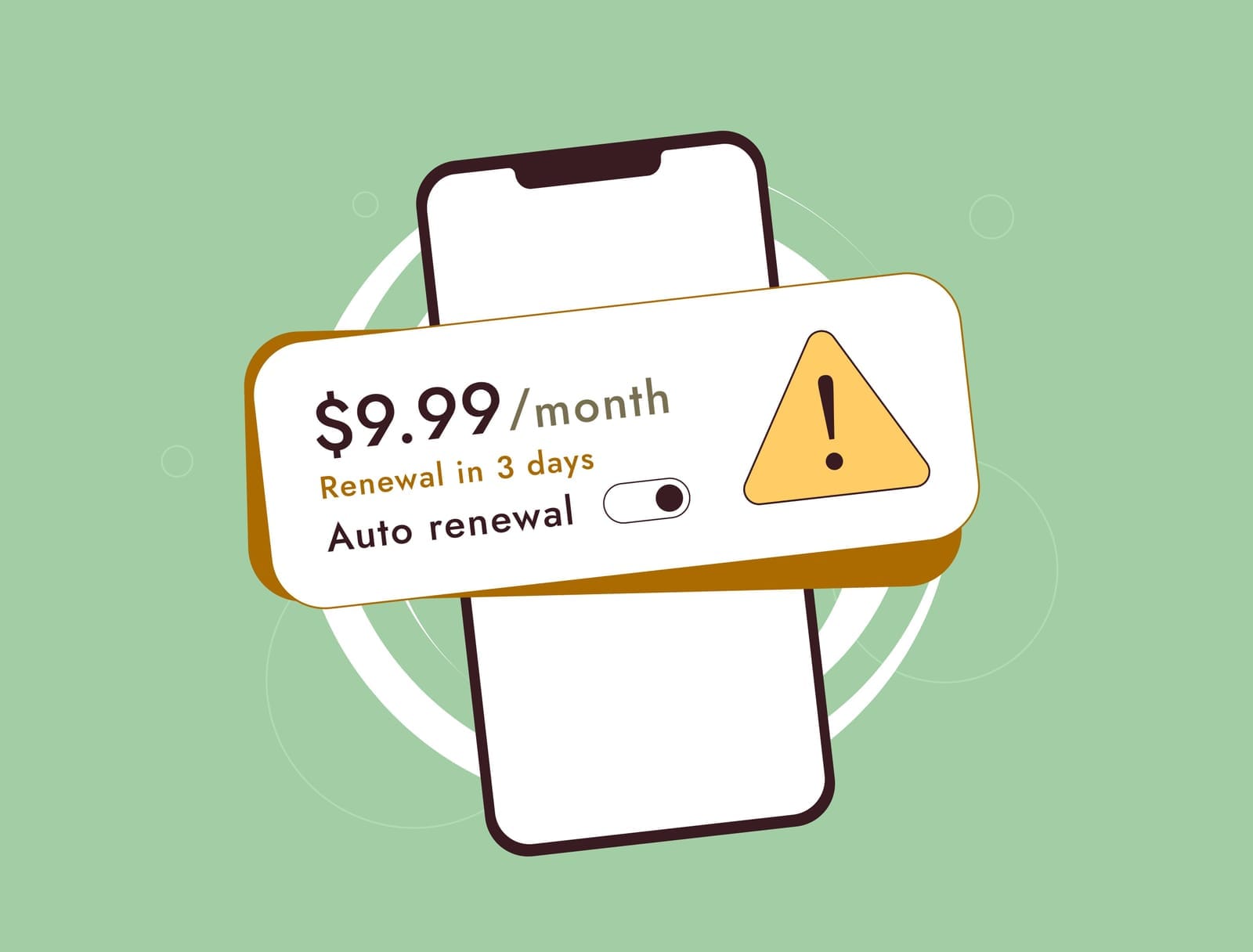
Chasing unpaid invoices is uncomfortable and time‑consuming, but still necessary. Automating polite reminders keeps cash flow moving without staff constantly checking aging reports.
Example Workflow
- Invoice is created in your accounting system (e.g., QuickBooks, Xero) or practice‑management software.
- At X days before due date (optional), a gentle reminder goes out: “Your invoice is due on [date].”
- At Y days after due date (e.g., 7 days), an overdue reminder is sent.
- At a later point (e.g., 21–30 days overdue), a more formal follow‑up or escalation email is sent, or the matter is flagged for a phone call or partner review.
Example of Respectful Wording
First gentle reminder (before or just after due date):
Subject: Friendly reminder – Invoice [#12345]
Hi [Client Name],
I hope you’re well. This is a friendly reminder that invoice [#12345] for [service description], dated [invoice date], is due on [due date].
If you’ve already made payment, please ignore this message. Otherwise, you can complete payment using the details on the invoice.
If you have any questions or there’s an issue with the invoice, just reply to this email and we’ll be happy to help.
Best regards,
[Your Name]
Second reminder (overdue but still polite):
Subject: Overdue reminder – Invoice [#12345]
Hi [Client Name],
We noticed that invoice [#12345], due on [due date], still appears outstanding in our records.
When you have a moment, could you let us know the expected payment date, or whether there are any questions we can clarify?
Thank you for your attention to this.
Best regards,
[Your Name]
Tools That Can Help
- Accounting: QuickBooks, Xero, Sage, MYOB (most have built‑in reminders).
- Practice‑management: Many legal/medical/accounting systems include billing workflows.
- Email automation: Microsoft Power Automate, n8n, or basic mail merge features if your accounting system can export aging lists.
Realistic Benefits
- Often reduces time spent on manual chasing by 30–60 minutes a week for a small team.
- Improves consistency: every client is treated fairly and reminded on the same schedule.
- Helps cash flow by nudging slow payers without staff having to remember each one.

Automation #4: Simple Approval Flows
(Expenses, Time Off, Document Approvals)
Approvals can clog inboxes:
- “Did you see my expense claim?”
- “Can I take next Friday off?”
- “Can you sign off on this proposal?”
Instead of unstructured email threads, you can use simple forms and automated approval flows.
Example Workflow
- Staff member fills in a form:
- Expense claim, time‑off request, or document approval request.
- Includes key fields like amount, dates, reason, and a link to supporting documents.
- Manager automatically receives an approval request:
- Via email or in tools like Microsoft Teams or Slack.
- Can click Approve/Reject and optionally add comments.
- Requester is automatically notified:
- Email or message confirming approval/denial and any comments.
- The decision is logged for future reference.
Tools That Can Help
- Microsoft 365:
- Forms for data collection, SharePoint/Lists for storage, Power Automate for approval workflows, and Outlook/Teams notifications.
- Google Workspace:
- Google Forms linked to Google Sheets, with add‑ons or apps‑script‑based approvals or connected tools like n8n.
- Project / task tools:
- Asana, Trello, Monday.com, etc., have built‑in approvals and email notifications.
Data‑Security and Access‑Control Considerations
- Store submitted forms in restricted folders or lists—only relevant managers and admins should see them.
- Limit who can see salary‑related or sensitive approvals (e.g., HR only).
- Use your organization’s sign‑in (Microsoft/Google accounts) so you can track who approved what and when.
Realistic Benefits
- Cuts down on “just checking in” emails and lost requests—often saving 15–20 minutes per manager per day in busy teams.
- Creates a clear record of approvals for audits, disputes, or compliance.
- Makes the process predictable and fair for staff.
Automation #5: RPA for Competitor Price Scraping
Many retailers, distributors, and even professional firms keep an eye on competitor pricing. Doing it manually—clicking through websites and copying prices into Excel—is tedious and inconsistent.
RPA tools can handle this repetitive browser work for you, within legal and ethical limits.
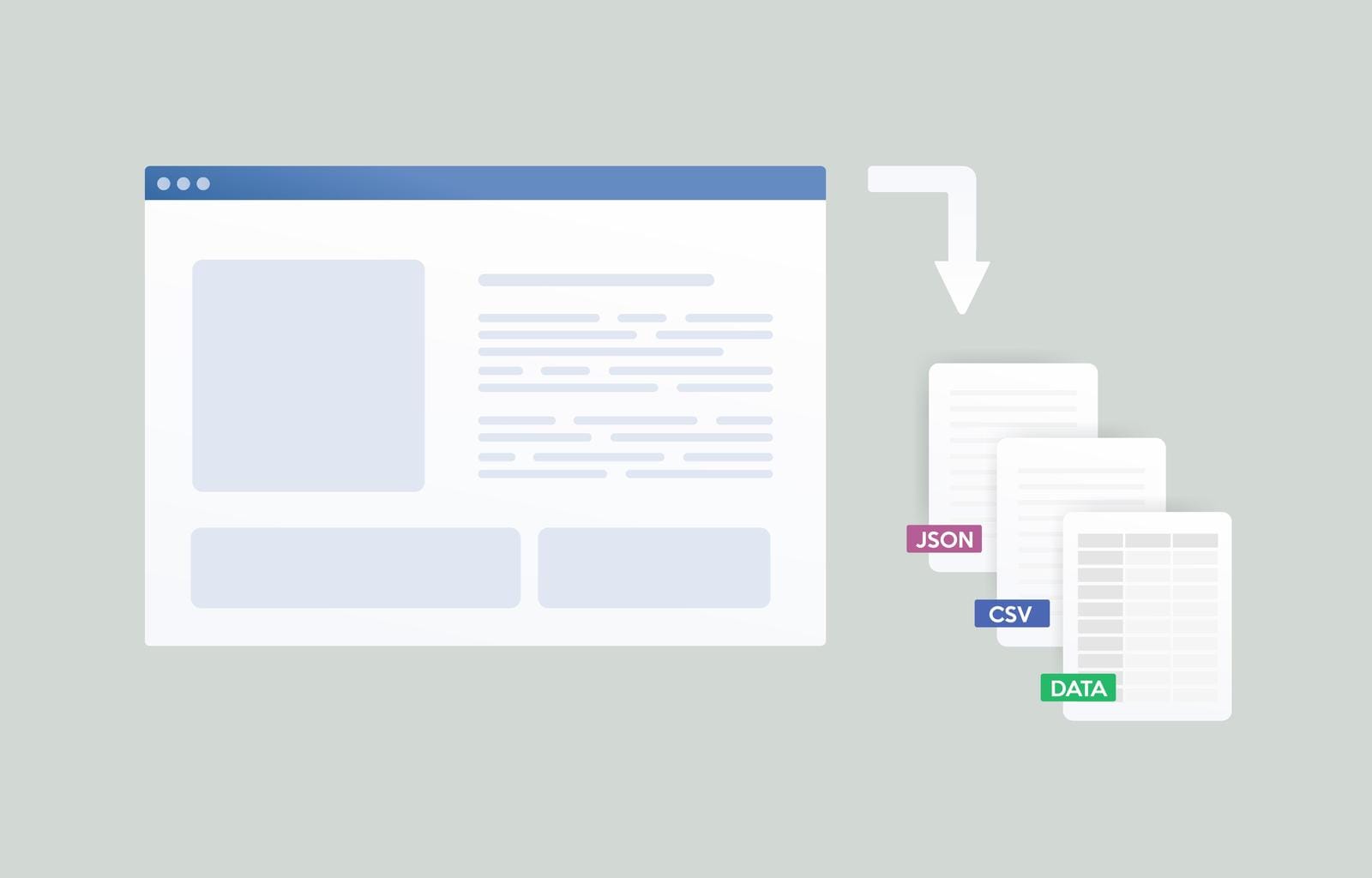
What the Bot Does (Non‑Technical View)
- At scheduled times (e.g., every Monday at 8 a.m.), the bot:
- Opens a browser window.
- Goes to a list of specific competitor product pages you have defined.
- Reads the price and key details (e.g., product name, size, SKU).
- The bot then:
- Saves the data into an Excel or Google Sheets file.
- Optionally highlights differences between your prices and competitors’ (e.g., “Our price is $5 higher” in red).
Example Workflow
- Decide which competitor pages to track (e.g., 20–50 key products).
- Configure an RPA tool (e.g., UiPath, Automation Anywhere, Power Automate Desktop) to:
- Open each URL.
- Locate the price element on the page (your IT partner or vendor usually helps with this once).
- Copy it into a spreadsheet row next to today’s date and product name.
- Set a schedule (daily, weekly, or monthly) depending on how often prices change.
- Create a simple summary tab in Excel/Sheets:
- Show the latest competitor price vs. your price.
- Flag where you are above/below competitors.
Realistic Benefits
- Saves staff 30–90 minutes per check, depending on how many products and sites.
- Provides more consistent, up‑to‑date pricing insights for managers.
- Reduces errors compared to manual copy‑and‑paste.
Legal and Ethical Considerations
It’s essential to use RPA responsibly:
- Only collect publicly available information
- No logging into competitor portals or private customer areas unless terms explicitly allow it.
- Respect each site’s terms of service
- Some websites do not allow automated scraping. Always review their terms and conditions and comply with them.
- Check robots.txt where applicable
- This file (often at
example.com/robots.txt) indicates what automated access the site permits.
- This file (often at
- Avoid overloading websites
- Don’t run bots too frequently or send too many requests at once. Space out checks (e.g., daily/weekly) and limit to pages you actually need.
- Consult your legal/compliance team
- Before implementing automated price checks, get a formal green light. Laws and acceptable practices vary by region and industry.
If in doubt, treat this as an area where you work with your legal team and/or an external IT partner, not something to experiment with casually.

Choosing the Right Level of Automation
You don’t have to automate everything. In fact, you shouldn’t.
Good Candidates for Automation
Ask three simple questions:
1. Is the task repetitive?
Done the same way over and over (e.g., reminders, data entry, standard letters).
2. Is it rules‑based?
Clear “if X then Y” logic (e.g., if invoice > 30 days overdue, send escalation email).
3. Is it high volume?
Happens frequently enough that small time savings matter (daily or weekly, not once a year).
If you can answer “yes” to all three, it’s a great starting point.
What Not to Automate (or Only Partially)
- Sensitive, nuanced communication
- Complex fee negotiations, apologies, delicate HR issues. Automation can assist with drafts, but a person should review and send.
- Tasks requiring professional judgment
- Deciding if a client is high‑risk, interpreting regulations, diagnosing complex issues. Automation can surface information but not replace judgment.
- Poorly understood processes
- If the process is messy or changes every time, standardize it first, then consider automation.
Start Small and Measure
Instead of a big project, pick one simple workflow—like appointment reminders or standard invoice follow‑ups—and:
- Estimate current effort (e.g., “We spend ~2 hours a week calling to confirm appointments”).
- Implement a basic automation.
- After a month, compare:
- Hours saved
- Fewer no‑shows / faster payments / quicker approvals
- Staff satisfaction (“less boring admin work”)
This helps you decide whether to expand or adjust.

Conclusion: Make the Computer Do the Boring Work
You don’t need to be “tech‑heavy” to benefit from automation. With tools you probably already use—Outlook or Gmail, calendar tools, basic CRM or practice‑management systems, and simple automation platforms—you can:
- Cut back repetitive admin by a few hours each week
- Reduce errors from manual copy‑paste and forgotten reminders
- Improve client experience with timely, consistent communication
- Give managers better information (like up‑to‑date pricing) to make decisions
A Simple First‑Step Checklist
Choose one workflow to automate this month:
- Pick the area
- Appointment reminders
- Engagement letters / onboarding
- Invoice follow‑ups
- Approvals
- Competitor price checks (with legal sign‑off)
- Write down the current steps
- What triggers it?
- Who does what?
- What tools are used?
- Check your existing tools
- Does your practice‑management or accounting system already have built‑in automation or integrations?
- Can Outlook/Google Calendar or Forms handle part of the workflow?
- Create a simple, safe version first
- Start with email reminders before adding SMS.
- Automate standard letters before complex ones.
- Send reminders only to internal staff at first to test.
- Review after 4–6 weeks
- How many hours did you save?
- Did errors decrease?
- Do staff feel less bogged down by repetitive tasks?
From there, you can gradually build a small “automation toolbox” that quietly handles the boring work in the background—so your team can focus on clients, not clicks.