Secure Remote Access for Traditional Firms: VPN vs Zero Trust vs Remote Desktop

Remote and hybrid work are no longer temporary fixes—they’re part of how traditional firms now operate.
Law firms expect lawyers to review documents from home or a client’s office. Accounting teams close the books from multiple locations. Manufacturers have engineers, sales teams, and executives connecting from the road. Professional services firms hire talent outside commuting distance and work with contractors across borders.
All of this depends on one thing: secure remote access to your firm’s systems and data.
The problem is that the options and buzzwords—VPN, Zero Trust, Remote Desktop, VDI, DaaS—can feel like alphabet soup. You’re told that “VPNs are dead” one minute and that “Zero Trust is the only answer” the next.
This article is written to cut through that noise for small and mid-sized traditional firms (50–500 staff). We’ll explain, in plain language:
- What VPN, Zero Trust Network Access (ZTNA), and Remote Desktop actually are.
- The realistic pros and cons of each, from your perspective: security, user experience, IT complexity, cost, and compliance.
- When a basic VPN is still good enough, and the clear signals it’s time to move beyond it.
- A practical 1–3 year roadmap to improve your remote access without blowing up your budget or overwhelming your team.
Section 1: What Each Option Actually Is (In Simple Terms)
Let’s start with clear, non-technical definitions and analogies.
1. Virtual Private Network (VPN)
Plain definition:
A VPN creates an encrypted “tunnel” from an employee’s device into your office network. Once connected, the device behaves almost like it’s physically in the office.
Analogy:
Think of your office network as a building. A VPN is like giving someone a master key to the building. Once they unlock the front door, they can walk around almost anywhere inside unless you have strong internal locks on every door.
What it’s typically used for:
- Staff connecting from home to:
- File servers
- On-premises practice management, ERP, or finance systems
- Internal web apps (e.g., intranet, legacy HR/CRM)
- IT admins connecting remotely to manage servers and network equipment.
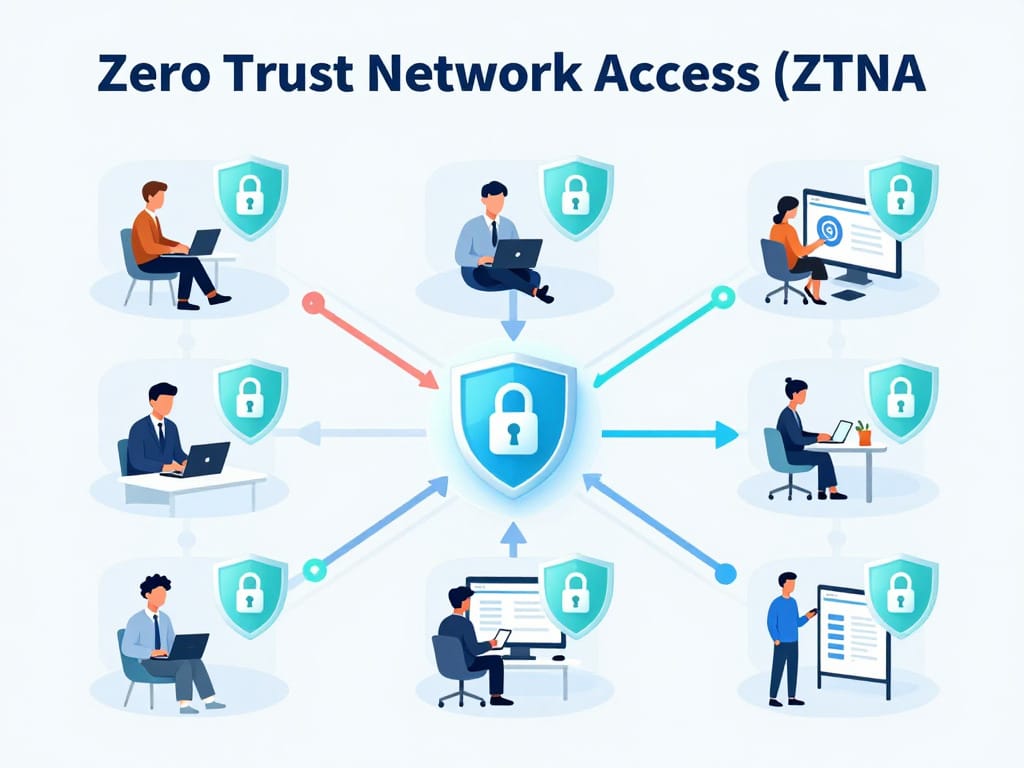
2. Zero Trust Network Access (ZTNA / “Zero Trust”)
Plain definition:
Zero Trust is a security principle: never automatically trust a person or device just because they’re on “your network.” Instead, verify every access request based on who they are, what device they’re on, where they’re coming from, and what they’re trying to do.
ZTNA products apply this principle to remote access. They sit in front of your apps and services and only allow access one application at a time, based on rules you define.
Analogy:
If VPN is a master building key, Zero Trust is like having a security checkpoint at every door and room:
- You show your ID (identity).
- They check your badge permissions (role).
- They might scan your briefcase or phone (device health).
- They only let you into the specific rooms you’re authorized for.
You never get free run of the entire building.
What it’s typically used for:
- Granting secure, granular access to:
- Internal web apps
- File shares
- Admin tools
- Handling access for:
- Staff working from anywhere
- Contractors and vendors
- Staff using personal or mixed-use devices (BYOD)
- Enforcing policies like “finance apps only from compliant devices” or “admin access only from specific locations.”
3. Remote Desktop (RDP, VDI, DaaS)
This family includes:
- RDP (Remote Desktop Protocol): Direct connection to a specific PC or server.
- VDI (Virtual Desktop Infrastructure): Virtual “Windows desktops” running in your data center.
- DaaS (Desktop as a Service): Similar virtual desktops, but hosted by a cloud provider.
Plain definition:
Remote Desktop approaches let your staff work on a computer in the office or cloud from a distance, viewing its screen and sending keyboard/mouse input over the internet. Your data stays on the office or cloud machine, not on the user’s laptop.
Analogy:
Imagine a secure office workstation behind glass. Your employee sits outside with a keyboard and monitor. Everything they do is actually happening on the workstation inside; they’re just seeing and controlling it remotely.
What it’s typically used for:
- Giving remote staff access to:
- Legacy Windows applications that can’t easily move to SaaS.
- Highly sensitive data that you don’t want copied to personal devices.
- Centralizing IT control:
- Standardized desktop images.
- Easier patching and software updates.
- Supporting thin clients or lower-spec laptops, since most of the heavy work happens on the server side.

Section 2: Deep-Dive Comparison for SMEs
Now let’s dive deeper into how each approach works in practice, and what it means for security, user experience, IT effort, cost, and compliance.
A. Traditional VPN
How it works (basic level)
- The employee runs a VPN client app on their laptop or phone.
- They log in (ideally with username, password, and MFA).
- The VPN establishes an encrypted tunnel to your office firewall/VPN gateway.
- Once connected, their device gets an internal IP address and can often see much of your internal network.
Common SME use cases
- Offices with:
- On-premises servers for files and applications.
- A workforce that occasionally works from home or travels.
- Legal, accounting, and professional services firms that:
- Started with VPN years ago and have built processes around it.
- Are cost-sensitive and don’t want to overhaul their access model yet.
Security: Pros and Cons
Pros:
- Encrypts traffic between the user and your network.
- Familiar technology; many firewalls include VPN features out of the box.
- With multi-factor authentication (MFA) and strong passwords, it’s significantly safer than old-style remote access.
Cons:
- Once connected, the user’s device may have broad network access. If that laptop is compromised (malware, stolen credentials), the attacker can often:
- Move laterally to other servers.
- Deploy ransomware more widely.
- Traditional VPNs weren’t designed for:
- Granular, per-application access.
- Continuous checks on device health.
- VPN appliances and firewalls are frequently targeted by attackers; missing patches or weak configs can expose your entire environment.
User experience
Upsides:
- Once set up, staff often find it straightforward:
- “Open VPN app, click connect, use everything like in the office.”
- Works well with traditional Windows file shares and older apps.
Downsides:
- Can be slow or flaky if:
- The user’s home internet is poor.
- The office internet or firewall is overloaded.
- Some staff forget to connect, then wonder why things don’t work.
- Split tunneling vs full tunneling decisions can affect:
- Performance (sending all traffic through the VPN vs only business traffic).
- Security and compliance.
IT implementation and maintenance effort
- Initial setup: firewall/VPN gateway, user accounts, client software.
- Ongoing work:
- Maintaining firewall firmware and patches.
- Managing user access and MFA.
- Troubleshooting connection issues (home routers, ISPs, etc.).
- For a small, outsourced IT team, this is familiar territory—but it can become a bottleneck as the number of remote users, offices, and services grows.
Cost considerations
- Many business firewalls include VPN at no extra license cost, beyond:
- Hardware (or virtual firewall appliance).
- Ongoing support/maintenance.
- Extra costs:
- MFA service (often per user per month).
- Additional VPN appliances or bandwidth if usage grows significantly.
- Overall: relatively cost-effective, especially for firms already invested in on-premises gear.
Compliance considerations
- With good configuration, VPN can support compliance (e.g., GDPR, HIPAA, PCI, PDPA, financial regulations), but:
- The broad access it provides means you must rely heavily on:
- Strong internal network segmentation.
- Strict access control on servers.
- Good logging and monitoring.
- The broad access it provides means you must rely heavily on:
- Auditors increasingly expect:
- MFA on VPN.
- Limited and well-documented access.
- Regular review of VPN user lists and group membership.

B. Zero Trust Network Access (ZTNA / “Zero Trust”)
How it works (basic level)
Zero Trust Network Access tools typically:
- Sit in front of your internal applications (on-premises or cloud).
- Require users to:
- Authenticate strongly (MFA).
- Come from known or compliant devices, when possible.
- Grant access only to specific apps or services, not your full network.
- Continuously validate:
- User identity.
- Device posture (e.g., OS is up to date, antivirus is active).
- Risk signals (unusual location, odd access patterns).
You can think of it as a smart gate to each application, rather than a tunnel into your full network.
Common SME use cases
- Firms increasingly using cloud or hybrid environments:
- Mix of on-prem servers and SaaS (Office 365/Microsoft 365, cloud CRM, cloud file storage).
- Firms with:
- Contractors and external partners.
- BYOD policies (personal devices).
- Multiple offices or a remote-first workforce.
- Firms pursuing higher levels of compliance or security maturity.
Security: Pros and Cons
Pros:
- Reduces attack surface:
- Users never see your whole network; they see only approved apps.
- Strong support for:
- MFA everywhere.
- Device posture checks (e.g., block access from unpatched or unmanaged devices).
- Much better at limiting lateral movement:
- If an account is compromised, the attacker usually can’t roam the whole environment.
- Fine-grained control:
- “This group can only access App A and B, during business hours, from approved countries.”
Cons:
- Misconception: “Zero Trust is unhackable.” It isn’t.
- Phishing, misconfigurations, and vulnerable apps can still be exploited.
- Design and policy complexity:
- Requires thoughtful planning of roles, groups, and access rules.
- If implemented poorly:
- Users may be over-prompted for logins or blocked unexpectedly.
- Admins may create broad “temporary” exceptions that become permanent.
User experience
Upsides:
- Often better, simpler experience day-to-day:
- Staff go to a portal or click a shortcut and access the needed app directly.
- No need to remember to “turn on the VPN.”
- Performance can be smoother:
- Traffic flows more directly to the application (especially for cloud apps), not backhauled through the office.
Downsides:
- Initial change can be confusing:
- “Why can’t I see the network drive the old way?”
- “Why do I have to approve a login on my phone?”
- For staff on unmanaged personal devices, stronger checks can occasionally block access until IT resolves the issue.
IT implementation and maintenance effort
- Design phase is crucial:
- Identify critical apps and data.
- Define user groups and roles.
- Decide on device requirements.
- Implementation involves:
- Setting up connectors in your network/cloud.
- Integrating with identity systems (e.g., your directory and MFA provider).
- Creating and testing access policies.
- Ongoing:
- Adjusting access as roles change.
- Monitoring logs and alerts.
- Keeping connectors and policies updated as you add new apps.
For SMEs, this is more complex upfront than a simple VPN, but can simplify operations later, especially as cloud usage grows.
Cost considerations
- Typically licensed per user per month or per application.
- Possible cost offsets:
- Reduced need for large VPN appliances or bandwidth upgrades.
- Better security posture may reduce risk and incident costs.
- For a 50–500 person firm, costs vary widely depending on:
- Number of apps.
- Required features (device posture, advanced analytics, etc.).
Compliance considerations
- A good fit for higher-assurance environments, such as:
- Firms handling sensitive financial data.
- Law firms with strict client security requirements.
- Health-related or HR data with privacy obligations.
- Supports:
- Strong identity and access management.
- Principle of least privilege (only necessary access is granted).
- More detailed access logs for audits.
However, Zero Trust is not a regulation by itself. It’s an approach that can help satisfy security expectations in frameworks like ISO 27001 or SOC 2 when implemented correctly.
C. Remote Desktop (RDP, VDI, DaaS)
How it works (basic level)
- An employee connects to:
- A specific office PC (“remote into my desktop”).
- A shared Remote Desktop Server.
- A virtual desktop (VDI) or cloud-hosted desktop (DaaS) environment.
- They see a Windows (or other OS) desktop and work as if they were sitting at that computer.
- Their local device is essentially just a window into that remote machine; most data and processing stay centralized.
Importantly, remote desktop must be protected. Exposing RDP directly to the internet without proper controls is a major ransomware risk. It is usually paired with VPN or Zero Trust-style secure gateways.
Common SME use cases
- Firms that rely on:
- Legacy Windows applications that can’t easily move to SaaS.
- Specialized software tied to particular hardware or network conditions.
- Environments with highly sensitive data:
- Financial records, legal discovery data, regulated PII, design IP.
- Centralized IT strategy:
- Standard “golden images.”
- Easier patching and software rollout.
Security: Pros and Cons
Pros:
- Data centralization:
- Documents and databases stay on the server or cloud; they don’t live on every laptop.
- Easier to:
- Enforce security controls on a limited number of standardized desktops/servers.
- Monitor and log what happens in these environments.
- In a well-designed setup (e.g., remote desktop behind a secure gateway with MFA), it can significantly reduce the risk associated with lost or compromised laptops.
Cons:
- Poorly secured RDP, especially exposed to the internet, is a major attack vector:
- Direct RDP on the internet without VPN or Zero Trust is highly risky.
- If attackers compromise the server or DaaS environment:
- They may get access to many users’ sessions and data.
- Requires strong:
- Patch management.
- Network segmentation.
- Access controls and monitoring.
User experience
Upsides:
- Consistent environment:
- The same desktop and apps whether in the office or at home.
- Can work reasonably well even with lower-power local devices.
Downsides:
- User experience depends heavily on:
- Internet quality.
- Server/resources sizing.
- Can feel laggy for graphics-heavy, video, or CAD-type applications if not properly provisioned.
- Requires staff to understand:
- The difference between their local machine and the remote desktop.
- Where files are actually saved.
IT implementation and maintenance effort
- You (or your provider) must manage:
- Remote desktop servers or VDI/DaaS environment.
- Licensing for Windows/remote desktop/CALs or cloud subscriptions.
- Capacity planning—CPU, memory, storage, network.
- More complex than a simple VPN-only setup, but:
- Centralizes where you manage apps and security, which can simplify long-term operations at scale.
Cost considerations
- Costs can include:
- Server or cloud infrastructure.
- Licensing for remote desktop/VDI/DaaS.
- Additional storage and backup.
- For some firms, this is higher than just VPN, but:
- You may save on high-end laptops.
- You may reduce data loss and incident response costs.
Compliance considerations
- Often attractive for regulated data because:
- Data doesn’t live on uncontrolled endpoints.
- It’s easier to define and audit where data resides and who accessed it.
- Still requires:
- Proper encryption.
- Access control.
- Logging and monitoring.
- Clear data retention and backup strategies.
Comparison Table: VPN vs Zero Trust vs Remote Desktop
Below is a high-level comparison for a 50–500 person traditional firm:
Criteria | Traditional VPN | Zero Trust Network Access (ZTNA) | Remote Desktop (RDP/VDI/DaaS) |
|---|---|---|---|
Basic idea | Encrypted tunnel into your network | Secure, app-by-app access based on identity & device | Work on a remote desktop; data stays centralized |
Security posture | Protects in transit; broad network access; higher lateral movement risk if compromised | Reduces attack surface; least privilege; better limits on lateral movement | Strong if centralized & protected; very risky if RDP is exposed directly |
Ransomware risk | Higher if compromised endpoint or VPN device | Lower if policies are well-designed and enforced | Lower on endpoints; concentrated risk on central servers |
User experience | Familiar; may be slower; “all or nothing” access | Often smoother for cloud/hybrid; direct to apps; MFA prompts | Consistent desktop experience; depends heavily on internet and server performance |
IT complexity | Moderate; known tech; grows with environment | Higher upfront design; can simplify long-term management | Higher infra complexity; centralized management of desktops |
Costs | Lower incremental costs if firewall already in place | Per-user/app licensing; potential savings on VPN hardware | Infra + licensing; can be higher but may offset with device and operations savings |
Best suited for | Mainly on-premises environments with limited remote users and strong internal controls | Hybrid/cloud environments; lots of remote/contractor access; stronger security requirements | Legacy apps; highly sensitive data; desire for centralized control |
Compliance fit | Acceptable with strong controls and MFA; auditors increasingly expect more granularity | Strong support for modern security expectations and detailed access control | Strong fit for data residency and centralized audit, if properly secured |
Section 3: When a Simple VPN Is Enough vs When to Upgrade
You don’t need to rip out your VPN tomorrow. The key is understanding where you are and what risks you face.
When a Basic (But Hardened) VPN Is “Good Enough”
A well-configured VPN with strong security hygiene can still be an appropriate solution if:
- Your environment is mostly:
- On-premises servers and apps, with limited use of SaaS.
- Remote access is:
- Primarily full-time staff, not many contractors.
- From company-managed devices (laptops you control, not personal devices).
- You have in place:
- MFA for VPN access.
- Strong password policies.
- Up-to-date firewall/VPN firmware and patches.
- Good internal segmentation (e.g., not every user can see every server).
- Your regulatory and client requirements:
- Do not mandate very granular access controls or detailed Zero Trust-like measures.
- Are satisfied with current controls and audits.
In this scenario, a VPN remains a defensible, cost-effective option—provided it’s hardened and regularly reviewed.
When a Basic VPN Becomes Risky or Limiting
You should seriously consider moving beyond a basic VPN if you see any of these red flags:
- Growing contractor and third-party access
- Risk: A compromised contractor device with VPN access can open a door to your entire network.
- You’re granting VPN access to external consultants, offshore teams, or vendors.
- They may be using their own devices or devices managed by another organization.
- It becomes hard to ensure their devices are properly secured.
- Bring Your Own Device (BYOD) is common
- Risk: Malware on a home device can ride the VPN into your network.
- Staff routinely use personal laptops or home computers for work.
- You don’t have consistent control over antivirus, patching, or configuration.
- You’ve adopted multiple SaaS and cloud apps
- Problem: You lack centralized visibility and control over who is accessing what, from which devices, and from where.
- Email is in Microsoft 365 or Google Workspace.
- You use cloud-based CRM, file-sharing, time-tracking, etc.
- The VPN starts to feel awkward—staff sometimes bypass it and go directly to cloud services.
- You’re pursuing higher compliance or client security demands
- Simple VPN alone can feel too coarse-grained to satisfy these requirements.
- You’re working toward ISO 27001, SOC 2, or have stringent client security questionnaires.
- There’s pressure to:
- Limit access based on role.
- Demonstrate strong controls around remote and third-party access.
- Provide detailed access logs.
- Security incidents or close calls
- These are strong signals that your attack surface is too broad and that more granular, modern controls (Zero Trust principals, better segmentation, improved remote access design) are needed.
- You’ve had:
- Phishing that captured a VPN password.
- An incident involving ransomware, lateral movement, or suspicious network activity.
- Audit or penetration test findings about overexposed remote access.
- Operational pain
- At some point, the hidden cost of “just making the VPN work” rivals more modern approaches.
- IT spends a lot of time troubleshooting VPN issues instead of proactive management.
- Bandwidth and firewall capacity are stretched as more users work remotely.
- Staff complain about speed, unreliability, or confusing workflows.

Section 4: Practical Next Steps and Upgrade Roadmap (1–3 Years)
You don’t have to jump from “plain VPN” to “pure Zero Trust everywhere” overnight. A staged approach is far more realistic and less disruptive.
Below is a phased roadmap many traditional firms can follow.
Phase 1 (0–6 Months): Harden What You Have
Goal: Reduce the biggest risks in your current setup with quick wins.
Key actions:
- Ensure MFA is everywhere for remote access
- VPN access must require MFA (e.g., app-based push notification, hardware token).
- Extend MFA to:
- Email and cloud portals.
- Any remote admin tools.
- Review and tighten VPN access
- Remove inactive accounts and outdated access groups.
- Limit VPN access:
- Only to staff and key third parties who genuinely need it.
- Implement or strengthen network segmentation:
- Not every VPN user should see every server.
- Update and monitor your VPN/firewall
- Confirm firmware is up to date.
- Enable logging for VPN connections.
- Set up alerts for suspicious patterns (many failed logins, abnormal times or locations).
- Basic device hygiene
- Set minimum requirements for devices that connect:
- Supported OS versions.
- Antivirus enabled.
- Disk encryption where possible.
- Communicate clear guidelines to staff in accessible language.
- Set minimum requirements for devices that connect:
- Policy and training
- Document a short, readable Remote Access Policy.
- Provide short awareness training on:
- MFA use.
- Phishing risks targeting VPN credentials.
- Expectations for personal vs company devices.
At this stage, you’re still mainly using VPN, but in a more controlled and monitored way.
Phase 2 (6–18 Months): Introduce Zero Trust Principles and Hybrid Access
Goal: Start shifting from “network-based trust” to “identity- and app-based trust,” while still using VPN where it makes sense.
Key actions:
- Inventory your applications and data
- Categorize:
- What’s on-premises versus cloud.
- What’s highly sensitive versus moderate/low sensitivity.
- Identify:
- Which apps are good candidates for app-specific access versus needing full network access.
- Categorize:
- Standardize and strengthen identity
- Move toward a single identity provider (IdP) if possible (e.g., one directory that authenticates staff for most things).
- Ensure role-based access control (RBAC):
- Map roles (e.g., “Associate Lawyer,” “Senior Accountant,” “HR Manager”) to expected access.
- Roll out app-specific access for key systemsFor example:
- Put web-based internal apps behind:
- A secure, MFA-protected portal.
- Or a ZTNA-style access gateway.
- For cloud apps:
- Enforce sign-in via your central identity provider with MFA.
- Apply basic conditional access (e.g., blocking high-risk sign-ins or requiring MFA for certain scenarios).
- Put web-based internal apps behind:
- Start using device posture checks where feasible
- For company-managed devices:
- Check for OS version, antivirus, and encryption status before granting access to sensitive apps.
- For personal devices:
- Consider allowing limited, lower-risk access (e.g., webmail only) and blocking access to sensitive apps unless the device meets higher standards or is enrolled in a light-weight management solution.
- For company-managed devices:
- Use a hybrid model: VPN + app-centric access
- Keep VPN around for:
- Legacy protocols and apps that don’t work well behind web-based access or ZTNA yet.
- Route newer or cloud-friendly apps through:
- Your Zero Trust-style gateway.
- Direct integration with your identity provider and conditional access rules.
- Keep VPN around for:
This phase improves security without disrupting everything at once. Staff still have VPN where needed, but many day-to-day tasks start flowing through more modern, granular controls.

Phase 3 (18–36 Months): Move Toward Mostly Zero Trust and Centralized Desktops Where Needed
Goal: Reduce reliance on broad network access; use Zero Trust and/or Remote Desktop as the primary approach.
Key actions:
Shrink the VPN footprint
- Gradually move more apps and services:
- Behind ZTNA-style access.
- To SaaS platforms integrated with your identity provider.
- Restrict VPN use to:
- Admins.
- A small set of truly legacy systems that can’t be integrated otherwise.
Evaluate Remote Desktop/VDI/DaaS where appropriate
- Consider centralized desktops for:
- Highly sensitive data and workloads (e.g., certain legal cases, high-value financial data, regulated personal data).
- Legacy Windows apps that:
- Don’t have modern web interfaces.
- Don’t work well with app-level access methods.
- Design with security in mind:
- Access via a secure gateway with MFA (not raw RDP on the internet).
- Good segmentation around the remote desktop environment.
- Strong backup and recovery plans.
Embed best practices into your operationsAcross all your remote access methods:
- MFA everywhere for sensitive systems.
- Least privilege access:
- Only provide the access someone needs, and remove it when roles change.
- Least privilege access:
- Logging and monitoring:
- Centralize logs from VPN, ZTNA, and remote desktop gateways.
- Review logs regularly or use managed services that alert you to unusual behavior.
Vendor due diligence:
- For any cloud/remote access provider, review:
- Security certifications (e.g., ISO 27001, SOC 2).
- Data location and privacy.
- Incident response commitments.
Align with your compliance and client expectations
- Work with your security or compliance advisors to:
- Map your remote access methods to requirements in standards (e.g., ISO 27001 controls, SOC 2 trust principles).
- Demonstrate:
- Strong identity and access management.
- Encrypted access.
- Clear audit trails.
By the end of this phase, many firms will be in a hybrid but more modern state:
- Most day-to-day access is:
- Through Zero Trust-like app-specific access.
- Or via secure remote desktops for particular use cases.
- VPN remains in a much smaller, more tightly-controlled role rather than being the only gate to your network.

Conclusion: Choosing the Right Direction Without Overreacting
Remote and hybrid work are here to stay, and so is the need for secure, usable remote access.
VPN, Zero Trust, and Remote Desktop are not mutually exclusive “all or nothing” choices. They are tools and approaches you can combine and evolve over time.
- VPN is like giving someone a key to your building:
- Still workable for many traditional firms, especially when hardened with MFA and good segmentation.
- Becomes risky when you have many external users, unmanaged devices, and complex hybrid environments.
- Zero Trust Network Access is more like having smart security checkpoints at each door:
- Better aligns with today’s mix of cloud apps, contractors, and detailed compliance needs.
- Requires more upfront design and policy work—but brings long-term benefits in control and visibility.
- Remote Desktop/VDI/DaaS centralizes where the “real work” happens:
- Keeps sensitive data in controlled environments.
- Great for legacy apps and high-sensitivity data, if properly secured behind strong access controls.
You don’t need to jump from “basic VPN” to “pure Zero Trust everywhere” overnight. A staged roadmap—harden current VPN, introduce Zero Trust principles, then gradually move more access through app-based and centralized desktop models—is realistic for most small and mid-sized firms.
Your next steps:
- Assess your current state:
- How many users, contractors, and BYOD devices?
- Which apps are on-prem vs cloud?
- Where are your highest-value or regulated data sets?
- Identify quick wins:
- Turn on MFA for VPN and critical apps.
- Clean up remote access accounts and permissions.
- Update firewall/VPN firmware and logging.
- Define a 1–3 year remote access roadmap:
- Decide which apps will move to app-specific or Zero Trust-style access.
- Identify candidates for centralized desktops (if any).
- Budget for the changes in phases, not all at once.
By treating secure remote access as a business capability to be matured, rather than a one-time IT project, you can support flexible work, meet growing client and regulatory expectations, and reduce your exposure to modern threats—without derailing your core operations or overwhelming your team.