
IT Support for Construction and Engineering Firms: Managing Sites, Files and Remote Teams

Construction and engineering firms operate in an IT environment unlike that of a conventional office. Staff may work from headquarters, temporary site offices, vehicles, client premises, or locations with unreliable connectivity. Project teams handle large drawings, models, specifications, photographs, inspection records, schedules, contracts, and safety documentation. Many of these files change frequently and must be available to people with different responsibilities.
A delay caused by an inaccessible drawing can affect more than productivity. It may lead to rework, incorrect installation, missed approvals, or disputes about which document was current. At the same time, project data may be shared with subcontractors, consultants, clients, and suppliers who are outside the firm’s normal IT environment.
Effective IT support is therefore not simply a matter of repairing laptops. It combines document governance, suitable devices, resilient connectivity, cybersecurity, user support, and clear operating procedures. The right design depends on the firm’s project size, software stack, site locations, contractual obligations, and tolerance for downtime.

1. Build a Controlled Project File-Sharing and Document-Management System
The first priority is to establish one reliable way to identify, store, share, and approve project information. A shared folder that has grown organically over several years is rarely sufficient for complex construction or engineering work.
Establish a document source of truth
Each project should have a clearly defined authoritative location for active documents. This might be a dedicated document-management system, a common data environment, or a carefully structured cloud repository. The important principle is that staff know where the current approved information is kept.
Avoid allowing the same project to operate across multiple uncontrolled locations, such as:
- Personal desktop folders
- Email attachments
- USB drives
- Unmanaged consumer storage
- Multiple “final” folders
- Local copies that are never reconciled
A project manager should be able to answer: “Which drawing or specification is approved for use today, and where is it recorded?”. For context on how ad‑hoc tools create governance gaps, see the hidden risks of shadow IT and WhatsApp-based workflows.
Use version control deliberately
Version control records how a document has changed over time. It should make it possible to identify:
- The document number and title
- Its revision
- The date of issue
- The person or organization that issued it
- Its status, such as draft, for review, approved, superseded, or archived
- Any relevant approval or transmittal information
File names can help, but naming alone is not version control. A file called Tower_Level_05_FINAL_v7.dwg still leaves room for confusion if another person has a different copy with the same description.
A better process combines consistent naming with repository-level revision history and status labels. When a revision is approved, the previous version should be clearly marked as superseded rather than silently overwritten.
Design permissions around roles
Project information should be accessible to the people who need it, but not automatically to everyone. Use role-based permissions where possible. For example:
- Site supervisors may need access to approved drawings, method statements, and inspection forms.
- Designers may need access to working models and coordination files.
- Commercial staff may need contracts and cost documents but not every technical workspace.
- Subcontractors may need access to specific packages, not the entire project repository.
- Clients may receive controlled access to issued documents or review workflows.
Permissions should be reviewed when project responsibilities change. They should also reflect contractual obligations and any project-specific confidentiality requirements. Where requirements are unclear, obtain advice from an appropriate legal, contractual, or compliance specialist.
Plan for synchronization and offline work
Synchronization allows files to be available on multiple devices, but it creates risks when people work on copies without reliable reconciliation. A field worker may download a drawing before leaving an area with connectivity, annotate it offline, and later upload a copy after the design team has issued a revision.
A practical offline process should specify:
- Which documents can be downloaded for offline use.
- How long an offline copy remains valid.
- How users check whether a newer revision exists.
- How field notes and photographs are uploaded.
- Who resolves conflicts between copies.
- Which files must not be edited offline.
Offline access is especially valuable for site forms, inspection records, and reference drawings. It requires more caution for documents that are being actively revised.
Define retention and archiving rules
Document retention is the planned preservation and eventual disposal of records. It should not mean retaining every file forever without structure. Excessive retention makes it harder to find relevant information and may increase exposure if accounts or repositories are compromised.
For each project, define:
- Which records are working files
- Which records are formally issued
- Which records must be retained after completion
- When the project becomes read-only
- Who approves deletion or archival
- How archived records can be retrieved
Retention periods may vary by contract, jurisdiction, project type, and professional obligations. These are not matters to guess at; firms should obtain qualified advice where requirements differ. For a practical overview of what auditors look for, see a non‑technical compliance-audit checklist.
Example: avoiding an outdated drawing
Suppose a site supervisor downloads a mechanical drawing on Monday. On Tuesday, the design team issues Revision C after resolving a clash. On Wednesday, an installer begins work using Monday’s local copy.
A controlled system can reduce this risk by showing revision status, notifying users of superseded documents, restricting access to approved folders, and requiring the supervisor to confirm the current issue before work begins. IT support cannot replace project governance, but it can make the correct process easier to follow.
2. Manage CAD and BIM Data as Specialist Working Information
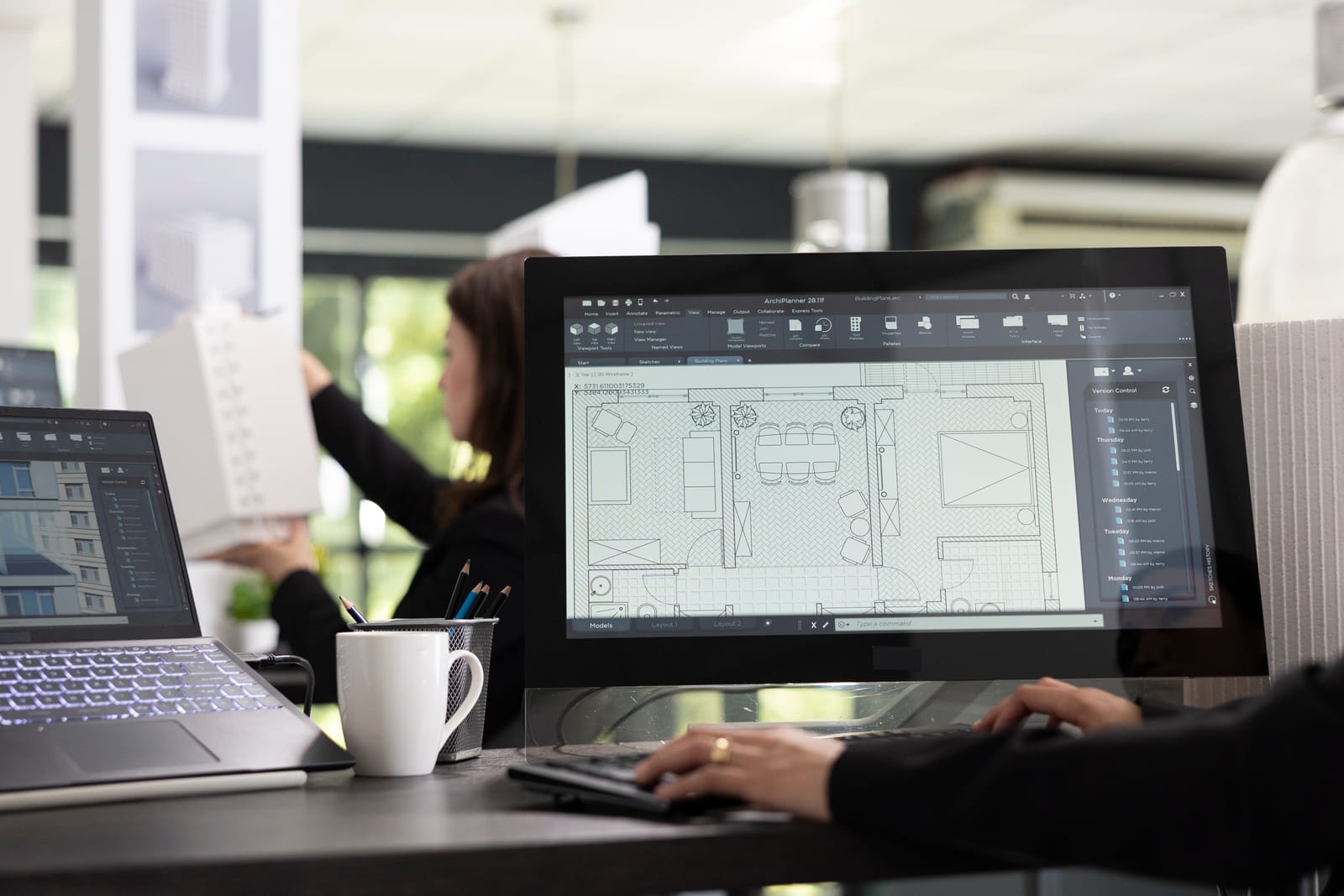
Large design files need more than an ordinary shared folder. CAD means computer-aided design: software used to create and edit technical drawings and models. BIM means building information modelling: a process that combines three-dimensional models with structured information about building or infrastructure elements, project coordination, and lifecycle data.
CAD and BIM environments can involve large files, linked references, libraries, point clouds, rendering data, and multiple contributors. Poorly designed storage can produce slow performance, broken references, conflicting edits, or corrupted working files.
Distinguish authoring platforms, CDEs, and generic storage
These three categories are related but not interchangeable:
- CAD/BIM authoring platforms are the applications used to create and edit designs or models.
- A common data environment (CDE) is a managed project information environment used to organize, review, issue, and share project data according to defined workflows.
- Generic cloud storage primarily provides file storage and synchronization. It may be useful, but it does not automatically provide the workflow, model coordination, approval, or document-status controls required by a project.
A generic synchronized folder may be suitable for reference documents or exported deliverables. It may not be suitable for active multi-user BIM work. The firm’s software vendor, BIM coordinator, and IT support provider should jointly validate the intended architecture.
Control active design files
For files that cannot safely support simultaneous editing, use file locking or check-in/check-out. Check-out reserves a file for one editor; check-in returns the updated version and records the change. This reduces the risk of two people editing separate copies and later overwriting each other.
For shared models, use the collaboration method supported by the authoring platform and project workflow. Establish rules for:
- Worksharing and model ownership
- Linked models
- File naming
- Model exchange frequency
- Coordination and clash-review cycles
- Approved versus work-in-progress data
- Backup and recovery
- Handling software-version compatibility
Do not assume that a synchronization client can safely manage active design databases or complex linked models. Some applications require specialized collaboration services, dedicated storage, or specific network behavior.
Plan for performance
Performance depends on more than internet speed. Relevant factors include:
- Storage latency
- Local workstation specifications
- Graphics capability
- Network distance
- File size and number of linked references
- Simultaneous users
- Antivirus scanning behavior
- The authoring application’s collaboration model
A team may have fast internet but still experience poor performance if every design operation depends on a distant repository with high latency. In other cases, cloud collaboration may provide better version history and controlled access than an aging on-premises file server. For a deeper look at cloud vs on‑prem trade‑offs for data‑heavy SMEs, review our guide.
Possible approaches include:
- Local high-performance working storage with controlled publishing to a central repository
- A validated cloud collaboration workflow
- A project server or private hosted environment
- A hybrid design that keeps active working data close to authors while centralizing issued information
The appropriate choice depends on the software stack, project geography, budget, and collaboration requirements.
Back up more than the main file
Backups should include relevant project data, not just the latest visible file. Depending on the environment, this may include:
- Native CAD or BIM files
- Linked references
- Families, templates, and libraries
- Exported deliverables
- Issue histories
- Configuration information
- Project correspondence where it forms part of the record
Backups should be protected from accidental deletion and unauthorized access. A backup is not a complete ransomware strategy: an attacker may also target connected backup systems, credentials, or synchronization paths. Firms should combine backups with access controls, endpoint protection, monitoring, tested restoration procedures, and an incident-response plan. For step‑by‑step planning, see our disaster recovery and business continuity guide for Singapore SMEs.
Be cautious with active-file synchronization
When two designers edit synchronized copies of the same active file, the system may create conflicts or silently replace one version with another. Even if conflict copies are retained, merging complex design data may be difficult or impossible.
A sensible rule is to prohibit uncontrolled synchronization for active files unless the application and storage design explicitly support it. Use synchronization for controlled reference material, published outputs, and approved offline workflows—not as a substitute for a collaboration architecture.

3. Choose Field Devices Based on Conditions and Workflows
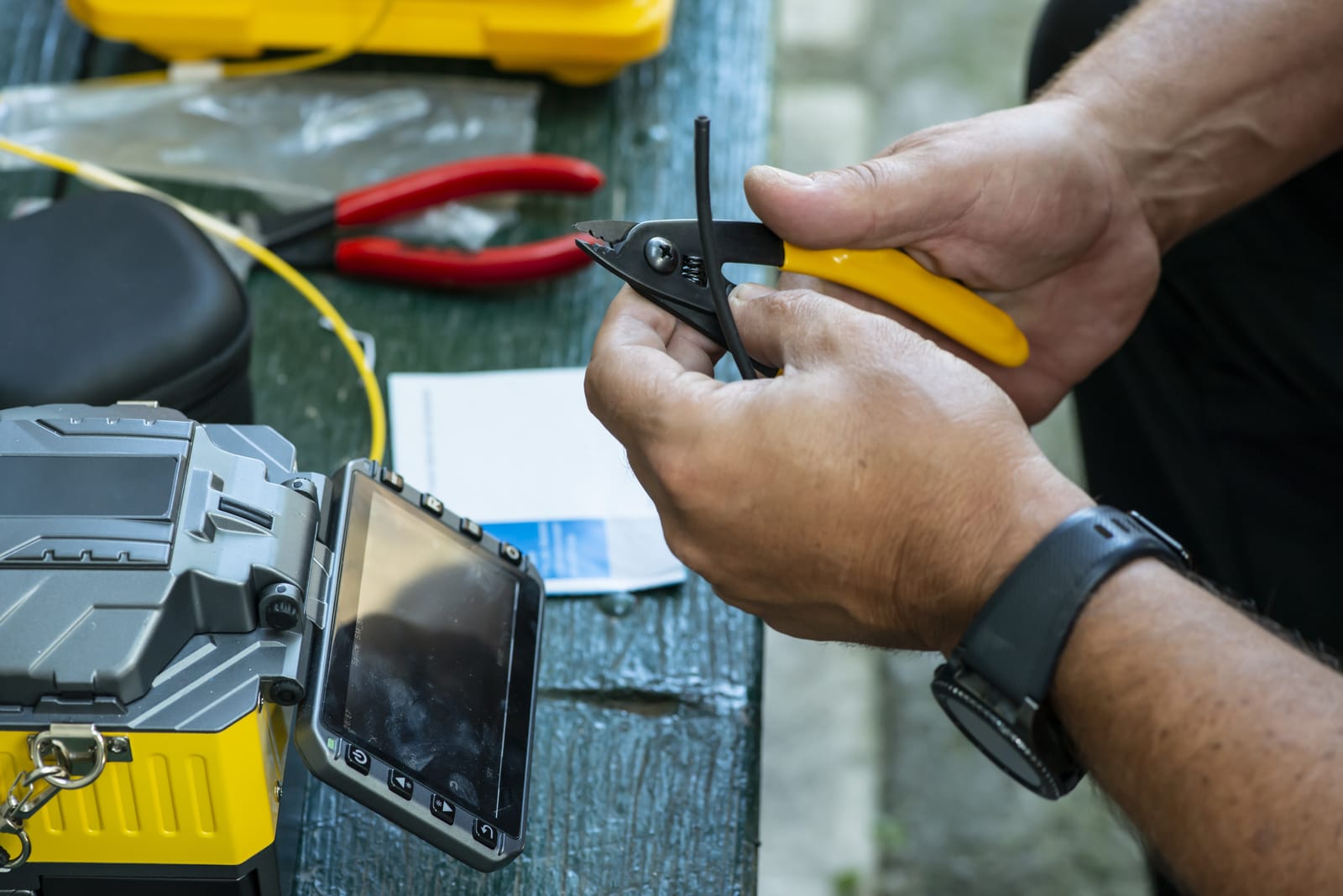
Construction and engineering staff may need laptops, tablets, smartphones, barcode scanners, cameras, GPS equipment, total stations, laser scanners, printers, or other surveying and inspection tools. The best device is determined by the task and environment, not by a general preference for “rugged” equipment.
Match devices to actual site conditions
A rugged device is designed to tolerate harsher conditions than a typical office device. Relevant characteristics may include resistance to dust, water, drops, vibration, temperature variation, and glove use. However, rugged hardware often costs more, weighs more, and may have trade-offs in screen quality, repairability, performance, or availability.
A standard laptop or tablet may be entirely appropriate for:
- A clean, enclosed site office
- Short site visits
- Office-based project management
- Work performed inside vehicles or temporary cabins
- Staff who mainly review documents and submit forms
A rugged or semi-rugged device may be more appropriate where users regularly work around dust, rain, vibration, mud, impact risks, or extreme temperature changes.
Consider practical field requirements
Evaluate:
- Battery life during a full shift
- Charging options in vehicles or site cabins
- Screen brightness and visibility in sunlight
- Touchscreen operation with gloves
- Camera quality for evidence and progress records
- Weight and one-handed use
- Keyboard requirements
- Ports and compatibility with instruments
- Protective cases and screen protectors
- Availability of replacement units
- Repair turnaround time
A device that survives a drop but cannot run the required inspection application is not a successful choice.
Manage devices centrally
Device management allows the firm to apply configuration and security policies consistently. Depending on the operating system and tooling, it may support:
- Screen-lock requirements
- Encryption enforcement
- Application deployment
- Security updates
- Remote assistance
- Lost-device reporting
- Selective or full data removal
- Inventory and warranty tracking
Devices used by subcontractors or temporary workers may need a different management approach. Do not grant broad access merely because a device is physically located on a project site.
Plan replacement before failure
Field devices are frequently damaged, lost, or exposed to conditions that shorten their useful life. Maintain an asset register with:
- Device owner or assigned role
- Serial number and purchase date
- Installed applications
- Warranty status
- Accessories
- Last security check
- Replacement priority
Keep a small number of configured spares where downtime would disrupt work. Replacement planning should account for battery degradation, software support periods, instrument compatibility, and project schedules. For a broader lifecycle view, review IT asset lifecycle management—from procurement to secure disposal.
4. Design Job-Site Connectivity for Failure, Not Just Normal Operation
Connectivity at a construction site can change as buildings rise, temporary structures move, equipment obstructs signals, or local services become congested. Performance can vary by location and weather, particularly for wireless and satellite services.
Assess the site before selecting a service
Potential options include:
- Temporary wired broadband
- Cellular broadband
- Fixed wireless
- Site Wi-Fi
- Satellite connectivity
- A combination of primary and backup services
Evaluate coverage, latency, upload speed, data limits, installation time, power requirements, and likely congestion. A service that performs well near the site entrance may perform poorly in an underground area or behind concrete structures.
Use layered connectivity
A site office may use a primary connection plus cellular failover. A remote project may combine fixed wireless with satellite service. Failover can preserve basic access, but it may not support high-volume BIM synchronization or video meetings at normal quality.
Prioritize limited bandwidth for essential services:
- Safety and emergency communications
- Time-critical project workflows
- Authentication
- Field forms
- Messaging
- Small document transfers
Large model uploads, operating-system updates, and nonessential synchronization may need scheduling or throttling. If you’re weighing redundancy levels, here’s how much network redundancy an SME really needs.
Secure remote access appropriately
A VPN, or virtual private network, creates an encrypted connection between a device and a protected network or service. A VPN may be useful for accessing internal resources, but it must be configured and monitored correctly. It can also concentrate risk if stolen credentials or compromised devices are allowed broad network access.
Zero trust is an approach that does not automatically trust a user or device merely because it is inside a company network. Access is evaluated using factors such as identity, device condition, application, location, and requested resource.
The choice between a traditional VPN, application-specific access, or a broader zero-trust design depends on the firm’s infrastructure and applications. In every case, remote access should be limited to what the user needs. For comparisons of common approaches, see VPN vs Zero Trust vs Remote Desktop options for traditional firms.
Make offline-first workflows intentional
When connectivity is uncertain, applications should support controlled offline work. Users should know:
- What information is cached locally
- How long it can be used safely
- How changes are submitted later
- What happens when a conflict occurs
- How sensitive information is protected on the device
A field inspection form that stores entries locally and synchronizes later may be appropriate. A live design model requiring constant coordination may not be.

5. Support Remote, Hybrid, and External Project Teams
Construction and engineering projects rarely involve employees from one organization alone. Site personnel may work with office staff, consultants, subcontractors, specialist designers, surveyors, clients, and public authorities.
Create separate collaboration spaces
External sharing should use controlled project spaces rather than personal accounts or unrestricted links. Configure:
- Named users where practical
- Expiry dates for temporary access
- Read-only access for reference documents
- Separate upload areas
- Approval workflows
- Download restrictions where appropriate
- Audit records
- Clear ownership of the information
Convenience matters, but a single shared link sent across a long email chain may be impossible to govern later. External access should be reviewed when a subcontractor or consultant’s role ends.
Standardize onboarding and offboarding
A documented onboarding process should provide the right access, device, applications, and training before a person needs them. It should identify:
- Project assignment
- Role and permissions
- Required devices
- Required software
- Security expectations
- Support contacts
- Offline procedures
Offboarding should promptly remove access, recover company devices, transfer ownership of project files, disable tokens, and review shared links. This is particularly important for temporary staff and subcontractors whose engagement may end before the project does. For a step‑by‑step approach, use our seamless IT onboarding checklist.
Define support procedures for the field
Users should know how to report problems when they are under pressure. Provide a clear help-desk channel and capture enough information to act quickly:
- Project and location
- Affected person or device
- Error message
- Whether the issue affects one user or the whole site
- Whether work can continue offline
- Business impact and deadline
A site-critical incident should not sit in a normal queue behind a low-priority office request. Classify issues according to operational impact.
Enable remote troubleshooting without weakening security
Remote support may involve screen sharing, device logs, application diagnostics, connectivity testing, or guided recovery. Support personnel should authenticate the user, explain what access is being requested, and record the action.
Where remote access is not possible, maintain a practical fallback: a local site contact, spare device, written recovery procedure, or temporary alternate workflow.

6. Apply Access Control and Cybersecurity to Project Roles
Project environments contain valuable commercial, technical, personal, and operational information. Security controls should reduce risk without making field work impossible.
Use least privilege and role-based access
Least privilege means giving a person only the access needed for their work. Role-based access groups users according to responsibilities rather than assigning permissions individually wherever possible.
For example, a project administrator may manage document status, while a subcontractor may only upload completed inspection records. A structural engineer may access design coordination files, while a supplier may receive a specific issued package.
Review permissions at project milestones and when responsibilities change. Access should also reflect contractual limitations, information barriers, client requirements, and any applicable obligations. Requirements vary, so firms should consult qualified specialists for formal legal or compliance interpretation.
Require MFA, encryption, and endpoint protection
MFA, or multi-factor authentication, requires two or more types of evidence to verify identity, such as a password and an authenticator approval. MFA significantly reduces some password-based attacks, but it does not eliminate all account-compromise risks. Phishing, session theft, malicious applications, and social engineering remain concerns.
Use device encryption to protect locally stored data if a laptop or tablet is lost. Endpoint protection helps detect and respond to malicious software and suspicious activity. Both controls should be centrally managed where practical, with alerts routed to someone responsible for responding.
Secure external sharing
Before sharing information externally, confirm:
- The recipient is the intended person
- The document is approved for sharing
- The recipient needs the complete document
- Access expires when appropriate
- Download and editing permissions are suitable
- The organization can remove access later
- Sensitive information is handled according to project requirements
Email remains useful, but attachments create multiple uncontrolled copies. A managed sharing workflow can provide better visibility and revocation.
Train users against phishing
Training should use realistic situations: an urgent request to change bank details, a fake document-review notification, a subcontractor impersonation, or an unexpected request for a design file. You can also train non‑IT staff to spot security risks early with practical playbooks.
Users need a simple reporting method and a response that encourages reporting rather than blame. Technical email controls are valuable, but they should be combined with verification procedures for financial and access-related requests.
Combine backups with response planning
Backups help recover from deletion, hardware failure, corruption, and some ransomware scenarios. They are not a complete defense. Firms should also define:
- Who can declare an incident
- Which accounts or devices may be isolated
- How project leaders are informed
- How critical documents are recovered
- How evidence is preserved
- How external specialists are contacted
- How operations continue during service disruption
Test restoration periodically. A backup that has never been restored is an assumption, not a demonstrated recovery capability.

7. Make IT Support an Operational Service
A construction or engineering firm needs IT support that understands business impact. The failure of a receptionist’s printer and the failure of a site’s document access are not equivalent incidents.
Define service levels and escalation
Service-level expectations should describe:
- Support hours
- Contact channels
- Target response times
- Priority definitions
- On-site response conditions
- After-hours coverage
- Escalation paths
- Communication during major incidents
For example, a site-wide inability to access approved drawings may receive higher priority than a request for a new office application. The exact targets should reflect the firm’s size, project criticality, budget, and geographic coverage. If you’re weighing support options, here’s how to choose the right managed IT service plan.
Monitor and patch proactively
Monitoring can identify device failures, low storage, backup errors, connectivity problems, and security events before they become major incidents. Patch management should cover operating systems, applications, network equipment, and relevant specialist software, subject to compatibility testing.
Patching immediately without considering CAD/BIM compatibility can disrupt production. Delaying every update indefinitely creates security and supportability risks. Establish a testing and maintenance process for critical applications. See why proactive IT management beats break‑fix for SMEs.
Maintain an accurate asset register
Asset management should cover more than computers. Track:
- Laptops, tablets, and phones
- Network equipment
- Printers and scanners
- Surveying and barcode equipment
- Software licenses
- Warranties
- Site assignments
- Spare devices
- Disposal or return status
The register helps support staff diagnose problems, plan replacements, and determine which devices may contain project data.
Document repeatable procedures
Useful procedures may include:
- New-site setup
- Connectivity failure
- Lost or stolen device
- New-user onboarding
- Subcontractor access
- Drawing-revision publication
- BIM collaboration setup
- Backup restoration
- Cybersecurity incident response
- Site closure and equipment return
Documentation should be usable by someone who was not involved in creating it. Include contact details, dependencies, screenshots where appropriate, and recovery priorities. For structure and ownership, see the role of IT policy documentation in scaling your business.

What to Include in an IT Support Plan
Use this checklist when reviewing your current arrangements:
Project information
- A defined source of truth for every project
- Standard folder, metadata, naming, and revision conventions
- Clear document statuses: draft, review, approved, superseded, and archived
- Rules for offline copies and later synchronization
- A process for preventing outdated drawings from being used
- Retention and archiving responsibilities
- Defined procedures for external document sharing
CAD and BIM
- An inventory of CAD/BIM applications and versions
- A documented collaboration method for active models
- File locking, check-in/check-out, or supported worksharing controls
- Defined locations for active, shared, issued, and archived data
- Performance testing for storage, workstations, and network connections
- Backups of native files, linked data, libraries, and issue records
- A prohibition on uncontrolled synchronization of active design files
- A named owner for BIM and technical collaboration standards
Devices and field equipment
- Device choices matched to actual site conditions
- Battery, charging, visibility, glove use, and protective-case requirements
- Compatibility checks for surveying, barcode, and specialist equipment
- Central device management where practical
- Encryption, endpoint protection, and security update enforcement
- Asset, warranty, and assignment records
- Configured spare devices for critical roles
- A planned replacement and disposal process
Connectivity
- A site connectivity assessment before deployment
- Primary and backup connectivity options where justified
- Coverage, latency, upload, data limits, and power requirements documented
- Site Wi-Fi separated into appropriate networks
- Secure remote-access design using VPN, application access, or zero-trust controls
- Bandwidth prioritization for essential workflows
- Offline-first procedures and conflict-resolution instructions
- Contingency communication methods for outages
People and collaboration
- Standard onboarding for employees, consultants, and subcontractors
- Prompt offboarding and access removal
- Role-based project permissions
- Clear support contacts and issue-reporting instructions
- Remote troubleshooting procedures
- Training on document revisions, phishing, MFA, and lost devices
- Named owners for project, IT, and security decisions
Security and recovery
- MFA for important accounts
- Least-privilege access reviews
- Device encryption
- Endpoint protection and alert handling
- Controlled external sharing with expiry and revocation
- Tested backups with appropriate separation from production systems
- An incident-response plan
- Defined recovery priorities for project systems
- Specialist advice for contractual, legal, or regulatory requirements
Service management
- Help-desk coverage and support hours
- Priority definitions and response targets
- Escalation for site-critical incidents
- Proactive monitoring and patch management
- Accurate asset and software inventories
- Documented site setup and recovery procedures
- Regular reviews of capacity, risks, costs, and project changes

Conclusion: Three Priorities for Getting Started
Construction and engineering firms do not need to implement every advanced technology at once. They should first create a dependable operating foundation.
- Control project information. Define the source of truth, establish revision and permission rules, and create a safe process for offline access and external sharing. This reduces confusion over drawings and makes collaboration more predictable.
- Design for field reality. Assess each site’s connectivity, devices, applications, and environmental conditions. Provide offline workflows, suitable equipment, practical spares, and a documented response when the connection or a device fails.
- Turn IT support into a managed process. Combine MFA, encryption, endpoint protection, backups, monitoring, patching, asset management, help-desk coverage, and incident procedures. Set priorities based on project impact rather than treating every request alike.
The goal is not to eliminate every technical problem. It is to ensure that when a device fails, a site loses connectivity, or a document changes, the firm has the controls and support needed to continue work safely, recover efficiently, and maintain confidence in its project information.